How to Lock Down macOS Full Disk Access Before AI Agents Get Too Powerful
By Arya
AI agents are getting more autonomous — and many of them want deep access to your Mac. Here's how to audit your Full Disk Access permissions and lock things down now.
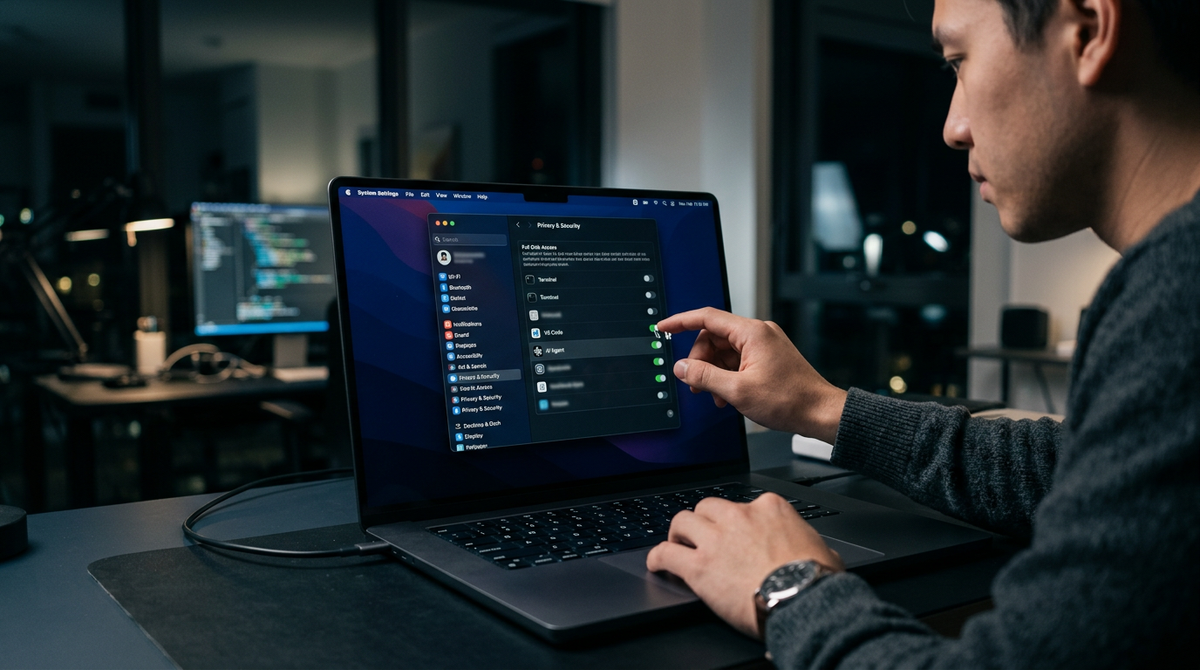
How to Lock Down macOS Full Disk Access Before AI Agents Get Too Powerful
Somewhere on your Mac right now, there's probably an app with permission to read every file on your hard drive — your tax documents, your journal entries, your client contracts, your family photos. You gave it that permission months or years ago, probably during a setup wizard you barely remember, because the app said it needed Full Disk Access to work properly.
You didn't think much about it at the time. Why would you? The app was a backup tool, or an antivirus scanner, or a productivity utility. It needed access. You clicked "Allow."
But here's what's changed: AI agents are no longer just chatbots that answer questions in a browser window. They're becoming autonomous tools that can browse your files, read your documents, and take actions on your behalf. And when one of those agents asks for Full Disk Access on your Mac, the stakes are fundamentally different from when your backup software did.
The trajectory is clear. As AI capabilities advance rapidly, the tools people install on their Macs are becoming more autonomous, more capable, and more hungry for system-level access. Apple has steadily tightened macOS privacy controls over the past several years — adding Transparency, Consent, and Control (TCC) protections, requiring apps to request access to the camera, microphone, folders, and more. The rise of AI agents represents the next frontier of that challenge, and it's one that users need to get ahead of now rather than later.
This guide walks you through everything you need to do today: how to audit what already has access, how to revoke permissions you shouldn't have granted, and how to think about AI app permissions going forward so you're prepared no matter what changes Apple introduces next.
What Full Disk Access Actually Means (and Why It Matters More Now)
Full Disk Access is one of the most powerful permissions on macOS. When you grant it to an app, you're giving that app the ability to read, and in some cases modify, essentially every file on your system. That includes your Desktop, Documents, Downloads, Mail database, Safari history, Time Machine backups, and even files belonging to other apps.
For most of macOS's history, this permission existed primarily for a handful of legitimate use cases: backup utilities that need to copy everything, security software that needs to scan everything, and system administration tools used by IT departments. The list of apps that genuinely needed this access was short, and the apps themselves were typically well-known, well-audited pieces of software.
AI agents change the calculus in three important ways.
First, AI agents are designed to be autonomous. A traditional backup app reads your files on a schedule and copies them to a drive. It doesn't make decisions about your files. An AI agent, by contrast, might read your documents to summarize them, reorganize them, extract information, or take actions based on what it finds. The scope of what it does with access is much broader.
Second, AI agents often communicate with external servers. When an AI tool reads your files, the contents may be sent to a cloud service for processing. That's a fundamentally different risk profile than a backup app writing to a local drive. Your sensitive documents could end up on servers you don't control, processed in ways you didn't anticipate.
Third, AI agents are proliferating fast. A year ago, most people had maybe one or two AI tools on their Mac. Now there are AI writing assistants, AI coding tools, AI meeting summarizers, AI file organizers, AI email managers — and many of them want deep access to your system to be maximally useful. The number of apps requesting Full Disk Access is increasing significantly, and the trend is only accelerating.
This is why getting ahead of the problem matters. Whether Apple introduces new AI-specific permission controls tomorrow or next year, the permissions you've already granted are a risk you can address right now.
Why Apple's macOS Permission Model Is Likely to Evolve — and What to Watch For
Apple has a strong track record of tightening macOS privacy controls in response to emerging threats. When apps started abusing location data, Apple added granular location permissions. When screen recording became a privacy concern, Apple required explicit user consent. When apps tried to access the microphone or camera silently, Apple locked those behind permission prompts too.
The pattern is consistent: Apple identifies a category of risk, then builds system-level controls to address it. Given how quickly AI agents are evolving — as tracked by outlets covering the AI landscape — it's reasonable to expect that Apple will eventually introduce more specific controls around how AI-powered apps interact with the file system.
Some changes that security experts and developers have discussed as likely directions include:
More granular permission scopes. Rather than the current all-or-nothing model — where an app either has Full Disk Access or it doesn't — future macOS versions could allow more specific permission grants. An AI tool might be able to access your Documents folder but not your Mail database. It might be able to read files but not modify them. The goal would be to let users grant the minimum access an app actually needs, rather than handing over the keys to everything.
Periodic re-authorization. Under the current system, once you grant Full Disk Access, it stays granted until you manually revoke it. Most people never go back and check. A future improvement could prompt users to re-confirm access for certain categories of apps on a regular basis — similar to how iOS periodically reminds you which apps are using your location in the background.
Better disclosure at the point of request. Currently, the Full Disk Access permission dialog is fairly generic. Future versions could require apps to declare specifically what they intend to do with that access, surfacing that information to users in a clearer way.
Whether or not these specific changes arrive in the next macOS release, the principle holds: you shouldn't wait for Apple to fix your permission hygiene. The permissions you've already granted are live right now, and cleaning them up is entirely in your control.
How to Audit Your Current Full Disk Access Permissions
This is the part where you actually do something. Set aside ten minutes. It's worth it.
Step 1: Open System Settings
Click the Apple menu in the top-left corner of your screen, then click System Settings (on older macOS versions, this is called System Preferences).
Step 2: Navigate to Privacy & Security
In the sidebar, click Privacy & Security. Then scroll down and click Full Disk Access.
You'll see a list of apps. Some will have toggles turned on, some turned off. The ones that are toggled on currently have full access to every file on your Mac.
Step 3: Review Each App on the List
Go through the list one by one. For each app, ask yourself three questions:
Do I still use this app? If you uninstalled it six months ago but it's still on the list, that's clutter at best and a risk at worst. Remove it.
Does this app genuinely need Full Disk Access to function? Backup software? Yes. Antivirus? Probably. A note-taking app that asked for it once and you can't remember why? Probably not.
Is this app an AI-powered tool? If so, pay extra attention. Consider whether it truly needs access to all your files, or whether it could function with more limited access.
Step 4: Revoke Unnecessary Permissions
For any app that fails those three questions, simply toggle it off. The app will still be installed — you're just removing its ability to read all your files. If the app genuinely needs that access to work, it'll tell you next time you open it, and you can make a more informed decision at that point.
Step 5: Check Other Sensitive Permission Categories
While you're in Privacy & Security, also review these related sections:
- Files and Folders: Shows which apps can access specific folders like Desktop, Documents, and Downloads.
- Automation: Shows which apps can control other apps (relevant for AI agents that automate workflows).
- Accessibility: Shows which apps can control your computer's interface.
- Input Monitoring: Shows which apps can monitor your keyboard input.
AI agents that are designed to be highly autonomous may request permissions in several of these categories. Review all of them.
A Practical Checklist for Locking Down Your Mac
Here's a condensed version you can print out or save. Work through it top to bottom.
- Open System Settings → Privacy & Security → Full Disk Access
- Screenshot or write down every app currently listed (so you have a record)
- Toggle off any app you no longer use
- Toggle off any app that doesn't clearly need full access
- For AI-powered apps, research what data they actually need before re-enabling
- Review Files and Folders permissions and remove unnecessary entries
- Review Automation permissions — especially for AI workflow tools
- Review Accessibility and Input Monitoring permissions
- Check Login Items (also in System Settings) to see what launches automatically at startup
- Set a calendar reminder to re-audit these permissions every 90 days
That last point matters more than people think. Permissions creep happens slowly. You install a new tool, grant access during setup, forget about it, and repeat. A quarterly review takes five minutes and catches problems before they compound.
Questions to Ask Before Granting Any AI Tool Full Disk Access
As AI-powered apps become more common, you'll encounter more permission requests. Before you click "Allow" on anything, run through these questions. I'd suggest copying this list somewhere you'll actually see it.
Does this tool need to access my entire file system, or just specific folders? Many AI tools work perfectly fine with access to a single folder. If an AI writing assistant only needs to read documents you're actively working on, it doesn't need Full Disk Access — it needs access to one folder.
Where does my data go after this tool reads it? Does the app process files locally on your Mac, or does it send them to cloud servers? If it's cloud-based, what's the company's data retention policy? Do they use your files to train their models? These aren't paranoid questions — they're basic due diligence. Any reputable AI tool should have clear answers. If you're evaluating AI tools and want to understand how a provider handles your data, reviewing their privacy policy is always a smart first step.
Can I accomplish the same task without granting this permission? Sometimes you can. Instead of giving an AI tool access to your files, you can copy and paste text into it manually. It's slightly less convenient, but it keeps your file system locked down. For many use cases — brainstorming, drafting, editing — you don't need the AI tool to have direct file access at all.
Is this a well-known tool from a company I can verify? The AI tool landscape is crowded, and not every app is built by a company with strong security practices. Stick with tools that have clear documentation, transparent privacy practices, and a track record you can verify.
What Most People Get Wrong About macOS Permissions and AI
There are a few common mistakes I see people make repeatedly when it comes to this topic.
Mistake #1: Treating all permission prompts the same. When macOS asks if an app can access your camera, that's relatively contained — worst case, someone sees your face. When macOS asks if an app can have Full Disk Access, that's everything. Every file. Every document. Every photo. People click through both prompts with the same level of attention, and they shouldn't.
Mistake #2: Assuming Apple will protect them automatically. Apple's security is genuinely good, and the company will almost certainly continue tightening controls as AI agents become more capable. But macOS permission controls are only as good as the choices you make. If you grant Full Disk Access to every app that asks, no amount of system-level security will protect your files from being read by those apps. The user is always the final gatekeeper.
Mistake #3: Confusing "the app needs it" with "the app asked for it." Apps ask for permissions they don't strictly need all the time. Sometimes it's lazy development — it's easier to request broad access than to code for specific, narrow access. Sometimes it's intentional data collection. Either way, just because an app requests Full Disk Access doesn't mean it can't function without it. Try denying it and see what happens. Often, everything works fine.
Mistake #4: Never revisiting permissions after initial setup. Your permission settings aren't a "set it and forget it" situation. Apps update. Their capabilities change. An app that didn't use AI features when you installed it might add them in an update — and suddenly that Full Disk Access permission is being used in ways you didn't originally anticipate. This is why the quarterly audit matters.
Mistake #5: Ignoring AI agents that run as background processes. Some AI tools — particularly custom AI agents designed for automation — run continuously in the background. They're not apps you open and close. They're persistent processes that may be reading and acting on your files around the clock. These deserve the most scrutiny of all.
How to Think About AI Tools and File Access Going Forward
Here's the broader principle underneath all of this: the more autonomous an AI tool is, the more carefully you should control what it can access.
A simple AI chatbot that you type questions into? Low risk. It only knows what you tell it.
An AI writing assistant that can read your documents to help you edit them? Medium risk. It has access to specific files, but you're choosing which ones.
An AI agent that can autonomously browse your file system, read your emails, and take actions based on what it finds? High risk. It's operating with minimal human oversight, and it has broad access.
This isn't an argument against using AI tools. They're genuinely useful. An all-in-one AI tool that handles text, images, video, and music creation can save you hours every week — and when it's browser-based, it doesn't need any special file system permissions to begin with. That's actually one of the underappreciated advantages of using AI tools that work in your browser rather than as installed desktop apps: they can't access your files unless you explicitly upload something.
The argument is for being intentional about which tools get which access. Treat Full Disk Access like you'd treat giving someone a key to your house. You wouldn't hand copies to every delivery driver and contractor who knocked on your door. You'd give it to the people you trust, for specific reasons, and you'd want it back when the job was done.
Prompts You Can Use to Evaluate AI Tools Before Installing Them
If you're considering a new AI-powered app for your Mac, here are some prompts you can paste into any AI assistant to help you research it before installing:
Prompt 1: Basic security check
I'm considering installing [App Name] on my Mac. It's an AI-powered [type of tool]. Can you help me understand what macOS permissions it typically requires, whether it processes data locally or in the cloud, and any known privacy concerns?
Prompt 2: Permission comparison
What's the difference between granting an app Full Disk Access versus Files and Folders access on macOS? When would an AI tool genuinely need Full Disk Access versus more limited permissions?
Prompt 3: Alternative approaches
I want to use AI to [your specific task — e.g., summarize my meeting notes, organize my documents, draft emails]. What are the safest ways to do this without granting any AI tool Full Disk Access on my Mac?
These prompts work in any AI assistant. Adapt them by replacing the bracketed sections with your specific situation. The goal isn't to get a definitive security audit from an AI chatbot — it's to surface information and alternatives you might not have considered, which you can then verify through the app's documentation and privacy policy.
If you want a single place to run queries like these alongside your other creative and productivity work, Gab AI handles text generation alongside image, video, and music creation — all from one dashboard, all in the browser, no desktop permissions required.
For more practical walkthroughs like this, check out our guides and how-to articles — we cover everything from prompt writing to AI workflow design.
Your 10-Minute Quick Start
If you only have ten minutes, do this:
- Open System Settings → Privacy & Security → Full Disk Access. (2 minutes)
- Count how many apps are listed. If it's more than three or four, you almost certainly have unnecessary entries. (30 seconds)
- Toggle off anything you don't recognize or no longer use. (3 minutes)
- For any AI-powered app on the list, open it and check if it still works with Full Disk Access toggled off. Many will. (3 minutes)
- Set a reminder on your calendar to do this again in 90 days. (1 minute)
That's it. You've just meaningfully improved your Mac's security posture against autonomous AI agents, and it took less time than making coffee.
When This Workflow Works, When It Doesn't, and What to Verify
This checklist-based approach works well for everyday Mac users, freelancers, and small business owners who are managing their own machines and want a practical way to stay on top of permissions. It's designed to be repeatable — something you can do quarterly without needing deep technical knowledge.
It's less sufficient if you're managing a fleet of Macs for a team or business. In that case, you'll want to look into macOS configuration profiles and Mobile Device Management (MDM) solutions that let you enforce permission policies centrally rather than relying on each user to audit their own machine.
It also won't catch everything. Some apps may use techniques that don't show up in the standard Privacy & Security panes. Command-line tools, scripts, and certain developer utilities may interact with your file system in ways that aren't surfaced in System Settings. If you're a developer or power user, consider supplementing this checklist with tools like tccutil (the macOS TCC database utility) or third-party security auditing tools.
Finally, always verify claims an app makes about local processing. An app might say it processes your files on-device, but unless you've verified that through independent reviews or network monitoring, take it with a grain of salt. When in doubt, prefer tools that don't need file system access at all.
The Bigger Picture
The rapid advancement of AI agents tells us something important: the tools we install on our computers are becoming more capable, more autonomous, and more interested in accessing our data. The companies building our operating systems see what's coming — Apple's steady expansion of macOS privacy controls over the past several years makes that clear — and they'll continue building guardrails. But system-level controls are only half the equation.
The other half is you — the person who decides which apps to install, which permissions to grant, and how much autonomy to give AI tools over your digital life.
The good news is that locking down your Mac doesn't mean avoiding AI. It means being thoughtful about how you use it. Use AI tools that respect boundaries. Prefer browser-based tools that don't need file system access when possible. Grant the minimum permissions necessary. Audit regularly. And when Apple does introduce new AI-specific controls — as it almost certainly will — you'll already be ahead of the curve, because you'll have a clean, intentional permission setup rather than years of accumulated "Allow" clicks to untangle.
Your files are your life's work, your memories, your business, your private thoughts. They deserve a locked door, not an open one.
Ready to use AI without handing over your file system? Start creating text, images, videos, music, and more in one place at https://gab.ai.