
An AI Excel spreadsheet with working formulas
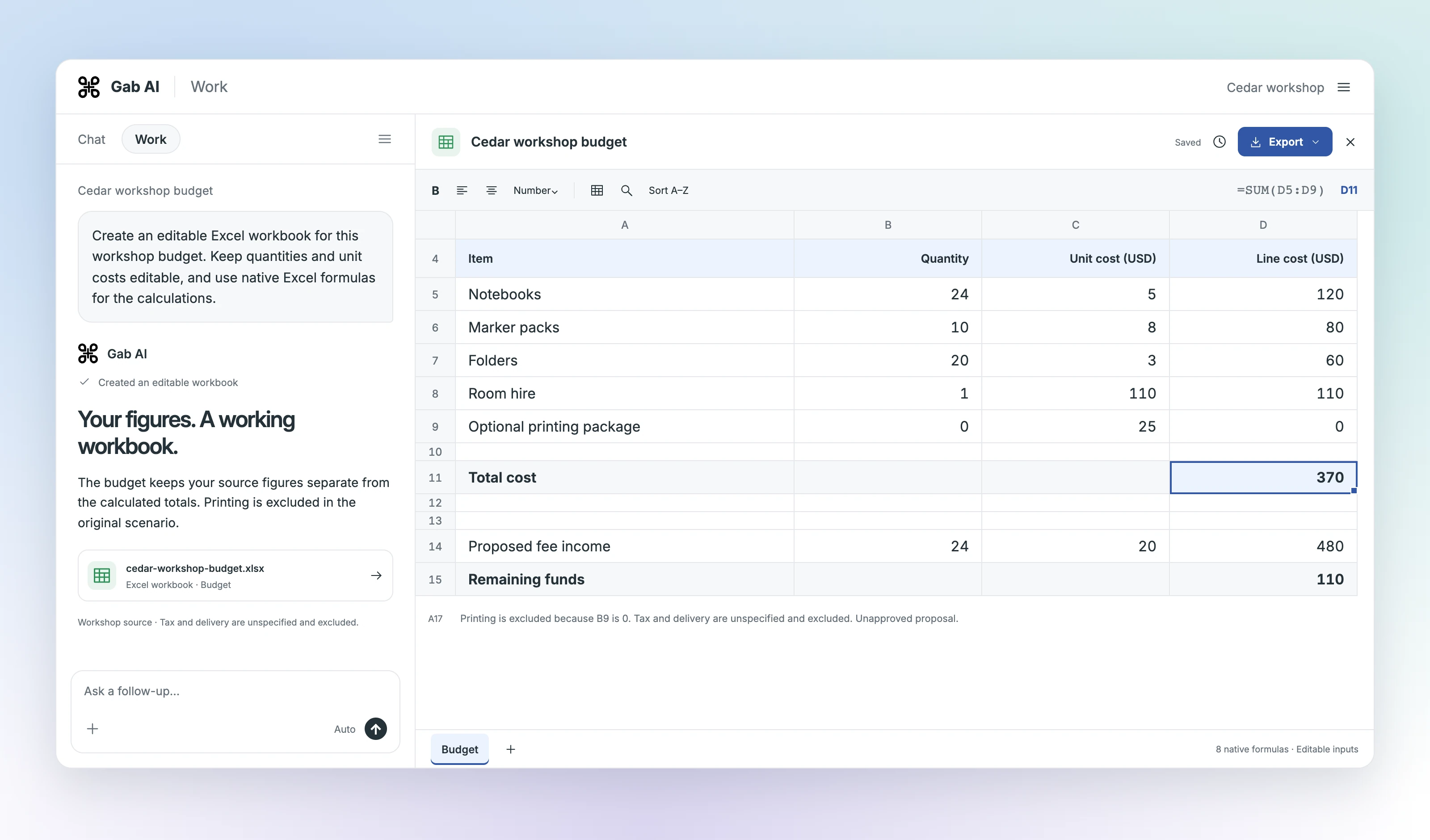
Build a budget with editable inputs and native Excel formulas. Change a cost assumption and see the totals update while the other inputs and formulas stay in place.
Enlarge preview
Build the budget
Work with the inputs, formulas and results side by side.
Enlarge preview
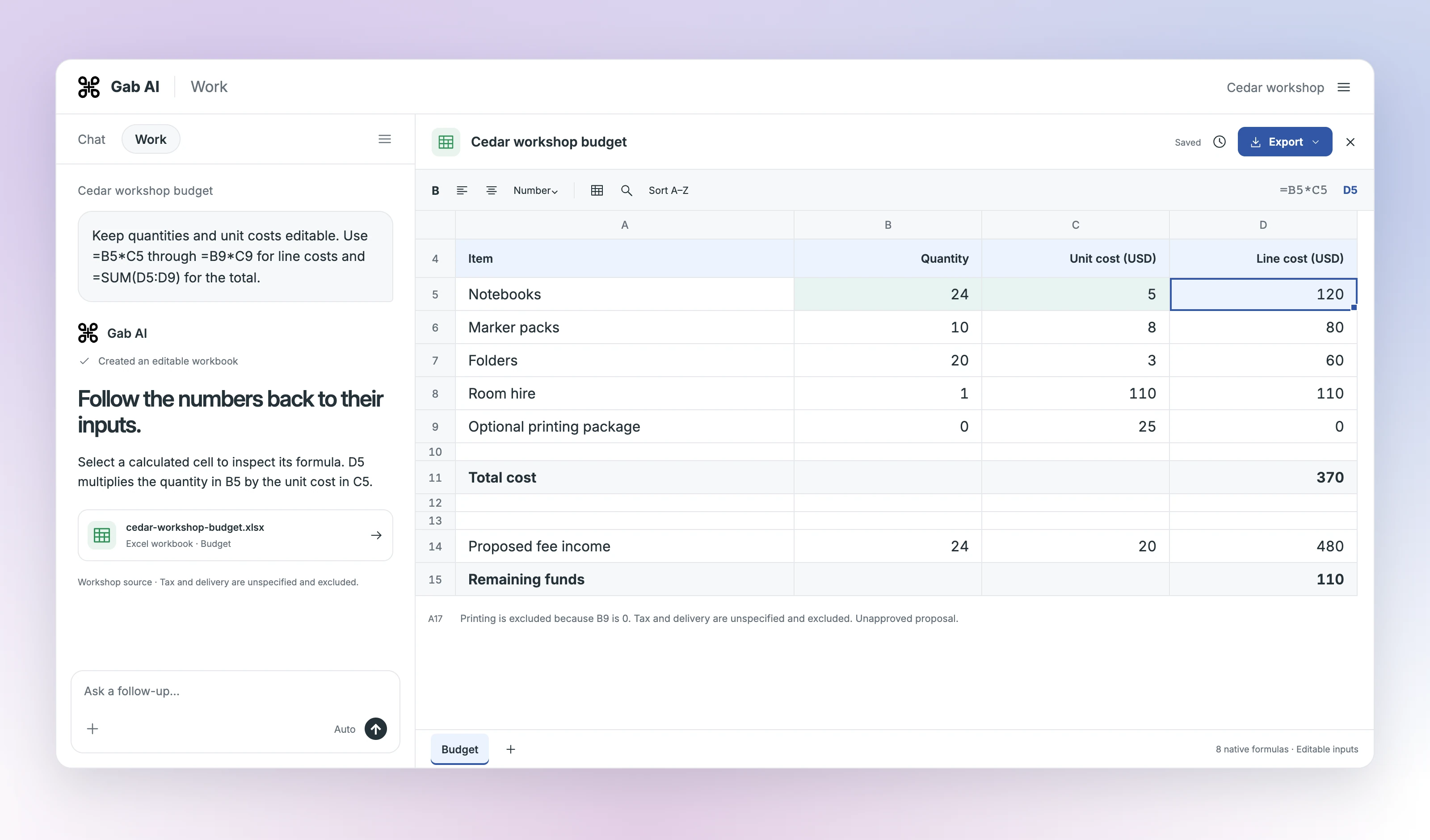
Inspect formulas
Work with the inputs, formulas and results side by side.
Enlarge preview
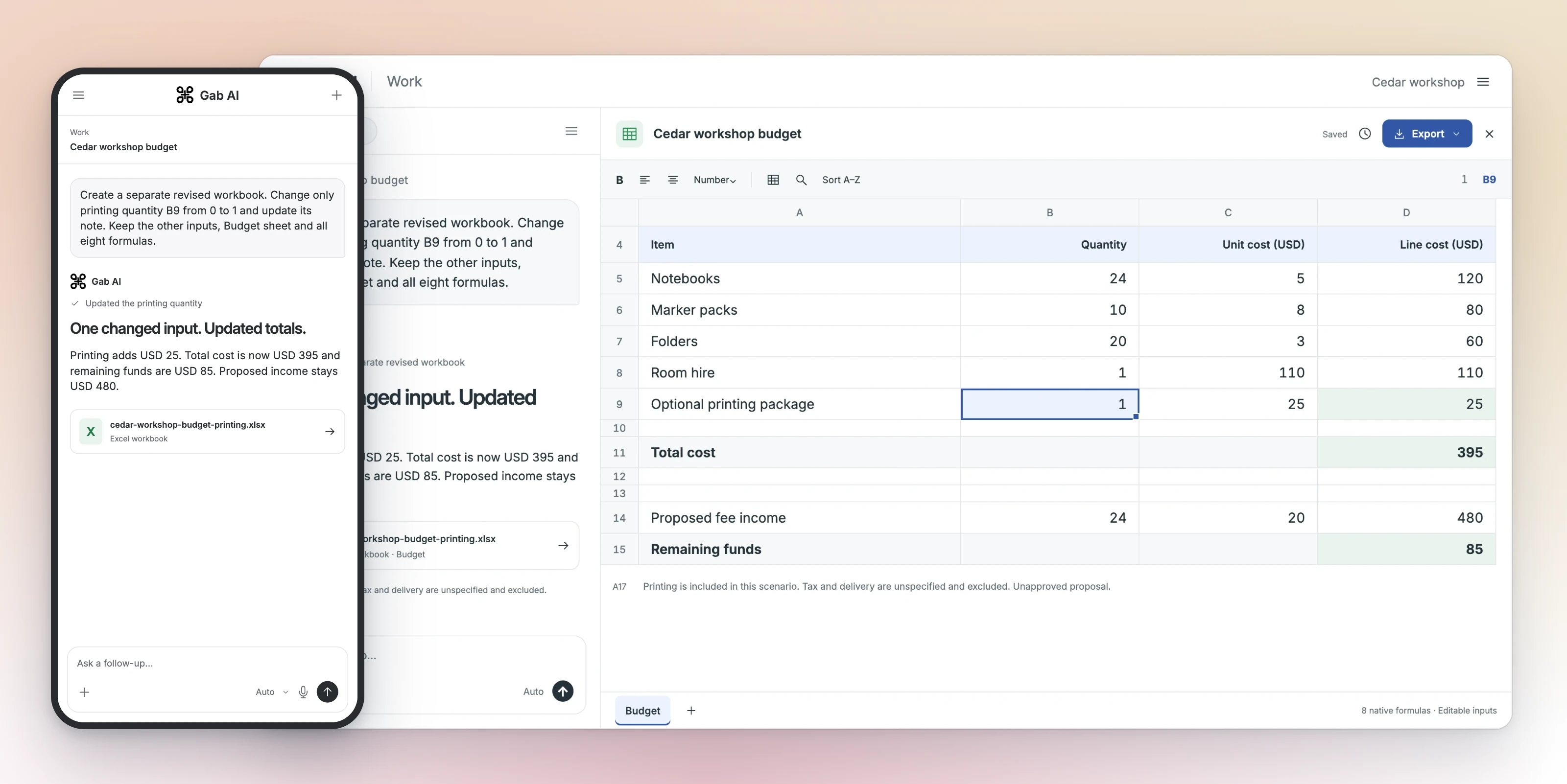
Compare a revision
Work with the inputs, formulas and results side by side.
Enlarge preview
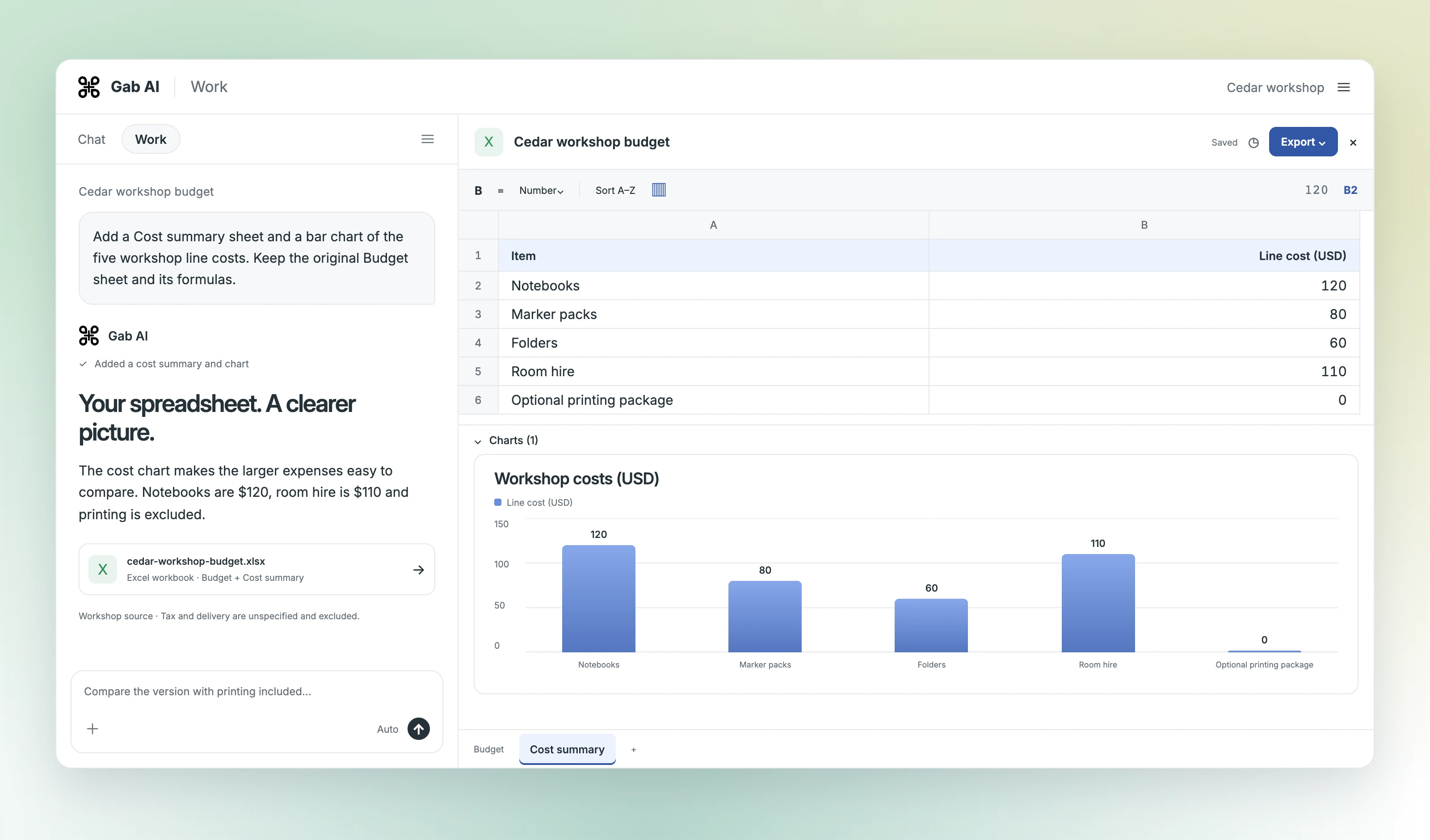
Build charts
Turn spreadsheet values into a chart you can review.

Enlarge preview
Ask about your data
Upload a spreadsheet and ask questions about the data.
Original and focused revision
Original and focused revision
| Item | Details |
|---|---|
| Original | Printing quantity 0; cost USD 370; income USD 480; remaining USD 110. |
| Revision | Printing quantity 1; cost USD 395; income USD 480; remaining USD 85. |
| Preserved | Sheet name, all other source inputs and eight native formulas unchanged. |
| Check | The printing note changed to match the revised scenario; unspecified tax and delivery stayed visible. |
Why printing changes the remaining funds
Printing quantity B9 changes from 0 to 1. The unchanged formula =B9*C9 adds USD 25 to costs, leaving USD 85 instead of USD 110. Proposed income stays USD 480; tax and delivery are still unspecified. See the lesson for the full budget and each formula.
From figures to a working spreadsheet
Open Gab AI and choose Work. Give your source figures, units, sheet structure and calculations. Ask for an editable Excel workbook, open it and check the inputs and formulas. For a revision, name the cells to change and compare the new workbook with the original.
Excel workbooks and CSV tables
Use XLSX when you need sheets, editable inputs and formulas. CSV holds table values, so it serves a different purpose from a working workbook. Docs explains formula controls, file inputs and the editor’s Excel and current-sheet CSV exports.
Budgets, trackers and spreadsheet questions
Build a budget, track costs or compare scenarios using your own figures. For an existing spreadsheet, attach a supported file, wait for processing and ask a specific question about its columns or calculations.
To turn a CSV into a report, explain its columns, units and date range. Ask Work for the totals, comparisons and short findings you need, with an editable workbook for the calculations. Specify how to handle blanks and duplicates. Check the row count and a few totals against the source before using the findings.
Spreadsheets in Gab Work
Work requires Plus and uses applicable model and tool credits. See Docs for access and usage details.
Can AI make Excel formulas for me?
Yes. Describe the inputs and calculation you need. The workshop workbook uses eight native Excel formulas for line costs, total cost, proposed income and remaining funds. The lesson shows the formulas and both sets of results.
Is an AI spreadsheet generator free in Gab AI?
Work spreadsheet creation requires Plus and applicable credits. Signing up alone does not unlock Work.
Will any imported Excel file work unchanged?
Complex formulas, macros, objects and formatting need their own compatibility checks. Keep the original and review the imported or exported workbook before using it.