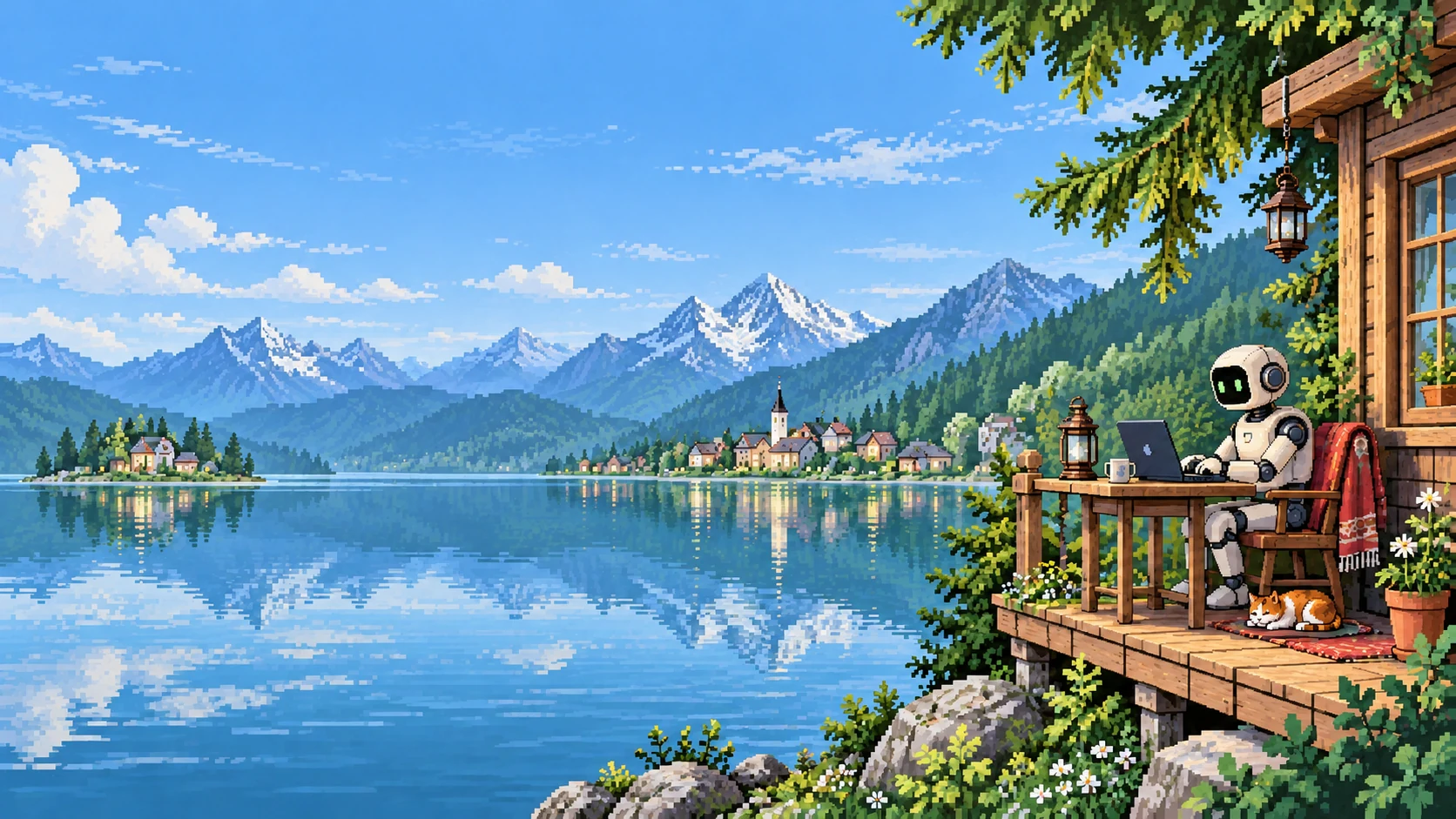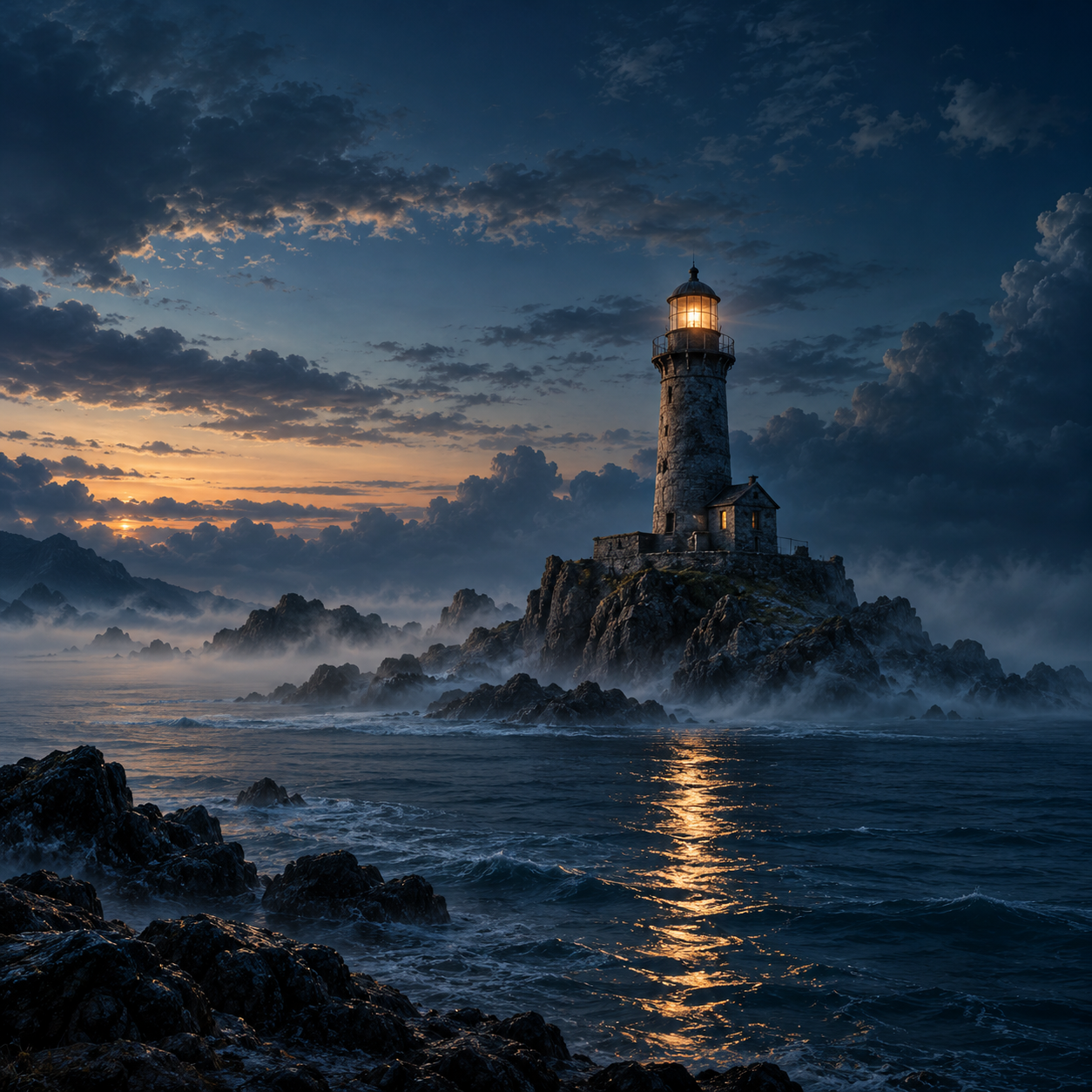

Bring a story you can picture to life.
Set the scene for a short film, Bible story or narrated history video. Build an establishing shot with the setting, atmosphere and movement your story needs.
 Veo 3.1Video models and controls
Copy the brief into Video Generator, then choose your model and options.
Veo 3.1Generated in GabLoading video…
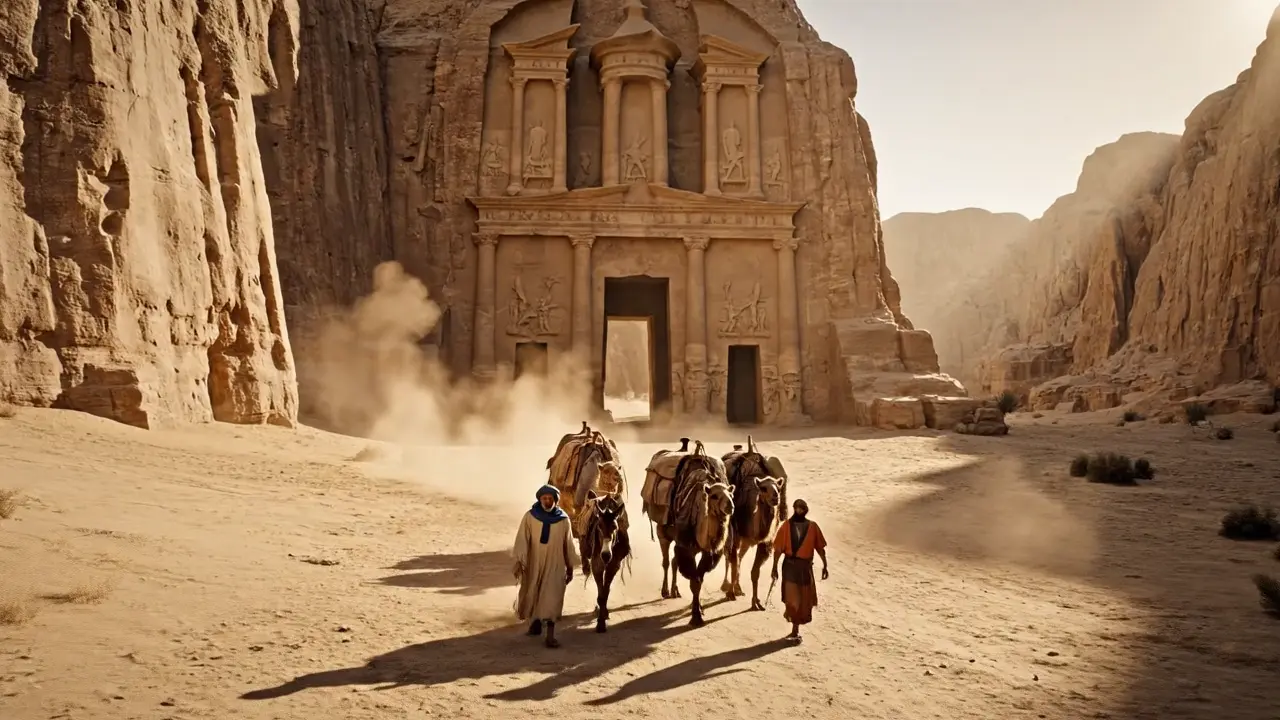
The journey begins
This video could not load.
An opening shot for a story, sermon or historical explainer.
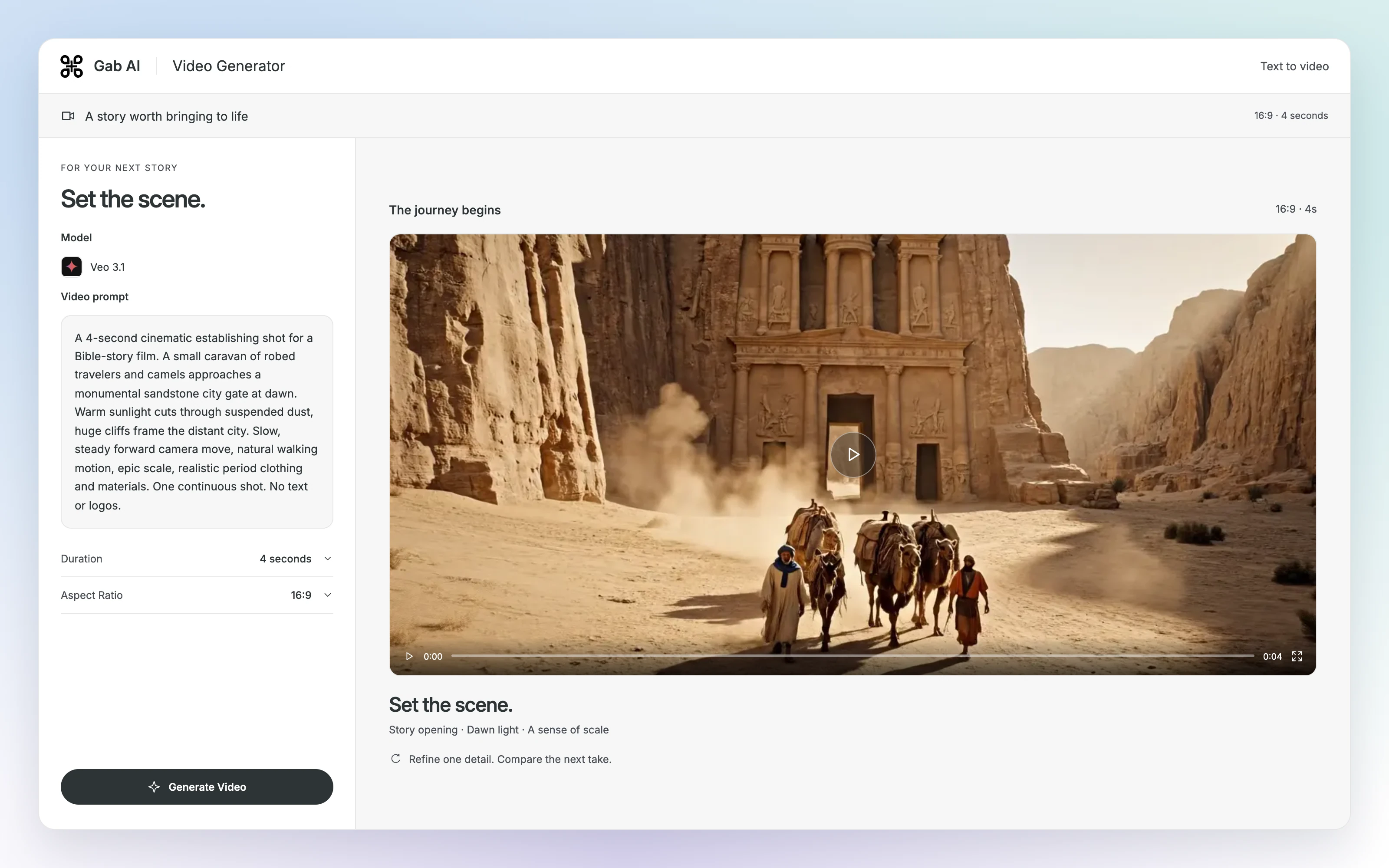
Enlarge preview
Tell a story
Give your music a visual world.
Turn album artwork into a release teaser or a moving backdrop for your song. Start with the look you already have and describe the motion that suits the music.
Veo 3.1 Img2VidVideo models and controlsIn Chat, attach your own source image and choose an image-to-video model before sending.
YOUR ORIGINAL ARTWORK
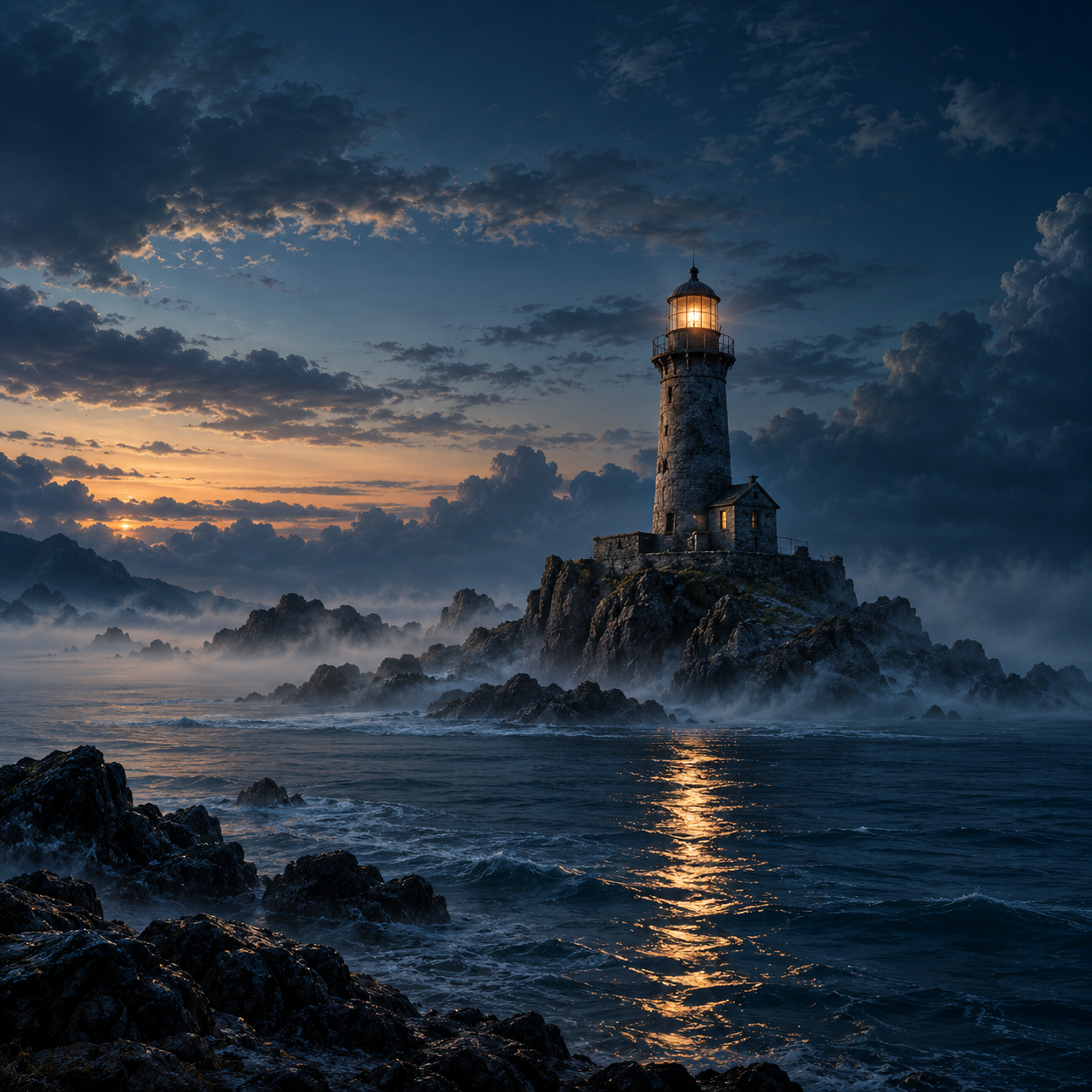
Start with an image you already have.
Keep the look. Describe what should move.
Get the source artworkYOUR ARTWORK, IN MOTION
Veo 3.1 Img2VidGenerated in GabLoading video…
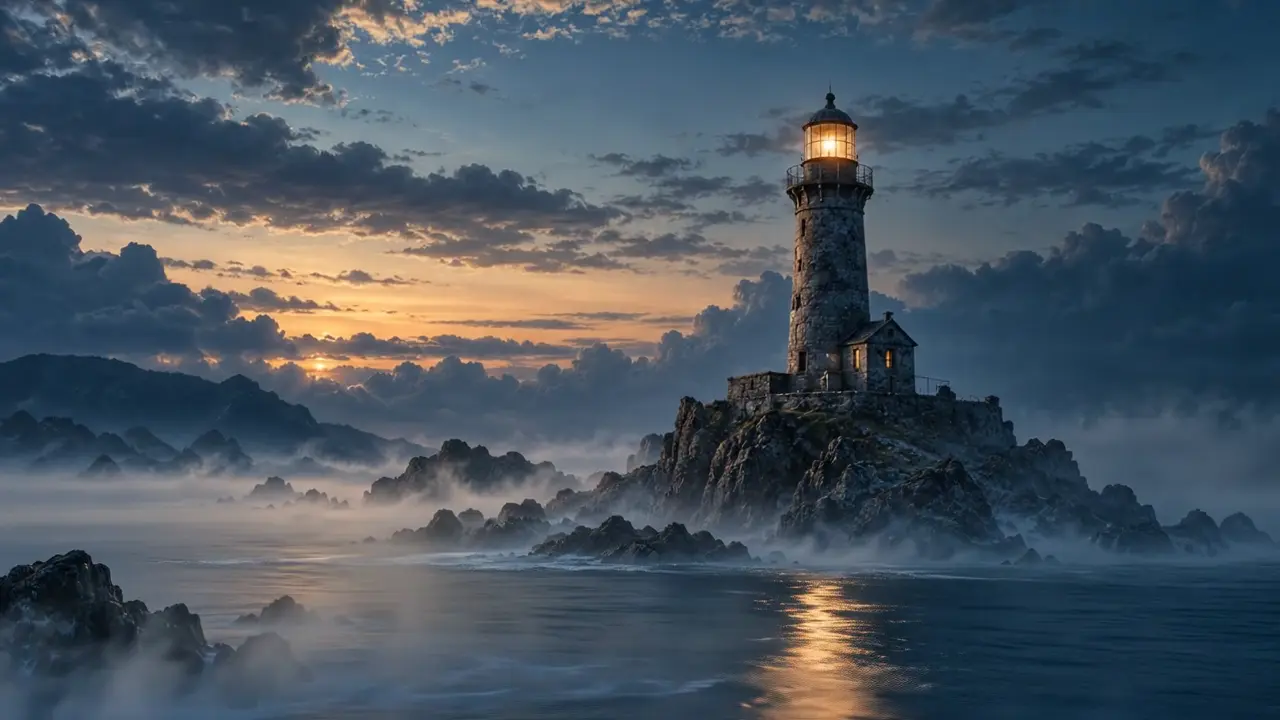
Harbour Lights · Release teaser
This video could not load.
An animated cover for a release announcement, song teaser or music-video background.
See the image-to-video Chat

Enlarge preview
Music visuals
Make your next launch feel like something.
Create a campaign shot for a clothing collection, an event or a service you want people to notice. Give the clip a clear role in the promotion.
Veo 3.1 FastVideo models and controlsCopy the brief into Video Generator and adapt the product, setting and camera to your campaign.
Veo 3.1 FastGenerated in GabLoading video…
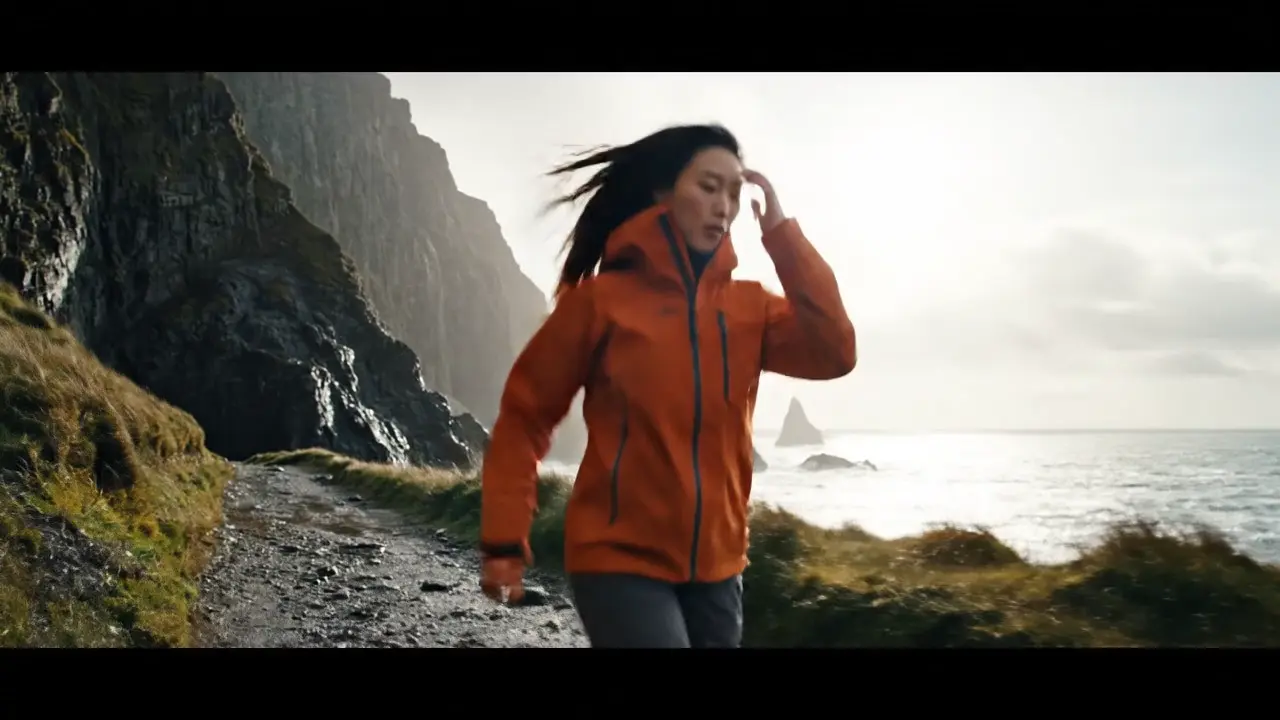
Coastline collection · Launch shot
This video could not load.
A campaign shot to use in a clothing launch, website hero or social promotion.

Enlarge preview
Business promos
Make something worth stopping for.
Plan the opening of a Reel for Instagram or TikTok. Frame the action vertically, make the first moment clear and build the rest of the sequence in Work.
Veo 3.1 FastVideo models and controlsIn Video Generator, choose Portrait: 9:16. Use Work to build the full Reel from your clips.
Veo 3.1 FastGenerated in GabLoading video…
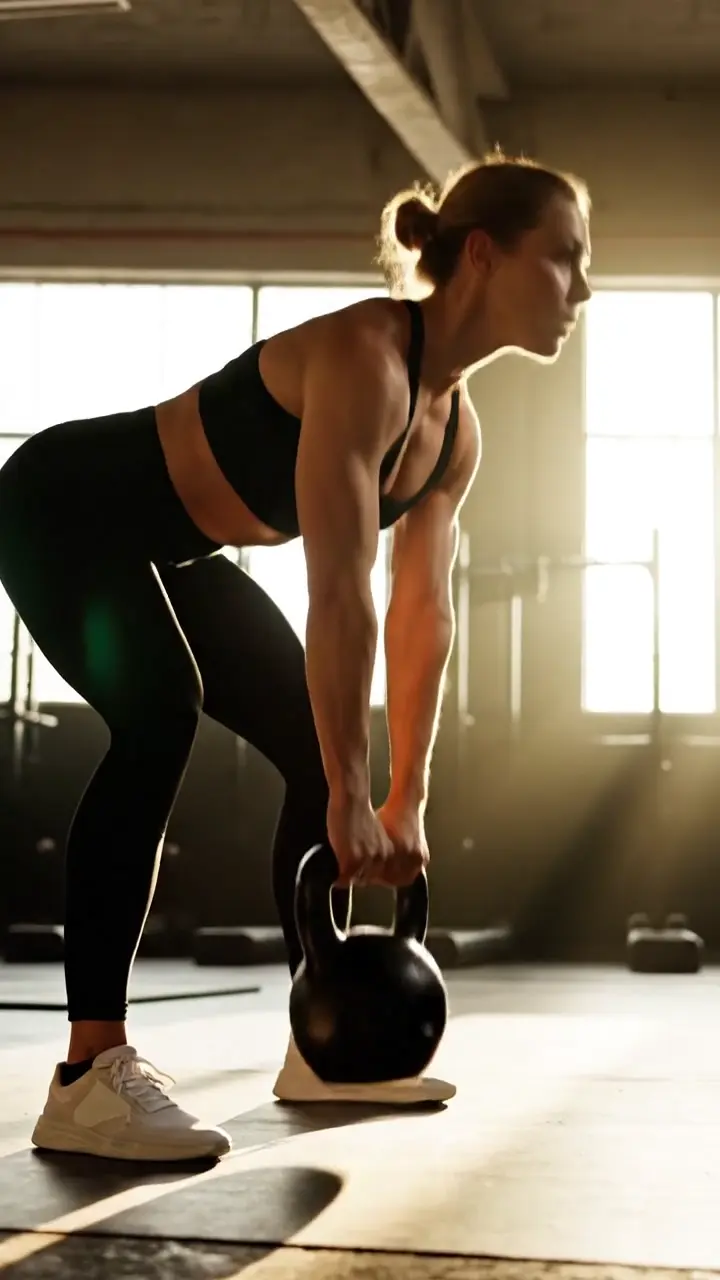
Neighborhood gym · Reel opening
This video could not load.
A portrait opening shot for a gym promotion or fitness creator’s Reel.

Enlarge preview
IG & TikTok
One story. Different takes.
Send the same shot brief to several video models in Chat. Watch how each handles the camera, the setting and the subject before developing your next take.
In Chat, open the model picker, choose Compare and select the video models shown.
Veo 3.1Generated in GabLoading video…
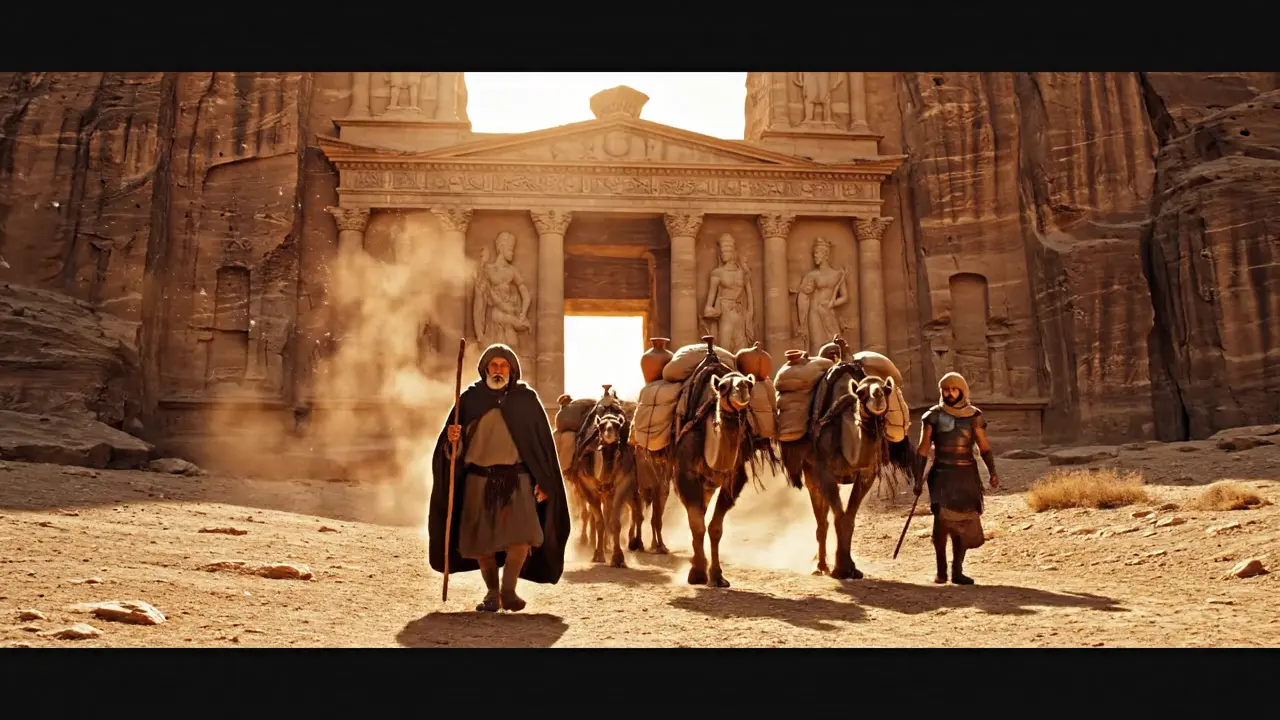
Veo 3.1
This video could not load.
 Kling 3 ProGenerated in Gab
Loading video…
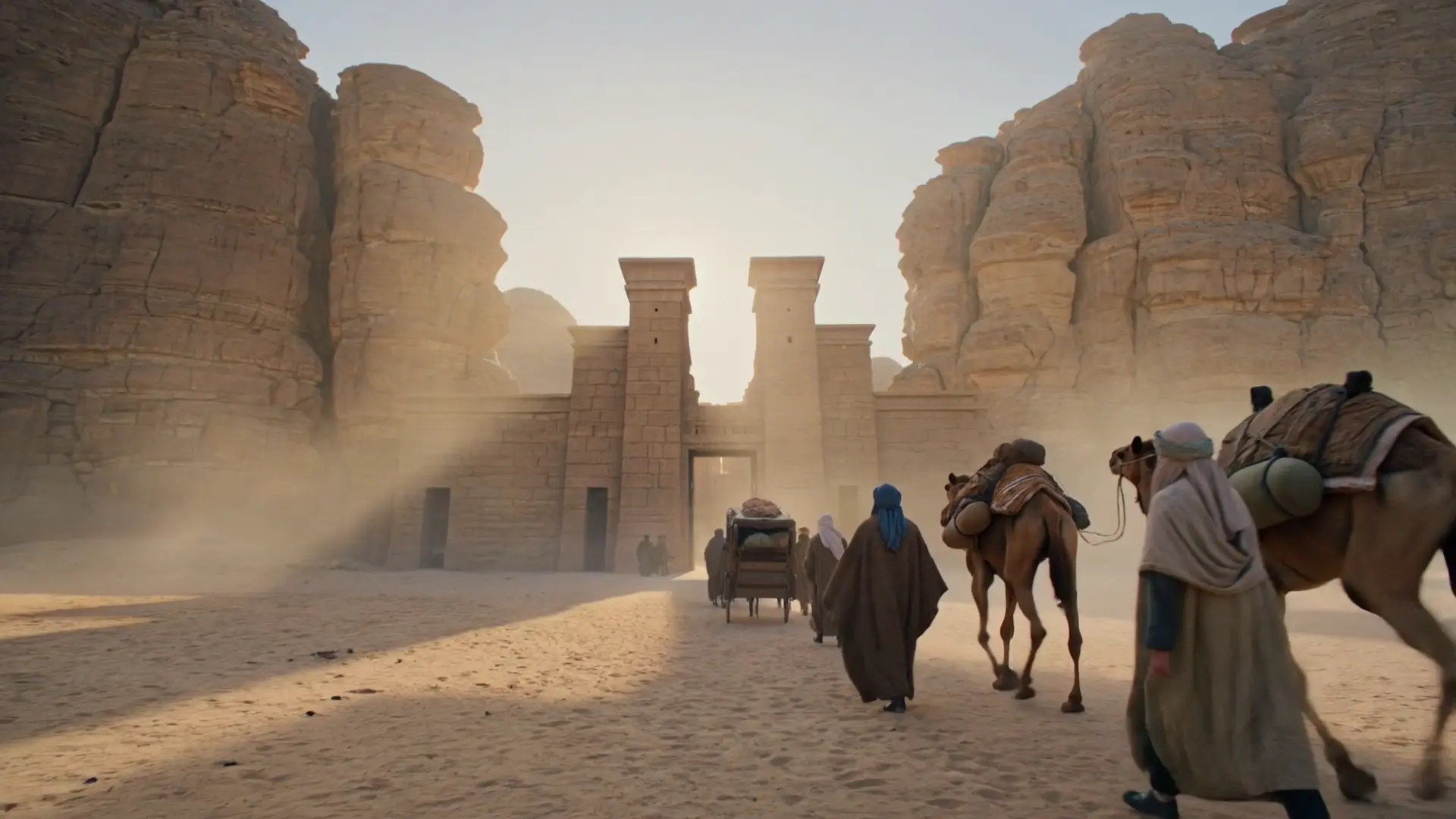
Kling 3 Pro
This video could not load.
The same brief, with each model’s supported settings. Watch the camera, movement and continuity across the full takes.
See the Compare workspace
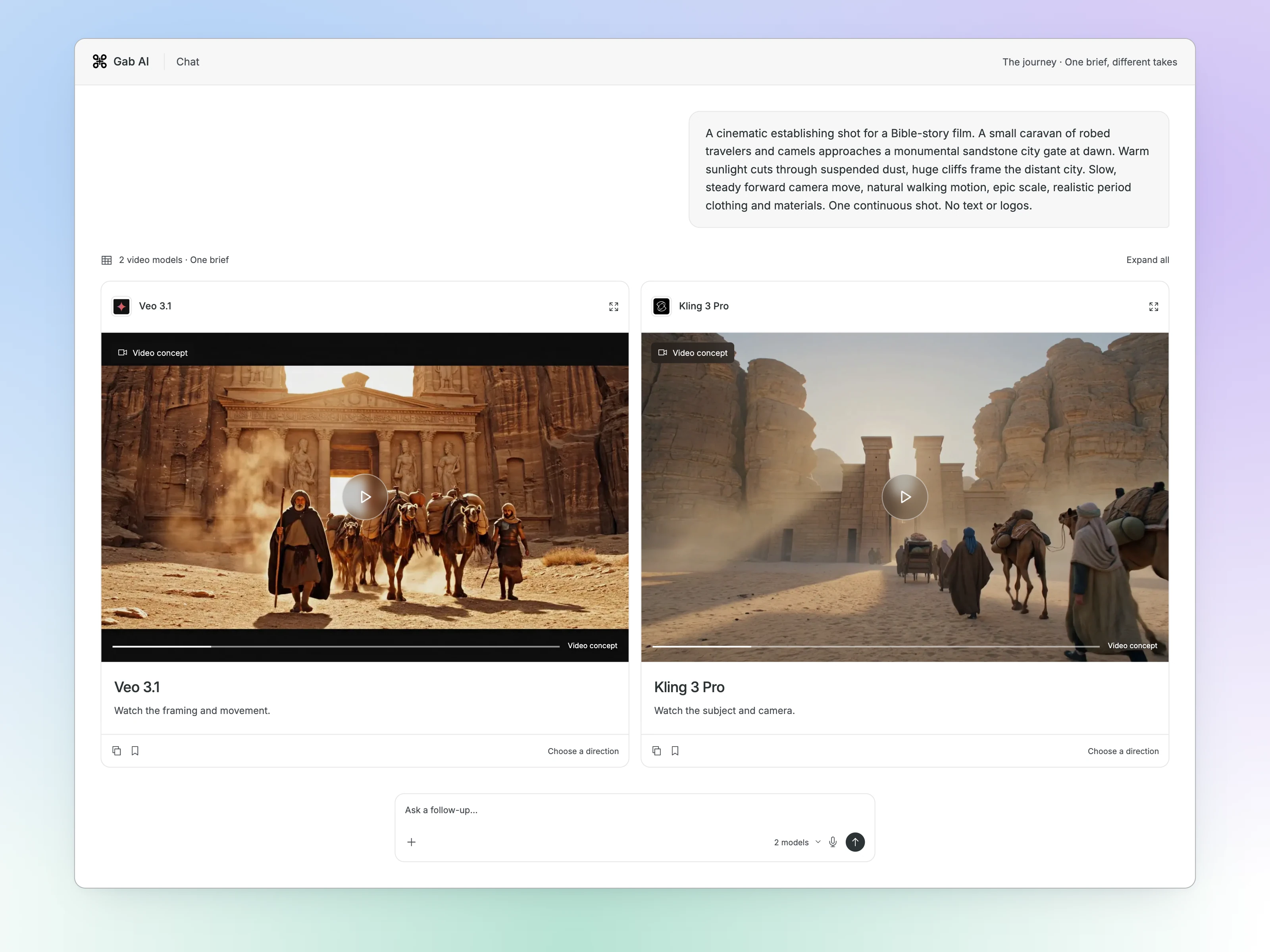
Enlarge preview
Compare takes
The hook, the look and the clip. Together.
Develop a cosmetics creator demo with the script, visual reference and shot concept in separate chats. Keep the whole production in view as you refine each part.


Open Decks and give the script, reference image and video concept their own chats.
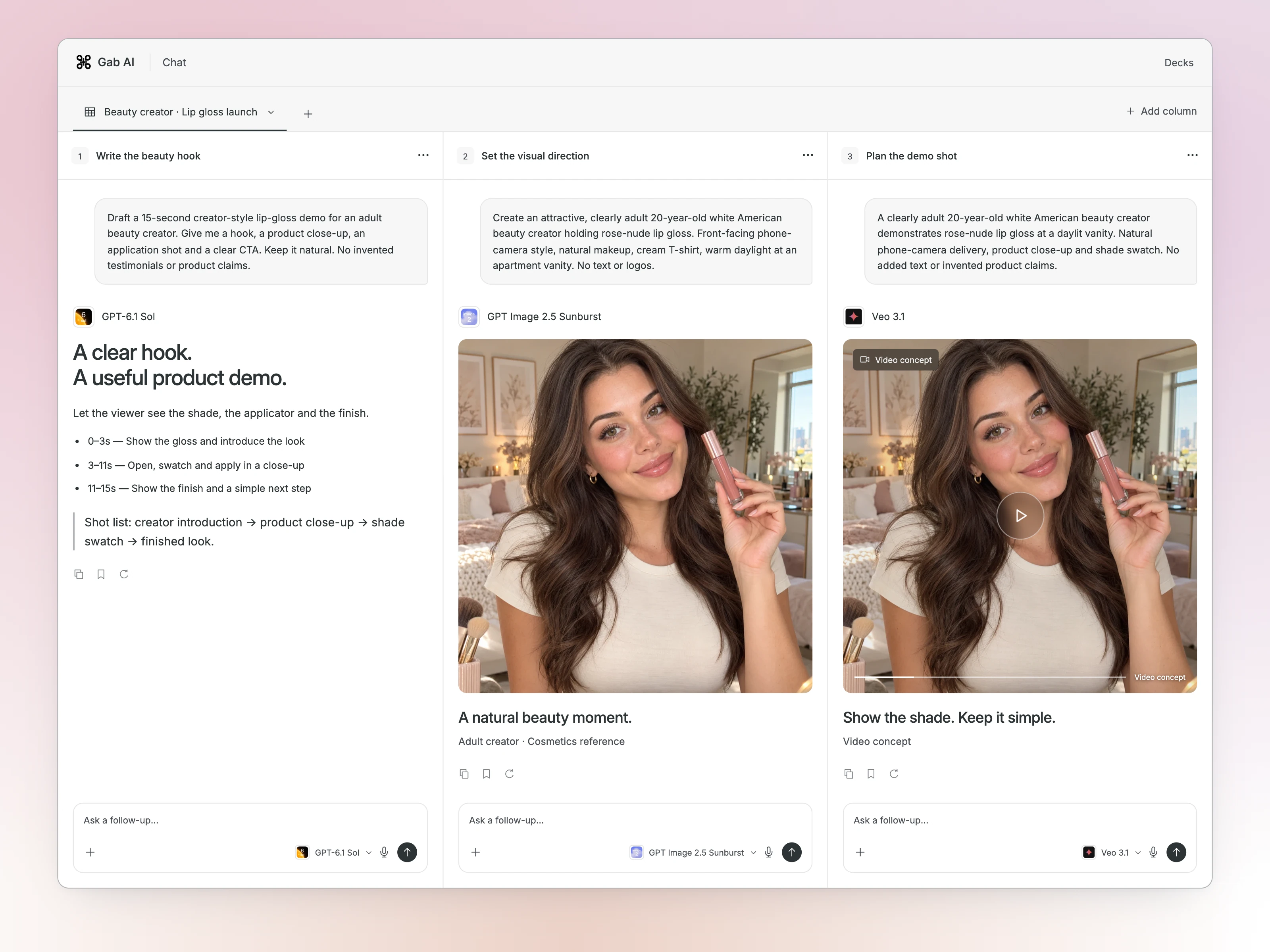
Enlarge preview
Creator Deck
Model access and credits vary. Compare requires Plus.
WORK VIDEO STUDIO
From your idea to a finished video.
Use Work to plan the sequence, review references and clip takes, arrange the timeline and create a final export. Keep the script, source media and revisions together as you shape the whole piece.
Plan the sequence
Write the beats, choose the format and bring your source images, clips or audio.
Choose your takes
Review references, improve a shot and arrange the clips in the timeline.
Create the final video
Assemble your chosen sequence, watch it through and request a new export when it changes.
 Gab AI WorkFinished in Work
Loading video…
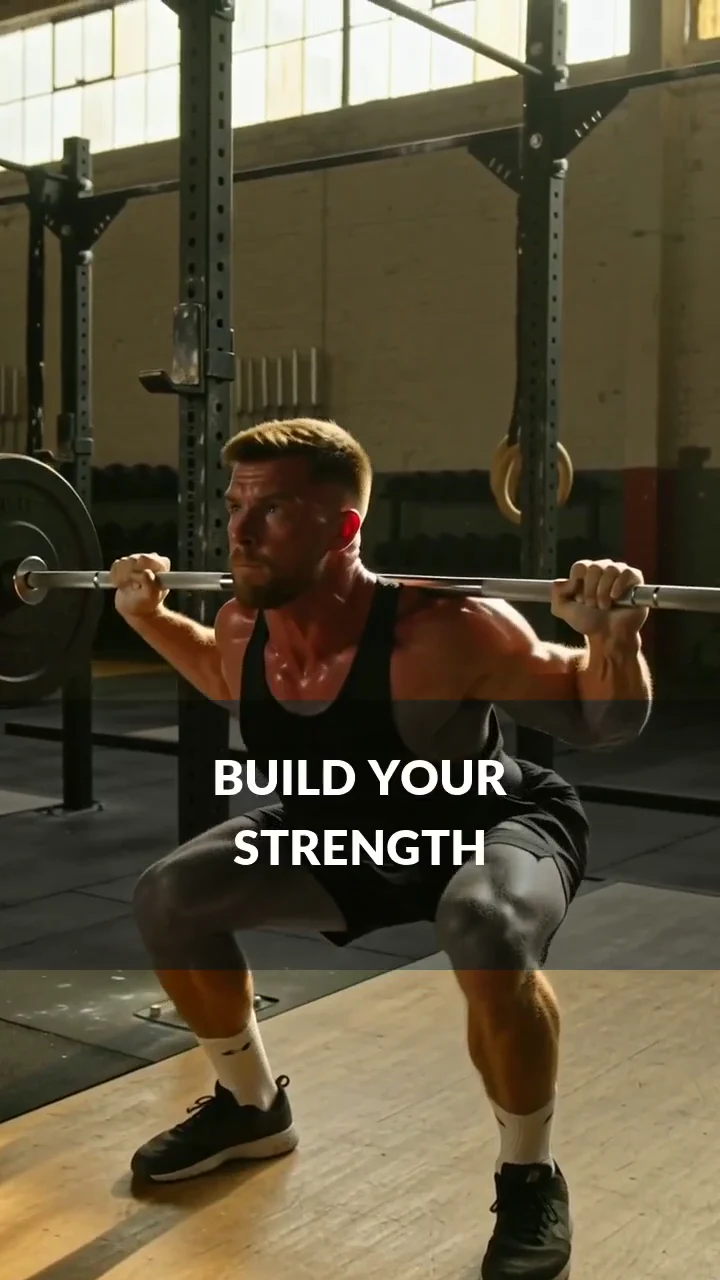
First Rep · The finished Reel
This video could not load.
Three training shots, on-screen titles, music and a clear invitation to book a first session.
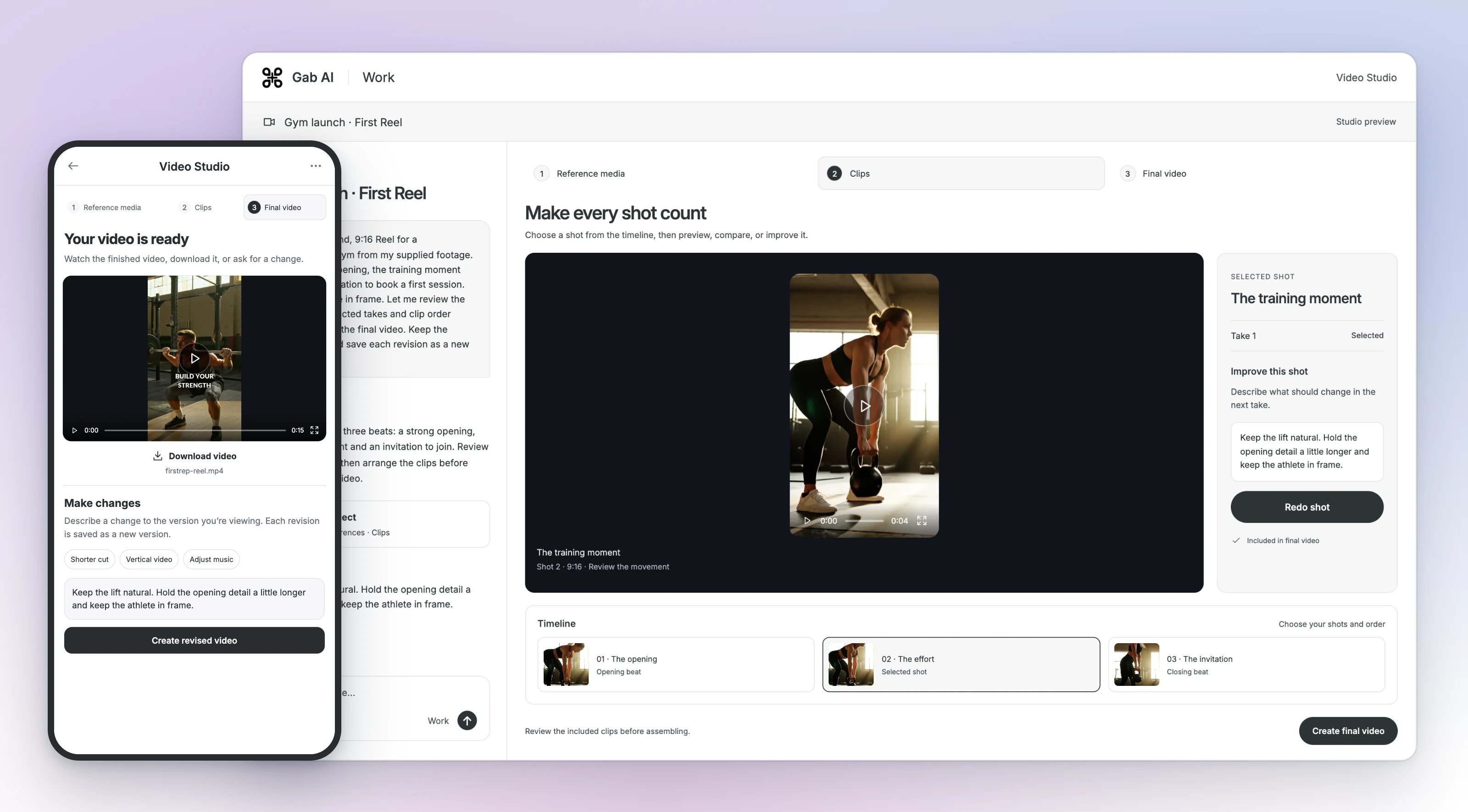
Enlarge preview
Work Video Studio
Working on a Reel? Ask for a 9:16 version and keep the important subjects in frame.
Turn a description into a video
Use the AI video generator to describe a subject, setting, action and camera. Try a visual concept, a short supporting shot or an illustrated scene.
For a script, plan each scene as a separate shot and generate the clips one at a time. Use a Work video project to arrange the sequence and add narration.
Open Video GeneratorAnimate a photo or illustration
Give a still image a little movement: leaves in a breeze, ripples on water or a gentle camera move. Open Chat, attach your source and request an animation with a compatible image-input video model.
Animate an image in ChatLearn the image-to-video workflowDescribe one shot
Name the subject, setting, one visible action and the camera direction.
Generate your clip
Paste the brief into Video Generator, choose the model and options, then select Generate Video.
Watch and refine
Watch from start to finish. Change one instruction and compare the next take with the first.
Shape the shot
Choose a video model, frame shape, supported length and camera direction. A static camera helps you focus on the subject’s movement; a pan or tracking shot changes how the scene unfolds.
A good AI video generator for your project needs to handle your input and the kind of shot you want. Compare available models using the same brief. For realistic scenes, look for natural movement, consistent faces and objects, believable lighting and a camera that follows your instruction. Watch the entire clip, including the ending, before choosing a take.
Use short clips where they add something
Create with your Gab AI account
Video generation uses credits and requires Plus or purchased credits. The form shows the estimate for your selected model and settings.
Compare a prompt and its revision
One shot. A slower second take.
A red paper boat, a quiet pond and a request for gentler motion. Watch the second take, then open the lesson to compare both clips and their prompts.
Loading video…
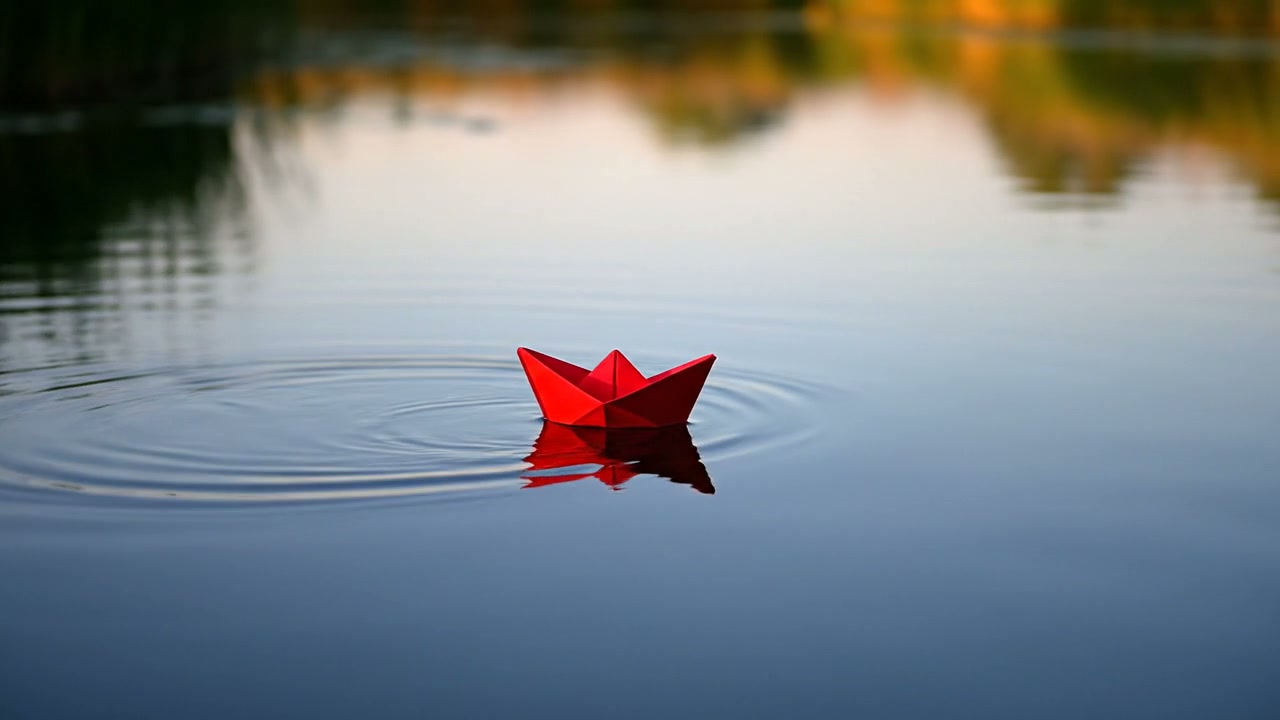
Paper boat · slower second take
This video could not load.
Generated in Gab with Veo 3.1 Fast. This is a new generation requesting slower motion; the boat and lighting also changed.
Watch the video prompting guide
Learn to describe a shot
Watch how scene, action and camera direction come together in a video prompt.
Loading video…
Create a video from a description
This video could not load. Read the transcript below.
Read transcript
A walkthrough of scene, action and camera choices.
Questions before you start
Can I use Gab as a free AI video generator?
Video generation requires Plus or purchased credits. Signup credits alone do not cover video generation. You can read the lessons and explore the examples before choosing a plan.
Can I edit a finished video?
Use a Work video project to arrange clips, narration and a longer sequence. Video Generator creates individual clips; the Work video guide explains the separate editing workflow.
Will the video have a watermark?
Check the completed clip and the selected model’s terms. Watermark behavior depends on the model and output.
Can I use an AI video commercially?
Commercial use depends on the model/provider terms and your rights to any source material. Review those conditions before publishing or selling the clip.
Guides and resources
Find more detail and choose your next step.