One brief. A few directions to choose from.
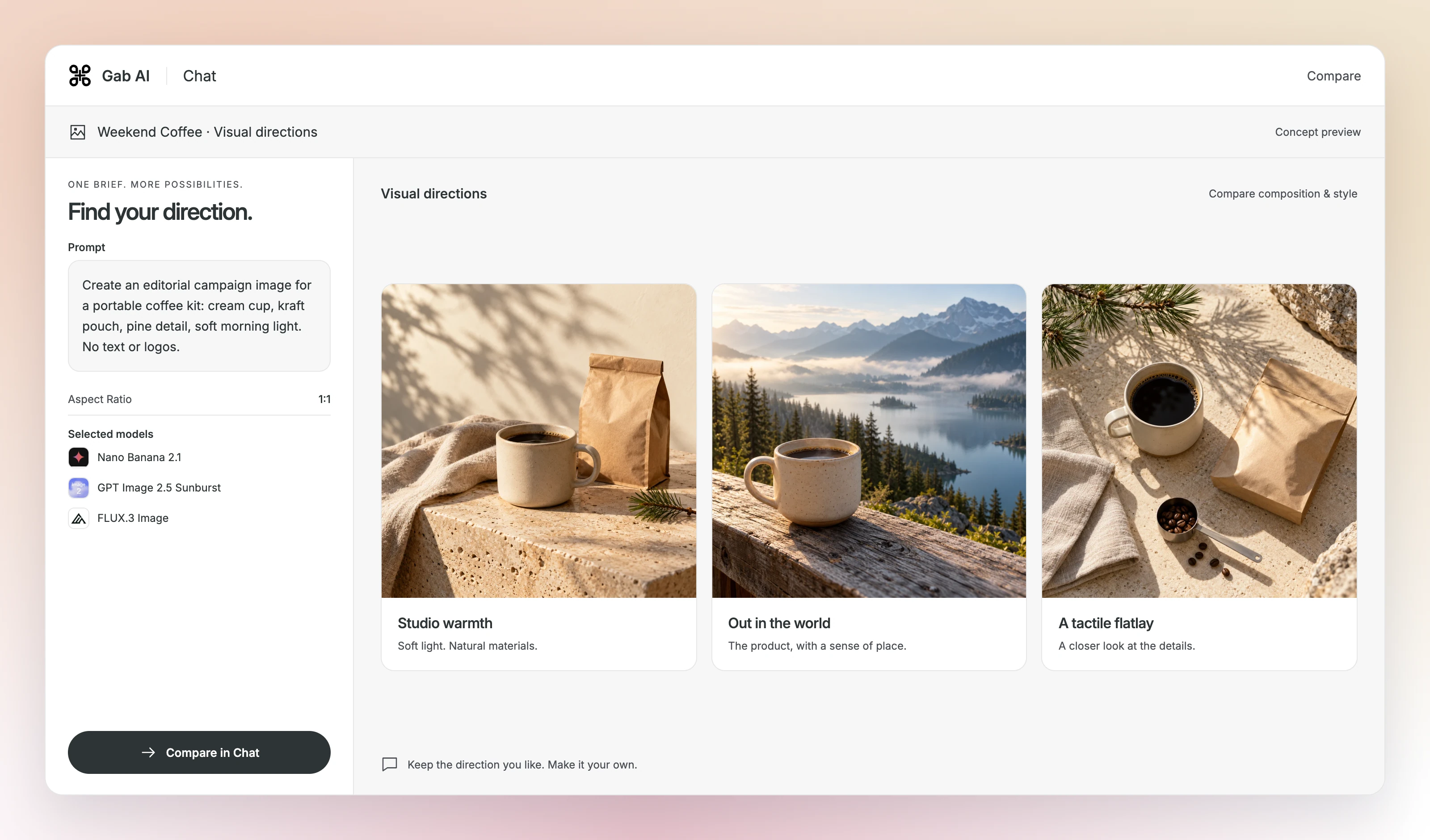
Keep your brief and compare how another model handles the style, composition or details you care about.


In Chat, open the model picker, choose Compare and select the models shown.
Enlarge preview
Product photography
Give a clear portrait a more polished setting.
Start with your photo, describe the background and lighting, and compare the result with your source.
 Nano Banana 2.1See image models
Upload your photo in Source Image, then paste this edit prompt.

Enlarge preview
Portraits
A visual starting point for your next edition.
Give a garden newsletter, community event or creative project a visual starting point.
Nano Banana 2.1See image modelsPaste this prompt in Image Generator and choose your model.

Enlarge preview
Illustrations
A different setting. A focused change.
Describe the new background and the product details you want to keep. Compare those details with the original.
Nano Banana 2.1See image modelsUpload your photo in Source Image, then paste this edit prompt.

Enlarge preview
Background edits
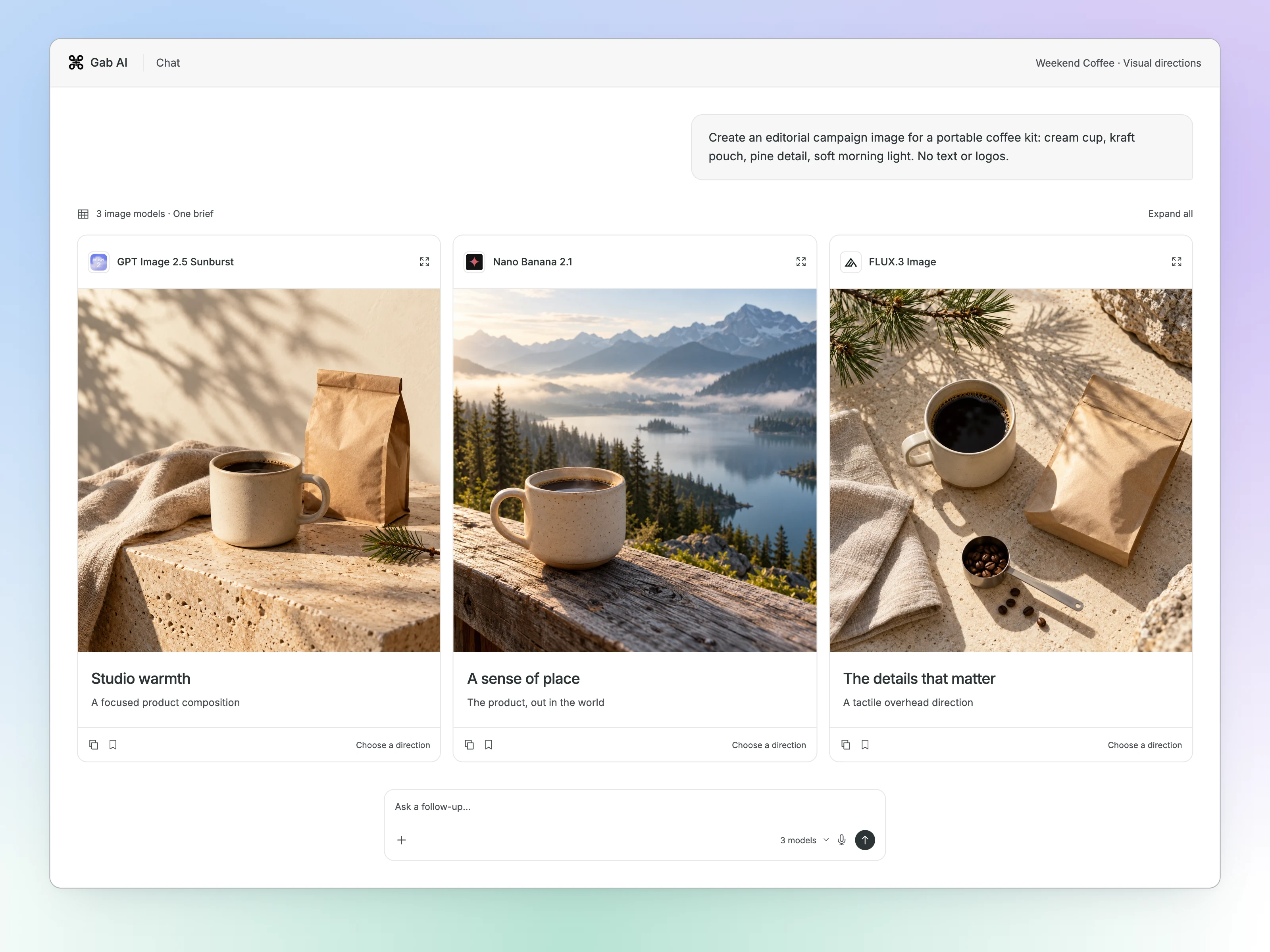
One prompt. Three image responses.
Send a single brief to several image models. Compare their responses in one conversation, then keep developing the direction you like.
In Chat, open the model picker, choose Compare and select the models shown.
Enlarge preview
Compare in Chat
Keep the brief and the visuals together.
Give the brief, main image and social direction their own chats in one Deck. Keep the whole project in view as you refine each part.

Open Decks and give each part of your project its own chat. Copy the brief to start the first column.
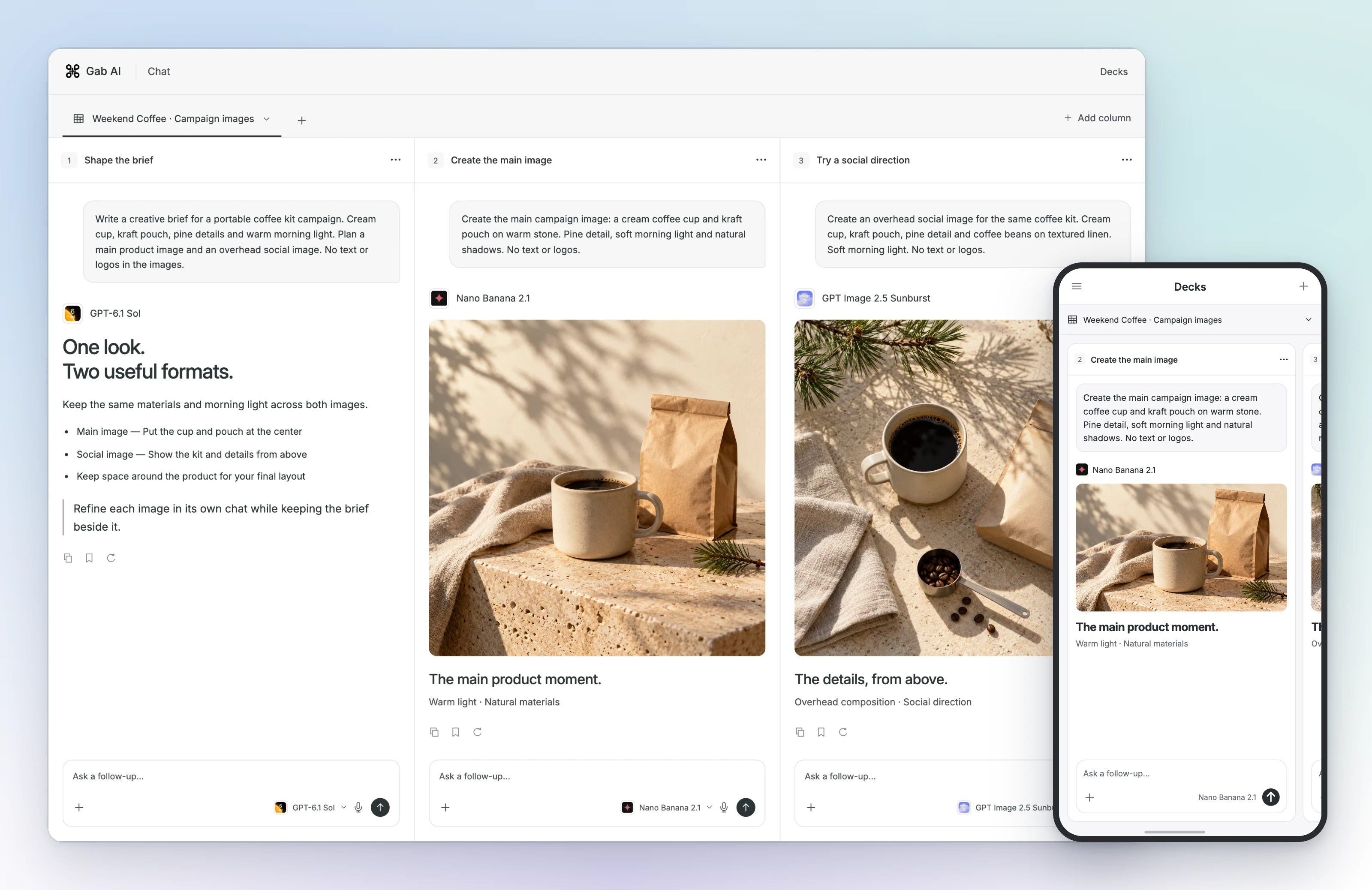
Enlarge preview
Image Deck
From a mug concept to a new setting
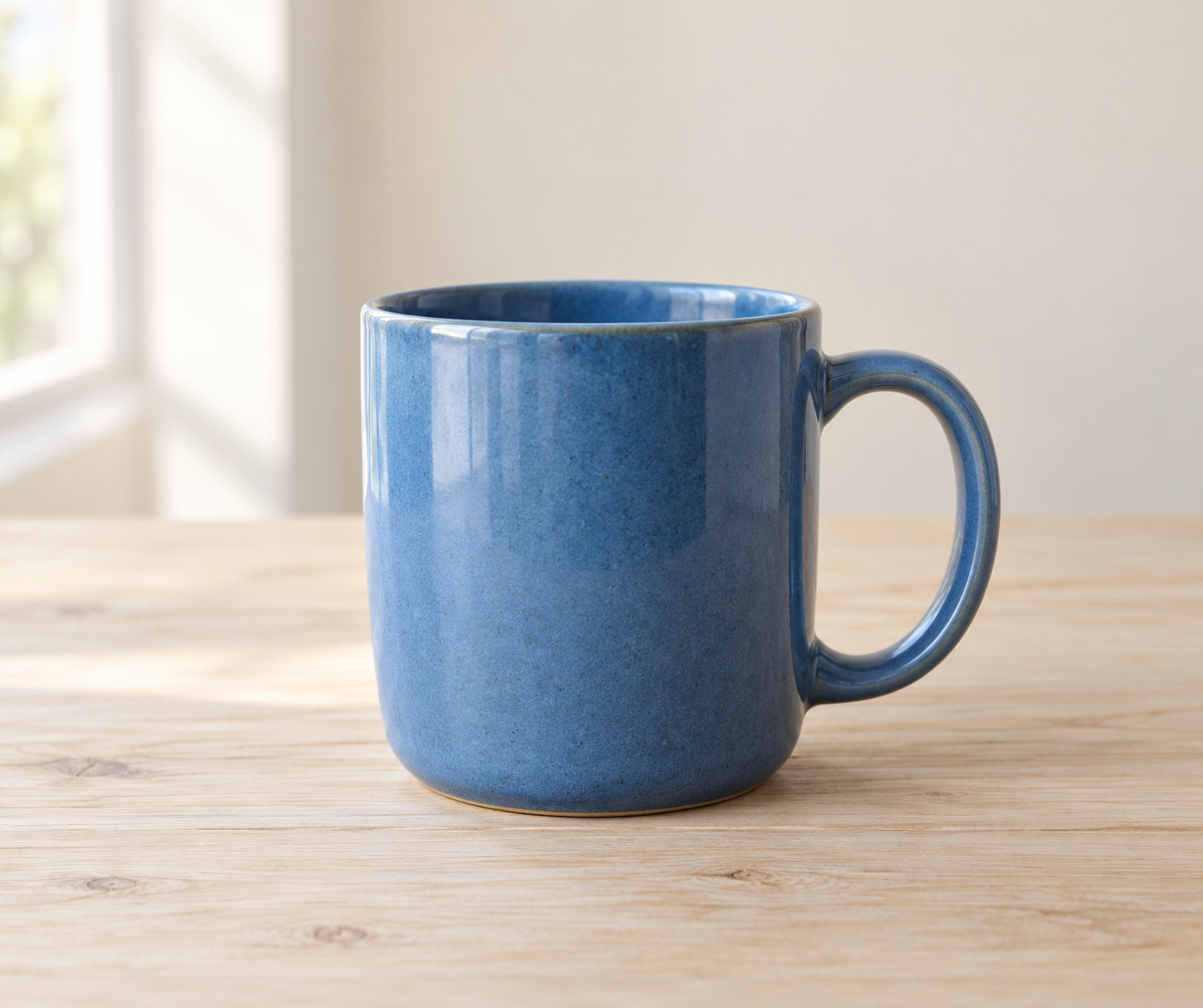
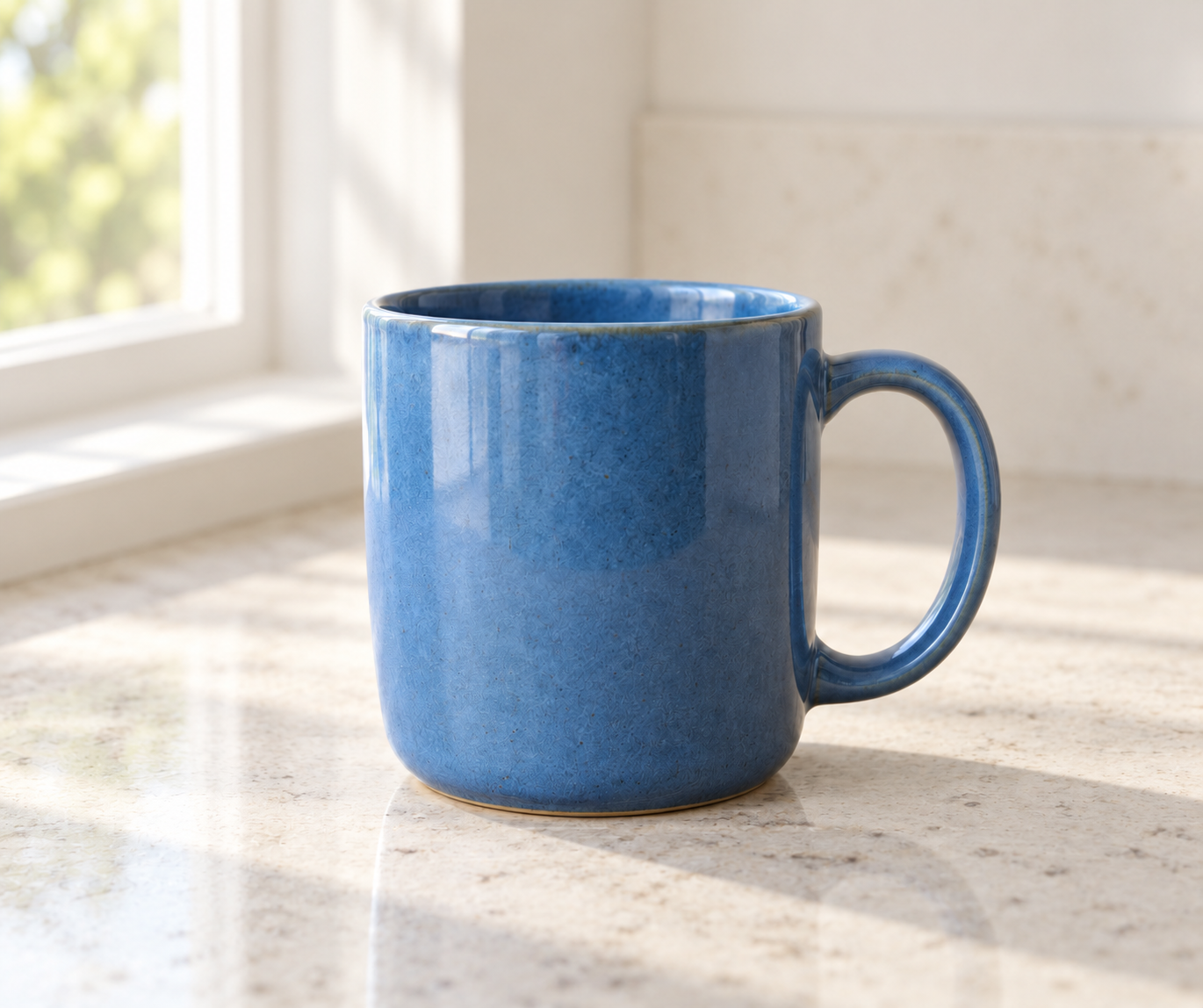
The first prompt creates a blue ceramic mug on a wooden table. The edit uses that image as its source and asks for a stone counter beside a window.
Enlarge image
1. Generate a product concept
Enlarge image
2. Give it a different setting
Product concept and reference-image edit · Created with ChatGPT.
The prompts behind the images
The first prompt describes the subject, framing and light. The second uses that image as a reference and asks for a different setting.
A blue ceramic mug centered on a pale wooden table, realistic product photograph, soft window light from the left, simple cream background. Show the entire handle. No added text or other objects.Place this mug on a light stone counter beside a window. Keep its blue color, handle shape, proportions and any existing label unchanged. Do not add text or objects.Try this workflow in Gab
Create the first image
Copy the first prompt into Image Generator and generate your image.
Give it a new setting
Open Image Editor, upload your first result as the source image and paste the edit instruction above.
Create images from text
Use the AI image generator for a product concept, newsletter illustration or personal project. Describe the subject and setting, choose a style and set the image shape in Options.
For an existing product, start with a clear photograph of the real item in Image Editor. Describe the background or lighting you want to change and the shape, color, label and accessories to keep. Compare those details with the original before using the result in a listing. Use a generated concept to plan a shoot or explore a direction.
Product concepts
Explore a material, color or setting before arranging a real product shoot.
Illustrations
Give a garden newsletter, community event or creative project a visual starting point.
Edit photos with an AI image editor
Give a photo a new background, try another visual style or describe an object you want to add or remove. Open Image Editor, upload your source image and tell it what to change.
To turn a selfie into a professional headshot, start with a clear portrait and describe the background, crop and lighting you want. Ask to keep the person’s face, hair and expression, and enable Preserve Subject. Compare the result with your source before choosing a portrait.
Try a different outfit by naming the garment, color and material in Edit Instruction, such as replacing a jacket while keeping the pose and background. Use General edit for the request. Check the face, hands, clothing edges and any details you asked to preserve.
To edit part of an image, describe the object or area and the exact change. Ask to leave everything else as it is. These are instructions to the image model; the current form does not provide a brush or mask for selecting individual pixels.
Open Image EditorExplore different image models
Choose from image-model families such as GPT Image, Nano Banana and Seedream in the same workspace. Keep your brief and compare how another model handles the style, composition or details you care about.
One image. A new direction.
Change the background, widen the framing or try softer light. Keep the first result beside the new version and compare the details that matter to your project.
For a recognizable character across images, reuse a reference image with a compatible editing model and keep the character description consistent: face, hair, clothing and distinguishing features. Change one scene detail at a time.
AI can change faces when editing because it generates new image details from the source and your instructions. Preserve Subject communicates what to keep; it does not lock identity. Compare facial features and proportions with the original, and simplify the edit or try another result if the person changes.
Create with your Gab AI account
Sign in to generate or edit. The form shows the credit estimate for your selected model and settings.
Questions about AI image generation
Can I edit an existing image?
Yes. Open Image Editor, upload a source image and describe your change. You can replace a background, restyle the image or ask to add or remove an element.
Can I change the background without changing the product?
Describe the new background and the product details you want to keep. Preserve Subject helps communicate that intention, but details can still change. Compare the result with your original, especially shape, color, labels and fine details.
Is AI image generation free?
A free account includes signup credits for supported image models. Generating images uses credits; the form shows the estimate for your model and settings.
Can I use AI images commercially?
Commercial use depends on the selected model’s terms and your rights to any source material. Review those terms and check recognizable people, logos and product details before publishing.
Guides and resources
Find more detail and choose your next step.