


Veo 3.1
Loading video…
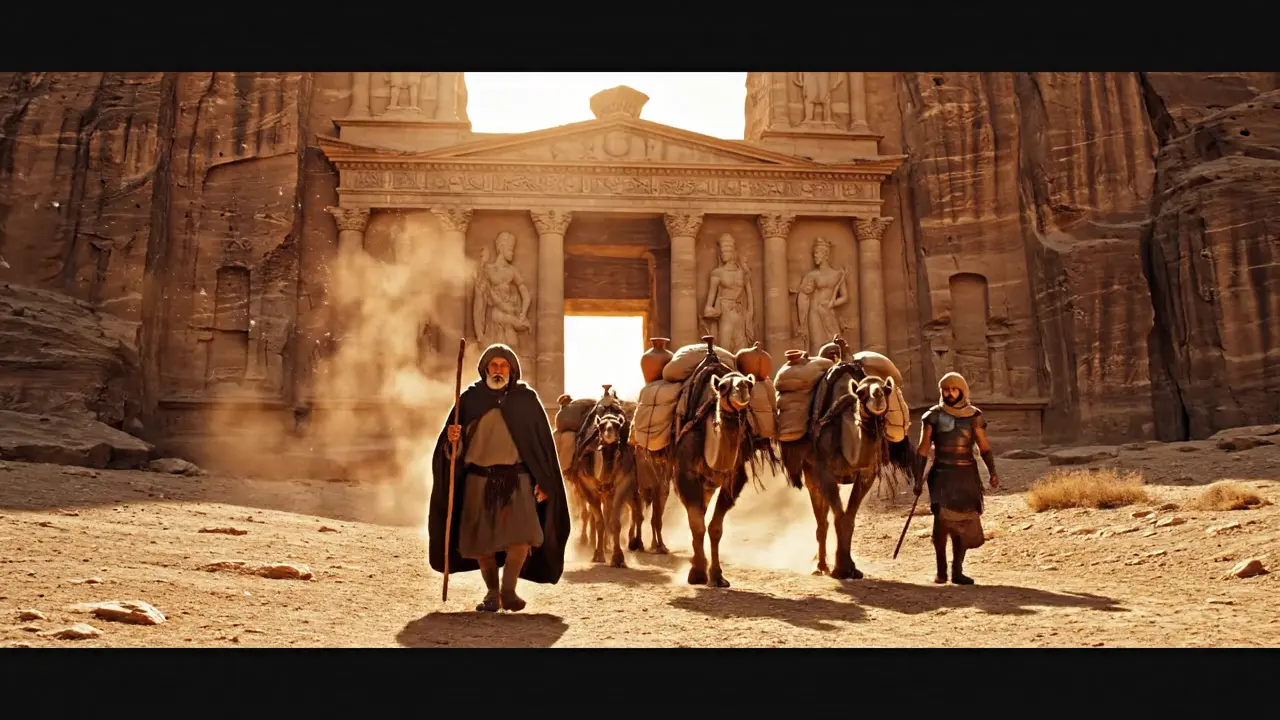
Veo 3.1
This video could not load.
Multi-model AI
Choose GPT, Claude, Gemini, DeepSeek, Qwen, Kimi or Gab AI’s Arya in one account. Write, research, explore files and develop code, then switch models when you want another approach.
Use GPT, Claude, Gemini, Arya and more in one Gab AI account.
Browse the model librarySend the same brief to several models and compare their approaches together in Chat.
See how Compare worksChoose another model before your next message and keep building on the conversation.
See models in actionBring relevant saved preferences and context with you as you switch chat models, with the memory settings you choose.
How shared memory worksCompare answers, explore images and video, and bring different models into one workspace.

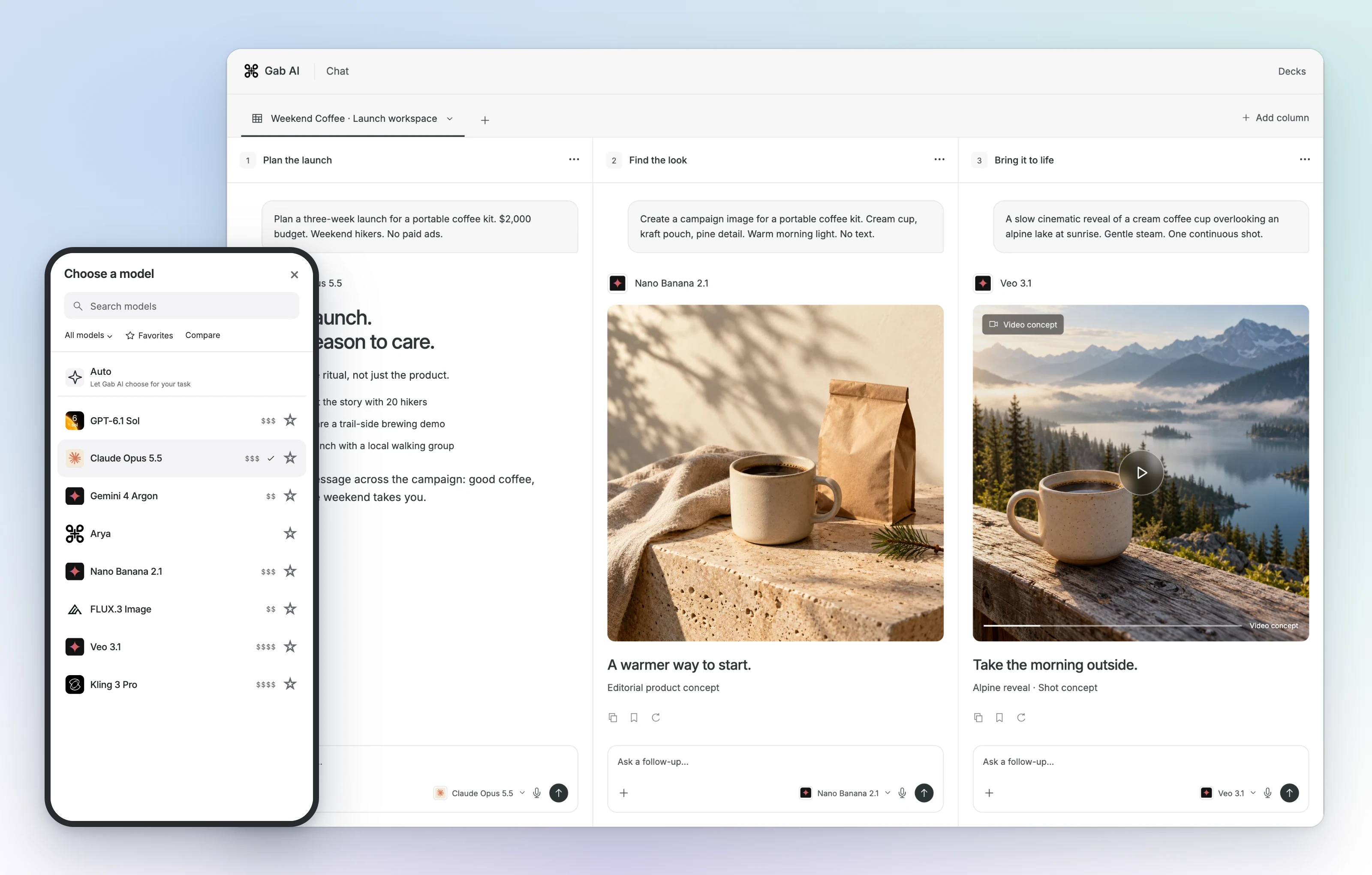
Each Deck column is a separate conversation. Use text, image and video models for different parts of the same project.
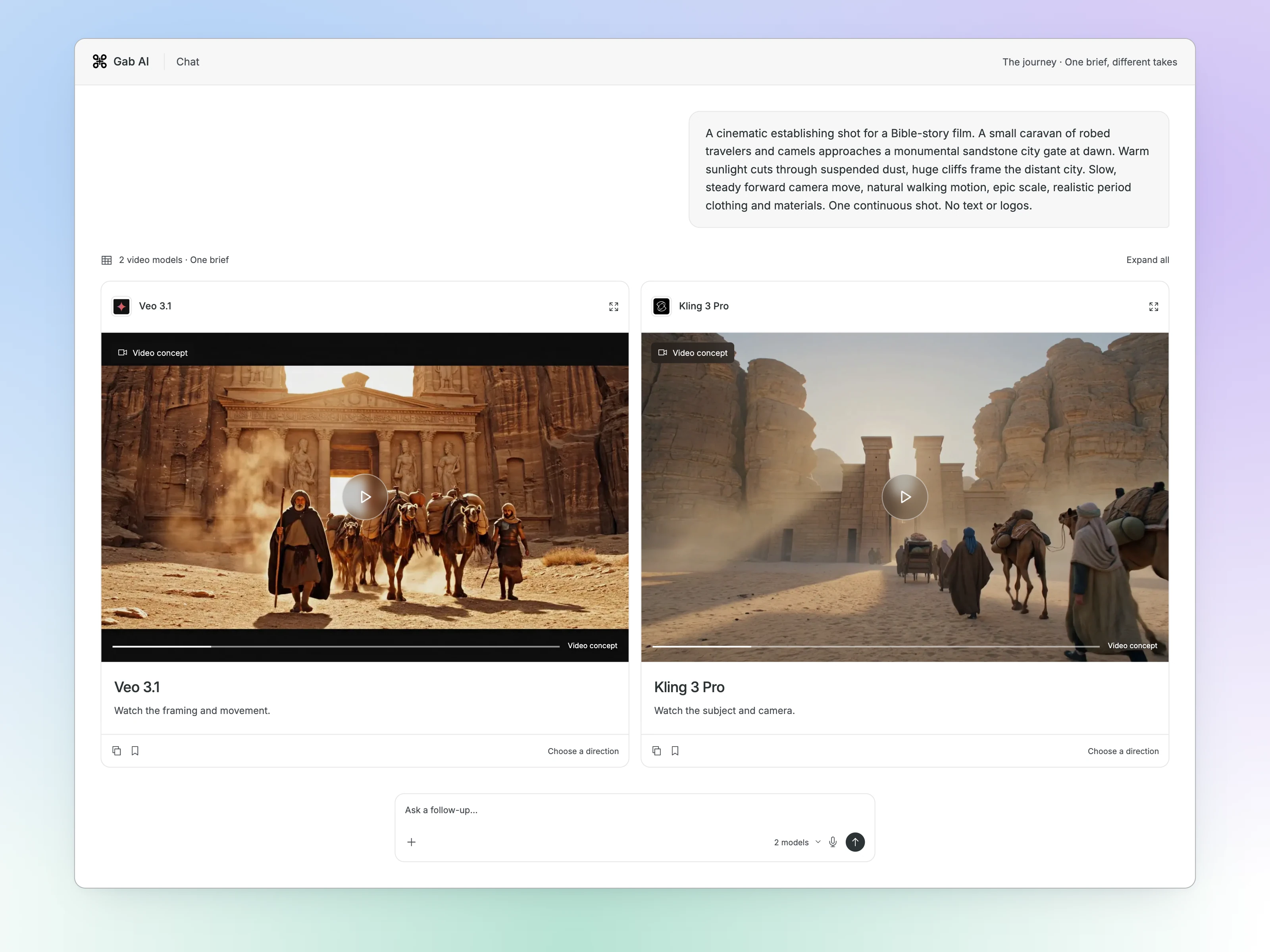
Send the same shot brief to compatible video models in Chat. Compare how each handles the camera, movement and subject.
Loading video…
This video could not load.

Loading video…

This video could not load.
Attach your image in Chat, choose a compatible image-to-video model and describe what should move. Keep your source and the finished clip together as you refine the idea.

Loading video…

This video could not load.

Let Auto choose a model for your Chat request, or pick the model you want to work with. Use a favorite for everyday writing, try another perspective on a problem or keep the same model as you develop a project.
Bring a draft, a question, a file or a coding problem. Explore different approaches and find a model you enjoy working with, without moving your work between AI services.
Try a text model such as GPT, Claude or Gemini with the same source notes. Choose the draft that keeps your facts and fits the audience, tone and structure you asked for.
Try a source-based writing promptTry models such as GPT, Claude or DeepSeek on a small problem from your project. Compare the explanation and changes, then run your tests. For a coding client, check the model’s tool and context support too.
Build a project with WorkExplore a question, compare sources and organize findings into a useful answer.
Research with sourcesAsk questions about your documents, pull out key figures and summarize the important details.
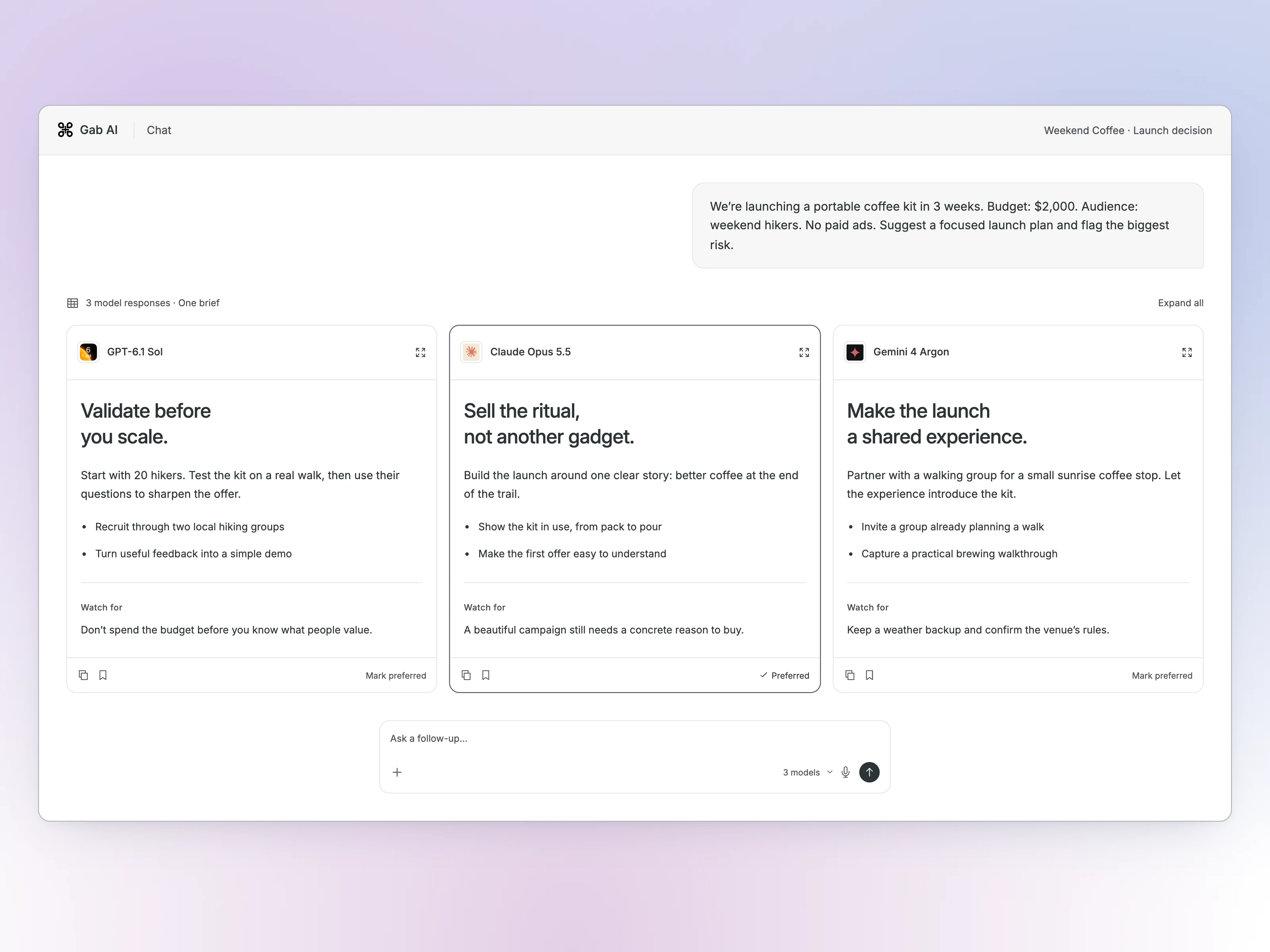
Work with your filesUse multiple AI models in one app to explore different approaches to your task. In Chat, open the model picker, turn on Compare and choose the models you want to use. Send one brief and source material to the selected models, then compare facts, missing details, tone and useful next steps.
To build on an answer, choose another model before your next message in the same chat. It receives the conversation context so it can continue from the earlier replies.
Ask for a draft, an explanation or help with a problem.
Open the picker before your next message and choose a different model.
Ask for a shorter draft, a different angle or help with the next step.
Sign in, choose a model and bring your own draft, question or coding problem. Ask for another version or a different explanation as the conversation develops.
Start with a Free account and signup credits for selected models. Pricing brings together plans and credit options; the model reference explains model access and API billing.
Chat’s Compare mode requires Plus and lets you select up to five compatible models.
For writing, try a short draft in your preferred tone. For coding, bring the relevant code, expected behavior and a question or bug. Compare answers on the same task to find the approach that helps you most.
Yes. Choose among the models in Gab AI’s library without maintaining a separate subscription with each model provider.
Yes. Open the model picker before your next message, choose a model and continue the conversation. Ask for a different draft, another explanation or help with the next part of your task.
Arya is Gab’s own model for uncensored chat, with a conservative perspective. GPT and Grok are model families from other providers, with their own styles and capabilities. Try the same source-based question with the models you are considering and compare accuracy, reasoning and how each follows your request. Comparing models inside Gab is different from comparing the full ChatGPT or Grok apps.
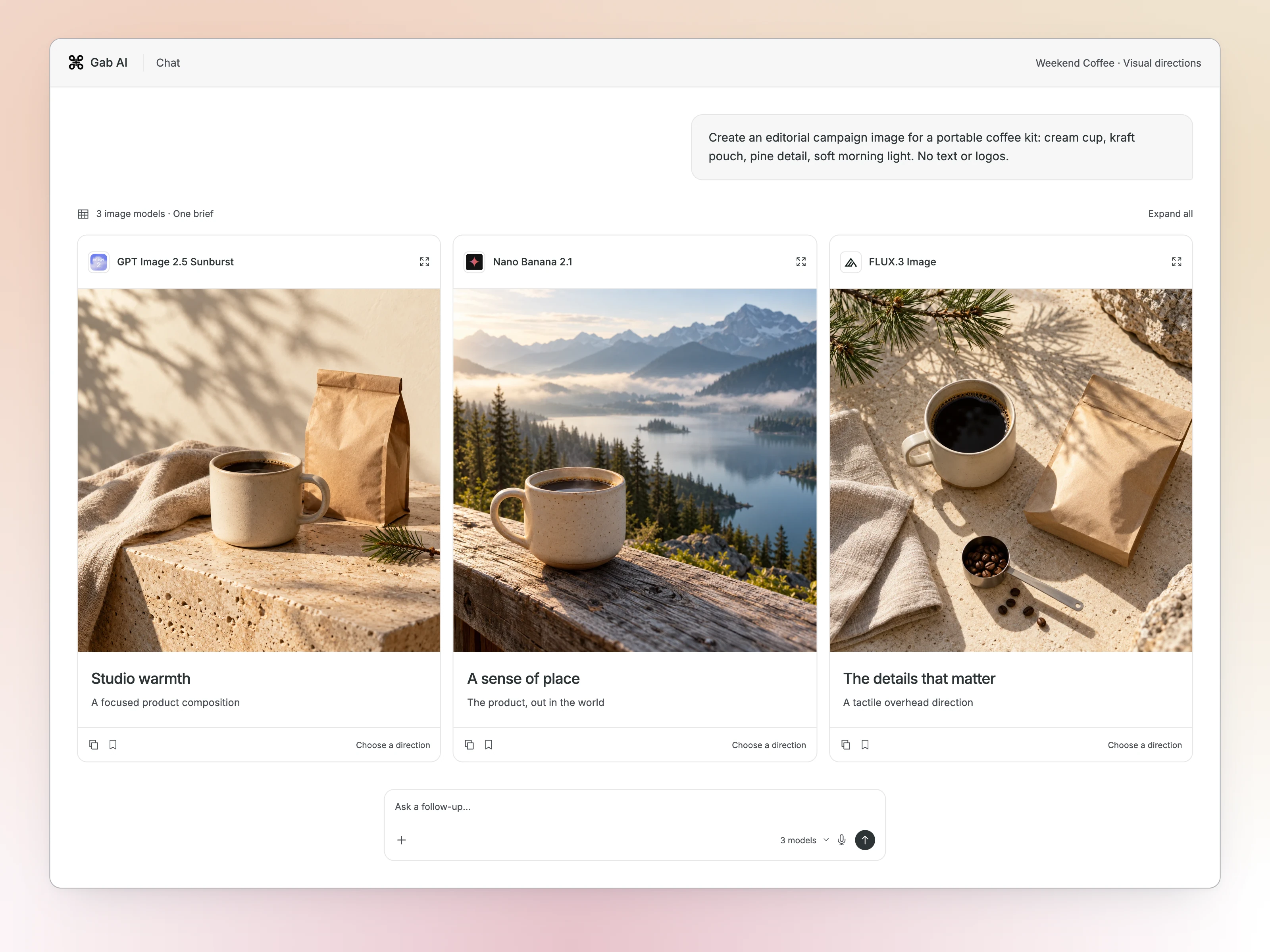
Yes. In Chat, open the model picker, choose the Image category, turn on Compare and select compatible image models. Confirm your selection, then send the same prompt to them together. You can also compare separate generations in Image Generator: keep the same prompt and image shape, generate with one model, then try another offered model. Review composition, lettering and important details beside one another. Use the Images guide for the generation and editing workflow.
Compare sends a request to each selected model. Each model’s usage is accounted for separately, so a comparison can use more credits than a single-model request. The total depends on the models, their settings and the work they do; there is no fixed multiplier. Check model pricing and available estimates before sending, then review your credit usage afterward.
Yes. Your saved memories belong to your Gab AI account, so relevant preferences and context can be used by different chat models. You do not need to create a separate memory for each model. What is included depends on your memory and collection settings.
Find more detail and choose your next step.
Bring a draft, a question or a coding problem. Choose a model, try another approach and keep your work together in Gab AI.