How to Run Perplexity's On-Device AI Agent on Your Windows PC: A Practical Guide
By Arya
Perplexity's on-device AI agent now runs on Windows PCs with NVIDIA RTX GPUs. Here's what we know so far, how to prepare, and whether local AI is worth the hardware investment.
How to Run Perplexity's On-Device AI Agent on Your Windows PC: A Practical Guide
Imagine asking your AI assistant to summarize a confidential client contract — and knowing, with certainty, that the text never left your machine. No cloud server in Virginia. No data center in Ireland. Just your GPU, your files, your answers.
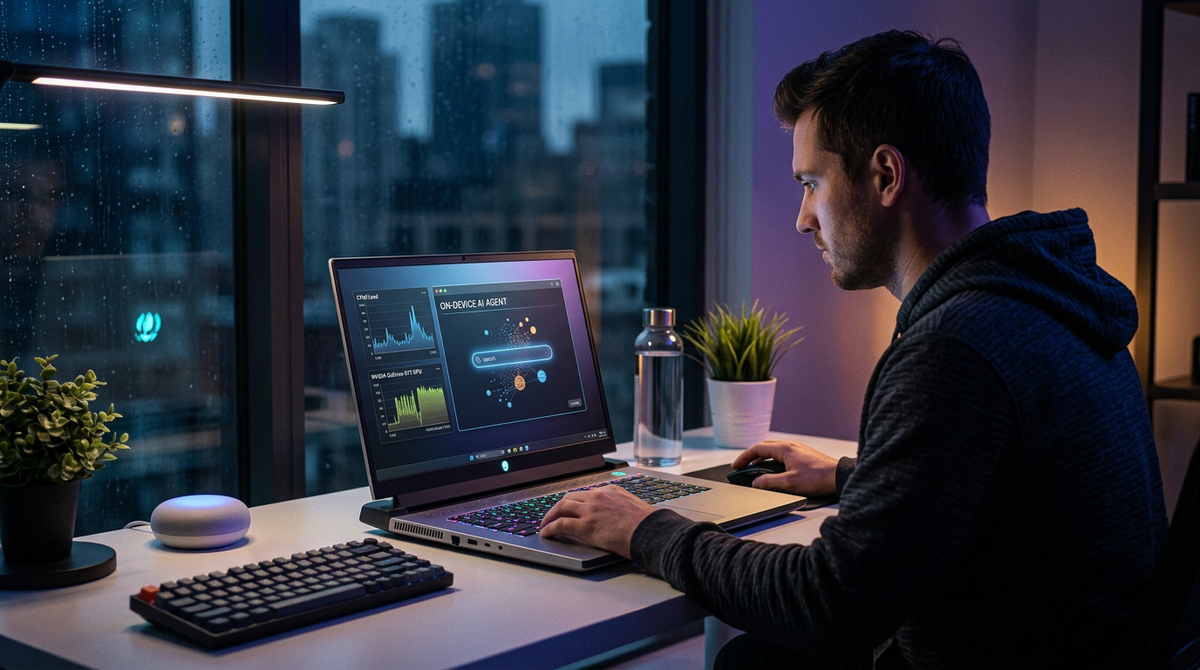
That scenario just became a lot more realistic for everyday Windows users. Perplexity has launched its on-device AI agent for Windows, bringing local AI inference to PCs equipped with NVIDIA RTX GPUs. The move extends on-device AI capabilities — previously associated with more specialized hardware and operating systems — to the Windows ecosystem, making local-first AI accessible to a much broader audience.
This is a meaningful shift. Not because local AI is brand new, but because it's finally becoming accessible to people who aren't system administrators or machine learning engineers. Freelancers handling sensitive client work. Small business owners who'd rather not send proprietary data through someone else's servers. Creators who want fast, private AI without the latency of a round trip to the cloud.
But here's the honest question: is this actually practical for you right now? Let's walk through what we know, what on-device AI can do, where it falls short, and how to decide if the investment makes sense.
Important note: Perplexity has not yet published a full public specification sheet for the Windows on-device agent at the time of writing. Some details below — such as exact VRAM thresholds, supported subscription tiers, and specific setup steps — are based on reasonable expectations from how similar on-device AI tools work and from early reporting. We'll update this guide as Perplexity releases official documentation. Always check Perplexity's official site for the latest requirements before making any hardware purchases.
What "On-Device AI" Actually Means (and Why It Matters)
When most people use AI tools — chatbots, writing assistants, image generators — their prompts travel over the internet to a remote server. That server runs the AI model, generates a response, and sends it back. It works well, and for most tasks, it's perfectly fine.
On-device AI flips that. The model runs directly on your computer's hardware, specifically on your GPU. Your prompts, your documents, and your outputs never leave your machine. The internet connection becomes optional for the AI itself (though you might still want it for web searches or updates).
Why does this matter? Three reasons:
Privacy that's structural, not just promised. When data never leaves your device, there's no server log to worry about, no breach risk on someone else's infrastructure, no ambiguity about data retention policies. For anyone handling client NDAs, medical information, financial records, or proprietary business strategy, this is a fundamentally different security posture than trusting a cloud provider's privacy policy.
Speed without latency. Cloud AI involves network round trips. On a good connection, you barely notice. On a spotty one — or when servers are congested — you absolutely do. Local inference eliminates that variable. Your response time depends on your hardware, not your ISP.
Availability that doesn't depend on someone else's uptime. Cloud services go down. Rate limits get hit. Subscription tiers throttle you during peak hours. A local model runs when your computer runs. That's it.
None of this means local AI is universally better than cloud AI. It's not. But for specific use cases — and we'll get into those — it's a genuine advantage.
Hardware Requirements: What You'll Likely Need
Let's be direct about the barrier to entry, because this is where a lot of people will make their decision.
Perplexity's on-device agent runs via NVIDIA RTX GPUs, and running capable language models locally generally requires a significant amount of VRAM. While Perplexity hasn't published a detailed minimum spec sheet at the time of writing, here's what we can reasonably expect based on how on-device AI models typically work and what early reports indicate:
- Operating system: Windows (64-bit) — check Perplexity's site for the exact minimum version
- GPU: NVIDIA RTX series with a substantial amount of VRAM (high-end cards with 24GB+ are the safest bet for smooth performance)
- Subscription: Likely requires a paid Perplexity tier — check their current plans for on-device feature access
The VRAM requirement is the real gatekeeper for any on-device AI setup. Here's what that means in practical terms:
GPUs Most Likely to Work Well
- NVIDIA RTX 4090 (24GB VRAM) — Consumer flagship, roughly $1,600–$2,000 at retail
- NVIDIA RTX 3090 / 3090 Ti (24GB VRAM) — Previous generation, available used for $800–$1,200
- NVIDIA RTX 5090 (if you're buying new in 2026) — Check current specs and pricing
- NVIDIA RTX A5000 / A6000 (professional cards) — 24GB and 48GB respectively, but priced for workstation use
GPUs That Probably Won't Be Enough
- RTX 4080 (16GB) — May work for smaller models, but likely insufficient for full-featured on-device agents
- RTX 4070 Ti (12GB) — Almost certainly not enough
- Any GTX-series card — Too old and too little VRAM
- AMD Radeon cards — Perplexity's implementation is NVIDIA-specific based on the RTX requirement
If you're sitting at 16GB of VRAM or less, you may be out of luck for the full on-device experience. Running a capable language model locally requires enough memory to hold the model weights, and high-VRAM cards are the floor for the kind of performance that makes local AI genuinely useful.
Before you buy anything: Wait for Perplexity's official hardware requirements. These could be more or less restrictive than what's outlined here. Bookmark their support page and check back before making any purchase decisions.
Is It Worth Upgrading?
This depends entirely on how often you'd use it and what you'd use it for. If you're a freelance consultant who handles confidential client materials daily, spending $1,200 on a used RTX 3090 might pay for itself in peace of mind within a few months. If you're curious but mostly use AI for casual writing help, the cloud version works fine — and you can get a lot done with an all-in-one AI tool that doesn't require specific hardware.
Don't upgrade your GPU just because local AI sounds cool. Upgrade because you have a specific, recurring need that local processing genuinely solves.
Preparing for Perplexity's On-Device Agent: Step by Step
Assuming you have (or plan to get) the hardware and subscription, here's how to prepare and what the setup process will likely involve. These steps are based on standard practices for on-device AI tools and will be updated as Perplexity releases official setup documentation.
Step 1: Verify Your System
Before installing anything, confirm your setup:
- Open Task Manager → click the Performance tab → select GPU
- Check that your GPU shows as an NVIDIA RTX card and note the amount of dedicated GPU memory listed
- Make sure your NVIDIA drivers are updated — open GeForce Experience or NVIDIA App and check for updates
- Confirm you have plenty of free storage on your primary drive — on-device AI models can be very large (often tens of gigabytes), so having at least 50–100GB free is a reasonable precaution
Step 2: Install or Update Perplexity for Windows
If you already have the Perplexity desktop app:
- Open it and check for updates — the on-device feature should appear as a new option once you're running a version that supports it
If you don't have it yet:
- Download the Windows desktop app from Perplexity's official site
- Sign in with your account (check which subscription tier is required for on-device features)
Step 3: Enable On-Device Mode
The exact menu labels may vary, but the general process for enabling local inference in AI desktop apps typically looks like this:
- Open Perplexity and navigate to Settings or Preferences
- Look for an option related to on-device inference, local mode, or local processing (Perplexity may use its own branding for this feature)
- Toggle the on-device mode on
- The app will likely need to download the local model files — expect this to take some time depending on your internet speed, as model files for capable language models are typically quite large
- Once downloaded, the app may run a quick check or benchmark to confirm your GPU can handle inference
Note: These steps are our best estimate of the setup flow. Perplexity's actual interface may differ. Follow the in-app instructions and Perplexity's official setup guide when available.
Step 4: Test It
Start with a simple prompt to confirm everything works:
"Summarize the key differences between an LLC and an S-Corp for a freelance consultant earning $120,000 annually."
You should see the response generate locally. Look for any indicator in the app that confirms you're running in on-device mode — many local AI tools display a badge or status indicator showing whether the response was generated locally or via the cloud.
Step 5: Configure Your Workflow Preferences
Most on-device AI tools offer some version of these modes, and Perplexity will likely be similar:
- Always local: Maximum privacy, but no web search capability during local-only mode
- Local with cloud fallback: Uses local inference for generation but can still access the web for real-time information
- Cloud default with local for sensitive tasks: Most flexible, lets you toggle per conversation or per task
Most users will want the hybrid approach — local for anything involving proprietary or personal data, cloud for general research where you need current web results.
What On-Device AI Agents Can Actually Do
Let's be specific about capabilities, because "AI agent" is a term that gets stretched to mean almost anything.
Based on what on-device AI agents generally offer and what Perplexity's agent-oriented features suggest, here's what you can reasonably expect:
Draft and Edit Text Locally
You can feed it documents, ask for summaries, request rewrites, and generate drafts — all without data leaving your machine. This is the most immediately useful feature for most people.
Example prompt you can copy and adapt:
"I'm pasting a 3-page client proposal below. Rewrite the executive summary to emphasize cost savings over feature benefits. Keep the tone professional but not stiff. Here's the document: [paste text]"
Analyze Local Files
On-device agents can typically read files on your system — PDFs, text documents, spreadsheets — and answer questions about them. This is where privacy benefits really shine. Instead of uploading a confidential financial report to a cloud AI, you point the local agent at the file.
Example prompt:
"Read the PDF at C:\Documents\Q3-financials.pdf and list every line item where spending increased more than 15% compared to Q2. Format as a table."
Verify this capability: File access features vary by implementation. Confirm in Perplexity's documentation which file types are supported and how file access works in their on-device mode.
Automate Repetitive Computer Tasks
This is the "agent" part. AI agents that interact with your desktop environment can open applications, fill in forms, move files, and execute multi-step workflows. Think of it as a very capable macro system that understands natural language.
Example prompt:
"Every Monday at 9 AM, open my Downloads folder, move any PDF files from the last 7 days into a new subfolder named with this week's date, and create a text file listing the moved files."
Reality check: The scope of desktop automation varies significantly between AI agents. Some can interact deeply with your OS; others are limited to text generation and file reading. Test what Perplexity's agent can actually do on your system before building workflows around it.
What It Likely Can't Do (Yet)
Be realistic about limitations:
- No real-time web search in fully local mode. If you need current information (today's news, live stock prices), you need cloud connectivity.
- Smaller model = less capable. The local model is necessarily smaller than what runs on Perplexity's servers. For complex reasoning tasks, multi-step research, or very long documents, cloud models will still outperform.
- No image or video generation locally. On-device inference for agents like this is typically focused on text and task automation. If you need to generate images, video, or music, you'll want a cloud-based AI tool that handles all of those in one place.
When Local AI Beats Cloud (and When It Doesn't)
This is the practical decision framework. Not every task benefits from local processing, and pretending otherwise wastes your time and hardware.
Go Local When:
- You're working with confidential data. Client contracts, employee records, financial projections, medical notes, legal documents. Anything where a data breach would be a real problem.
- You need consistent speed. If you're running AI-assisted workflows all day and can't afford latency spikes, local inference gives you predictable performance.
- You're offline or in a restricted network. Traveling, working from a location with poor internet, or operating in an environment where cloud AI tools are blocked.
- You're doing repetitive local automation. File management, data formatting, batch text processing — tasks where the agent interacts with your local system.
Stick With Cloud When:
- You need the smartest model available. Cloud-hosted models are larger, more capable, and updated more frequently. For complex analysis, creative work, or anything requiring nuanced reasoning, cloud still wins.
- You need real-time information. Web search, current events, live data — these require internet access regardless.
- You want multimodal output. Need an image, a video, a music track, and a blog post for the same project? That's a cloud workflow. Tools like Gab AI let you create text, images, videos, and music from a single dashboard without juggling separate apps.
- Your hardware doesn't meet the requirements. No shame in this. Most people don't have a high-end GPU, and cloud AI is excellent.
The smart approach isn't choosing one or the other — it's knowing which tool fits which task. If you're exploring what AI can do for a small business, the answer is almost always a mix of local and cloud tools, each handling what it does best.
Practical Prompts for Your First Week With Local AI
If you get the on-device agent running, here are prompts designed for local-first workflows. These assume you're processing sensitive or proprietary information that you'd rather keep off the cloud.
For freelancers reviewing client work:
"I'm pasting a client's brand guidelines document below. Extract every specific rule about tone of voice, and organize them into a checklist I can reference while writing. Here's the document: [paste]"
How to adapt this prompt: Replace "tone of voice" with whatever aspect of the guidelines matters most for your current project — visual identity rules, messaging hierarchy, audience definitions. The structure (paste document → extract specific category → organize into usable format) works for any guidelines document.
For small business owners analyzing internal data:
"Read the CSV file at [file path]. Calculate the average order value for each month in 2026, identify any month where it dropped more than 10% from the previous month, and suggest three possible explanations for each drop."
How to adapt this prompt: Swap the metric (average order value) for whatever KPI matters to your business — customer acquisition cost, churn rate, support ticket volume. The pattern (read file → calculate metric over time → flag anomalies → suggest explanations) is reusable across any tabular data.
For anyone organizing their digital life:
"Scan my Documents folder and create a summary of every file modified in the last 30 days. Group them by file type, show the file size, and flag anything over 100MB that I might want to archive."
How to adapt this prompt: Change the folder, the time window, and the threshold to match your needs. You could also ask it to flag duplicates, identify files you haven't opened in over a year, or sort by project name if your naming conventions are consistent.
These prompts work because they involve your private data and your local files — exactly the scenarios where on-device processing earns its keep.
Common Mistakes When Setting Up Local AI
After watching how people approach local AI setups, these are the errors that come up most often:
1. Not updating GPU drivers first. Outdated drivers cause crashes, slow inference, and mysterious errors. Update before you install anything. This takes five minutes and prevents hours of troubleshooting.
2. Running other GPU-heavy applications simultaneously. If you're gaming, video editing, or running another AI model while trying to use the on-device agent, you'll run out of VRAM. Close other GPU-intensive apps before starting a local AI session. Your VRAM sounds like a lot until a game or video editor is consuming a significant chunk of it.
3. Expecting cloud-level performance from a local model. The local model is good. It is not as good as the full cloud model. Set your expectations accordingly. For straightforward tasks — summarization, drafting, file analysis, automation — it's excellent. For complex multi-step reasoning or creative work requiring broad knowledge, you may get better results from a cloud model.
4. Forgetting that "local" doesn't mean "secure" by default. Local AI keeps your data off cloud servers, but your computer still needs to be secure. If your Windows account has no password, your hard drive isn't encrypted, or you're running malware, local AI doesn't fix those problems. Local processing is one layer of a privacy strategy, not the whole thing.
5. Overcomplicating the setup. Some people try to optimize everything — custom model configurations, manual VRAM allocation, performance tweaking — before they've even used the tool once. Just install it, run it with default settings, and adjust later if you need to. The defaults exist for a reason.
6. Buying hardware before checking official requirements. This is worth repeating: do not purchase a new GPU based on estimated requirements. Wait for Perplexity to publish official specs, or at minimum, confirm with their support team that your hardware qualifies. A $1,600 GPU purchase based on assumptions is a $1,600 mistake if the requirements turn out to be different.
The Bigger Picture: Where On-Device AI Fits in Your Workflow
Perplexity's Windows launch is part of a broader trend. AI is moving from "everything in the cloud" toward a hybrid model where some processing happens locally and some happens remotely. This is similar to how we already handle other software — you edit documents locally in Word but collaborate in the cloud through shared drives.
For most people reading this, the practical takeaway isn't "switch everything to local AI." It's "now you have the option to keep sensitive work local when it matters."
Your daily workflow might look like this:
- Morning: Use a cloud-based AI writing assistant to draft a blog post, generate social media images, and outline a video script — tasks where you want the best model and multimodal capabilities.
- Afternoon: Switch to the local agent to review a client's confidential financials, summarize a proprietary report, or automate file organization on your PC.
- Evening: Back to cloud tools for creative projects, research, or anything requiring web access.
The point isn't that one approach replaces the other. It's that you now have a genuine choice, and making that choice intentionally is what separates productive AI use from just following trends.
If you're still building your overall AI workflow — figuring out which tasks to automate, which to augment, and which to leave alone — our guides and how-to section covers a lot of ground on practical AI use for non-technical users. And if you're interested in setting up custom AI agents or scheduling recurring AI tasks as part of a broader productivity system, those are worth exploring once you've got the basics down.
Self-Check: Is On-Device AI Right for You?
Before you invest time or money, run through this quick checklist:
- Do I regularly work with confidential or sensitive documents that I currently feed into cloud AI tools?
- Do I already own (or have budget for) a high-end NVIDIA RTX GPU?
- Am I comfortable with the trade-off that local models are less capable than cloud models for complex tasks?
- Do I have a specific, recurring use case (not just curiosity) that local processing would improve?
- Have I checked Perplexity's official site for confirmed hardware requirements and supported subscription tiers?
If you answered yes to at least three of these — especially the first and last — on-device AI is worth pursuing. If not, cloud AI tools will serve you well, and you can revisit local options as hardware gets cheaper and requirements get lower.
Quick Start: What You Can Do in 10 Minutes Today
Even if you don't have the hardware for local AI right now, here's what you can do in the next 10 minutes:
- Check your GPU. Open Task Manager → Performance → GPU. Note your card model and VRAM. Now you know where you stand.
- Assess your privacy needs. Make a quick list of the types of documents and data you regularly feed into AI tools. Which ones are truly sensitive? Which ones are fine in the cloud? This exercise alone clarifies whether local AI is worth pursuing.
- Bookmark Perplexity's official page. When they publish full hardware requirements and setup documentation, you'll want to see it first — not rely on secondhand summaries.
- Start using AI for your actual work today. You don't need local hardware to get value from AI right now. Start creating text, images, videos, music, and more in one place at Gab AI — and when your privacy needs grow, you'll already know which tasks to move local.
The Honest Conclusion
Perplexity's on-device AI agent for Windows is a real step forward for privacy-conscious users. It's not a gimmick. For people who handle sensitive data regularly and happen to own (or are willing to invest in) a high-end NVIDIA GPU, it addresses a genuine problem: getting AI assistance without sending confidential information through someone else's infrastructure.
But it's also not for everyone — not yet. The hardware requirement is steep. The local model is less capable than cloud alternatives. And for the majority of everyday AI tasks, cloud tools remain faster, more powerful, and more versatile.
The smart move is to understand both options and use each where it makes sense. Keep sensitive work local when you can. Use the best cloud tools available for everything else. And don't let the perfect privacy setup stop you from getting value out of AI today.
Start creating text, images, videos, music, and more in one place at https://gab.ai.