
9 min reading · Practice at your pace
How to make an Excel spreadsheet with AI
Build an Excel budget from source figures, follow its formulas and compare a revision that changes one optional cost.
Enlarge preview
cedar-workshop-budget.xlsx
Give your workbook a clear question
This workshop budget asks how an optional printing cost changes the remaining funds. Follow the source, inputs, formulas and revision, then use the complete practice brief below or replace it with your own figures.
Keep source figures and unknowns visible
Separate quantities, unit costs and proposed income before asking for a workbook. Tax and delivery are unspecified in this example; the remaining funds exclude them and the workshop proposal still needs approval.
Source facts
| Item | Details |
|---|---|
| Purpose | A community workshop proposal, not an approved event. |
| Income | 24 proposed participants × USD 20 = USD 480. |
| Base costs | Notebooks 120 + marker packs 80 + folders 60 + room hire 110 = USD 370. |
| Optional printing | USD 25; total USD 395 if included. |
| Remaining funds | USD 110 without printing; USD 85 with printing. Tax and delivery remain unspecified and excluded. |
| Unknowns | No approval, date, venue or attendance guarantee. |
Ask for an editable Excel workbook
Specify the sheet name, input cells, units and calculations. Ask Work for a finished XLSX with native formulas. The initial request below produced the original workshop budget.
Read the workbook request
Create a real editable XLSX workbook named cedar-workshop-budget.xlsx for a public product example. Use only the facts below; do not use personal memories, connected accounts or outside files. Deliver the actual workbook, not only a Markdown table or instructions.
Use one sheet named Budget. A4:D4 headers: Item, Quantity, Unit cost (USD), Line cost (USD). Rows 5–9:
Notebooks | 24 | 5
Marker packs | 10 | 8
Folders | 20 | 3
Room hire | 1 | 110
Optional printing package | 0 | 25
Put editable inputs in B5:C9 and formulas =B5*C5 through =B9*C9 in D5:D9. Printing is optional and excluded initially, hence quantity 0; its quoted package cost is USD 25.
A11 label Total cost; D11 formula =SUM(D5:D9).
Row 14: A14 Proposed fee income, B14 24 participants, C14 USD 20 fee, D14 formula =B14*C14.
A15 Remaining funds; D15 formula =D14-D11.
Expected initial results: line costs 120, 80, 60, 110, 0; total 370; proposed income 480; remaining 110. Add an ordinary note that tax and delivery are unspecified and excluded from these figures; the proposal is not approved, and there is no date, venue or attendance guarantee. Preserve formulas as native Excel formulas and make recalculation automatic. Check the actual cell addresses and totals before delivering the file.
Read the budget and its formulas
The table shows the original workbook’s inputs, native formulas and saved results. Read across each row to connect the quantity and unit cost with its calculated total. The full cell list is available below.
Budget sheet: original figures and formulas
| Item | Quantity | Unit cost (USD) | Native formula | Line cost (USD) |
|---|---|---|---|---|
| Notebooks | 24 | 5 | =B5*C5 | 120 |
| Marker packs | 10 | 8 | =B6*C6 | 80 |
| Folders | 20 | 3 | =B7*C7 | 60 |
| Room hire | 1 | 110 | =B8*C8 | 110 |
| Optional printing package | 0 | 25 | =B9*C9 | 0 |
| Total cost | =SUM(D5:D9) | 370 | ||
| Proposed fee income | 24 | 20 | =B14*C14 | 480 |
| Remaining funds | =D14-D11 | 110 |
public product example. Tax and delivery are unspecified and excluded from these figures. The proposal is not approved. There is no date, venue or attendance guarantee. The optional printing package is excluded initially (quantity 0); its quoted package cost is USD 25.
All original workbook cells
Actual original workbook cells
| Item | Details |
|---|---|
| A4 | Item |
| B4 | Quantity |
| C4 | Unit cost (USD) |
| D4 | Line cost (USD) |
| A5 | Notebooks |
| B5 | 24 |
| C5 | 5 |
| D5 | =B5*C5 → 120 |
| A6 | Marker packs |
| B6 | 10 |
| C6 | 8 |
| D6 | =B6*C6 → 80 |
| A7 | Folders |
| B7 | 20 |
| C7 | 3 |
| D7 | =B7*C7 → 60 |
| A8 | Room hire |
| B8 | 1 |
| C8 | 110 |
| D8 | =B8*C8 → 110 |
| A9 | Optional printing package |
| B9 | 0 |
| C9 | 25 |
| D9 | =B9*C9 → 0 |
| A11 | Total cost |
| D11 | =SUM(D5:D9) → 370 |
| A14 | Proposed fee income |
| B14 | 24 |
| C14 | 20 |
| D14 | =B14*C14 → 480 |
| A15 | Remaining funds |
| D15 | =D14-D11 → 110 |
| A17 | public product example. Tax and delivery are unspecified and excluded from these figures. The proposal is not approved. There is no date, venue or attendance guarantee. The optional printing package is excluded initially (quantity 0); its quoted package cost is USD 25. |
Follow the calculations from inputs to totals
Multiply quantity by unit cost for each line, add the costs, calculate proposed fee income and subtract costs from income. The formula guide below explains how those steps connect. Keep units and unspecified tax and delivery in view.
Understand the workbook formulas
| Item | Details |
|---|---|
| Quantity × unit cost | =B5*C5 uses 24 notebooks × USD 5 = USD 120. D5:D9 use the quantity and unit cost from the same row. |
| Sum the costs | =SUM(D5:D9) in D11 adds the five line costs: USD 370 originally and USD 395 with printing. |
| Proposed income − costs | =B14*C14 in D14 gives 24 × USD 20 = USD 480 proposed income. =D14-D11 in D15 leaves USD 110 originally and USD 85 with printing. These are remaining funds before unspecified tax and delivery, not confirmed profit. |
Change printing and preserve the formulas
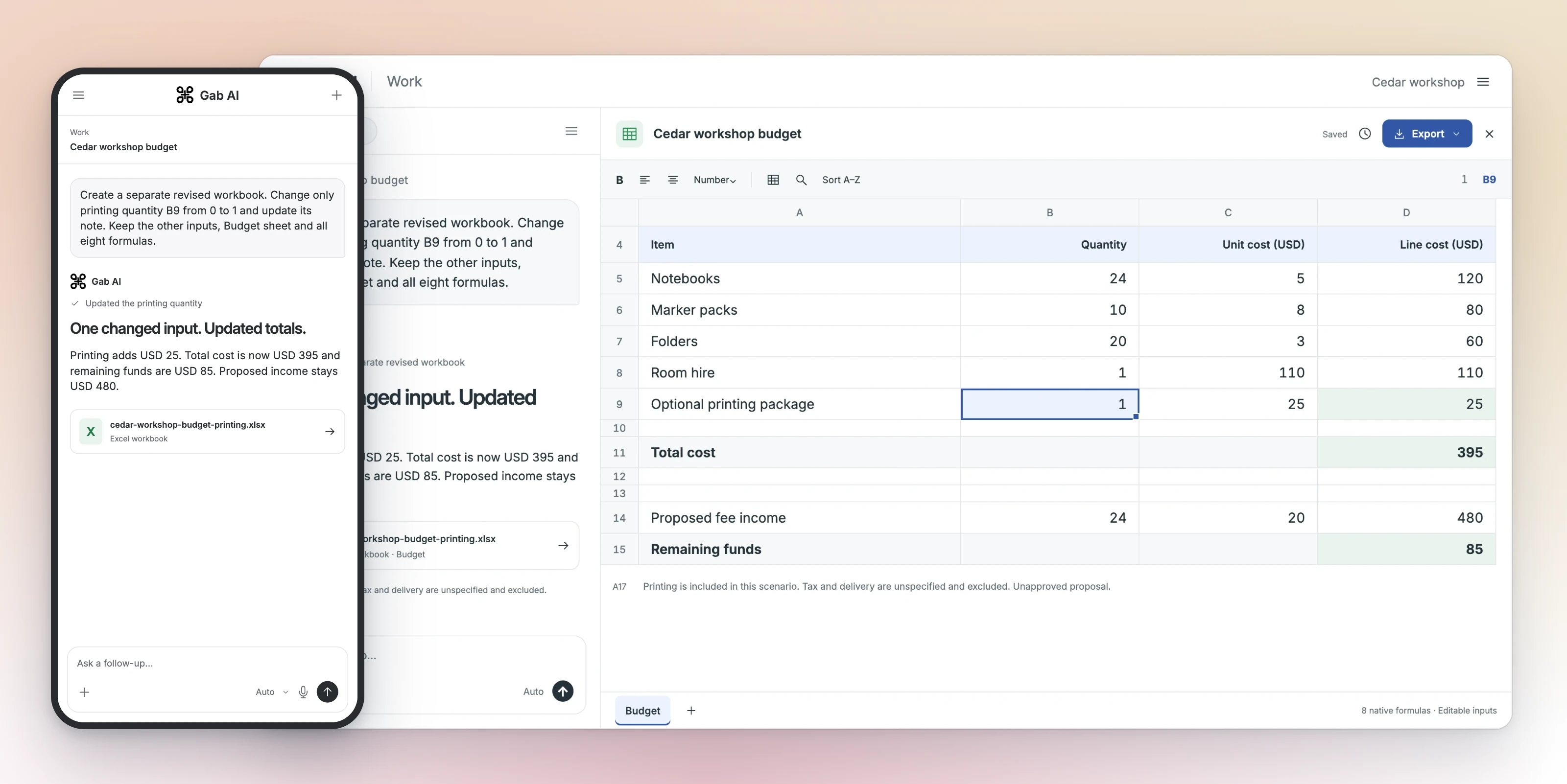
The follow-up asks for a separate workbook with printing quantity B9 changed from 0 to 1 and the note in A17 updated. The other source cells, sheet name and eight formulas should stay the same.
Read the revision request
Create a separate revised copy named cedar-workshop-budget-printing.xlsx. In the original Budget sheet change only the optional printing quantity B9 from 0 to 1, and update its explanatory note to say printing is included in this scenario. Preserve all other source quantities, unit costs, sheet name and formulas. Expected total cost D11 is 395; proposed income D14 stays 480; remaining funds D15 is 85. Tax and delivery remain unspecified; this is an unapproved proposal. Deliver the actual revised editable XLSX, keeping the original available, and check its cells and calculations.
Compare the recalculated workbook
The revised file changes B9 and A17 while preserving the other inputs and all eight formulas. Printing adds USD 25: costs become USD 395, proposed income stays USD 480 and remaining funds become USD 85. Compare the two tables and notes.
Budget sheet: revised figures and formulas
| Item | Quantity | Unit cost (USD) | Native formula | Line cost (USD) |
|---|---|---|---|---|
| Notebooks | 24 | 5 | =B5*C5 | 120 |
| Marker packs | 10 | 8 | =B6*C6 | 80 |
| Folders | 20 | 3 | =B7*C7 | 60 |
| Room hire | 1 | 110 | =B8*C8 | 110 |
| Optional printing package | 1 | 25 | =B9*C9 | 25 |
| Total cost | =SUM(D5:D9) | 395 | ||
| Proposed fee income | 24 | 20 | =B14*C14 | 480 |
| Remaining funds | =D14-D11 | 85 |
public product example. Tax and delivery are unspecified and excluded from these figures. The proposal is not approved. There is no date, venue or attendance guarantee. The optional printing package is included in this scenario (quantity 1); its quoted package cost is USD 25.
All revised workbook cells
Actual revised workbook cells
| Item | Details |
|---|---|
| A4 | Item |
| B4 | Quantity |
| C4 | Unit cost (USD) |
| D4 | Line cost (USD) |
| A5 | Notebooks |
| B5 | 24 |
| C5 | 5 |
| D5 | =B5*C5 → 120 |
| A6 | Marker packs |
| B6 | 10 |
| C6 | 8 |
| D6 | =B6*C6 → 80 |
| A7 | Folders |
| B7 | 20 |
| C7 | 3 |
| D7 | =B7*C7 → 60 |
| A8 | Room hire |
| B8 | 1 |
| C8 | 110 |
| D8 | =B8*C8 → 110 |
| A9 | Optional printing package |
| B9 | 1 |
| C9 | 25 |
| D9 | =B9*C9 → 25 |
| A11 | Total cost |
| D11 | =SUM(D5:D9) → 395 |
| A14 | Proposed fee income |
| B14 | 24 |
| C14 | 20 |
| D14 | =B14*C14 → 480 |
| A15 | Remaining funds |
| D15 | =D14-D11 → 85 |
| A17 | public product example. Tax and delivery are unspecified and excluded from these figures. The proposal is not approved. There is no date, venue or attendance guarantee. The optional printing package is included in this scenario (quantity 1); its quoted package cost is USD 25. |
Inspect inputs and formulas in the editor
Open the workbook output and select a cell to inspect its value or formula. To explore a scenario, change an input and check the dependent totals. Wait for Saved after editing, then reopen the same workbook from Files to confirm the input and results. Docs explains editing and recovery.
Build a workbook from your own figures
Use the complete practice brief below or replace the source with a small budget you can check. After the revision, compare the changed input, its note, the formulas and the totals against the original.
Your turn
Build a budget and compare one change.
Use the complete source below or replace it with your own figures. Create a workbook with editable inputs and formulas, check the original results, then send the focused revision below in the same Work task.
Write a draft and review the checklist.
Your draft saves in this browser. You can leave and come back.
Take your brief into Work
Copy your brief, open Gab AI and choose Work before pasting and sending it. Opening Gab AI does not carry over or submit the draft. Work requires Plus and uses applicable credits; see Docs for details.
Open Gab AI for WorkSpreadsheet controls and accessAdd printing while preserving the formulas
After checking the original workbook, send this follow-up in the same Work task. Compare both files, including the input cells, formulas, totals and note.
Create a separate revised workbook. On Budget, change only optional printing quantity B9 from 0 to 1 and update the A17 note to say printing is included in this scenario. Preserve all other quantities, unit costs, labels, the Budget sheet name and all eight formulas. Check D9 = USD 25, D11 = USD 395, D14 = USD 480 and D15 = USD 85. Tax and delivery remain unspecified and excluded, and the workshop proposal still needs approval. Keep the original file so I can compare both versions. Inspect the revised cells, formulas and note before delivering the XLSX.If you replaced the workshop source, update the cell addresses, figures and requested change to match your own workbook before sending.