Image generation and editing: controls and credits
Create images from a prompt or edit a source photo. Find the model options, prepare your inputs, review results and troubleshoot a request.

Enlarge preview
From a description to a newsletter illustration
Choose generation or editing
Use Image Generator to start from a text description, or Image Editor to change a source photo. Images brings together image tools, styles and your gallery.
Generate an image, then edit it
Start from a prompt
Enter your description in Image Generator, choose your model and options, then select Generate Image.
Use the result as a source
Open Image Editor, upload the first image in Source Image, paste your change in Edit Instruction and select Edit Image when ready.
Image models and supported controls
Select a model beside your prompt, then open Options. Image-model families include GPT Image, Nano Banana and Seedream. The selected model determines which inputs and settings you can use.
Image tool inputs and options
| Tool | Inputs and options | Use it for |
|---|---|---|
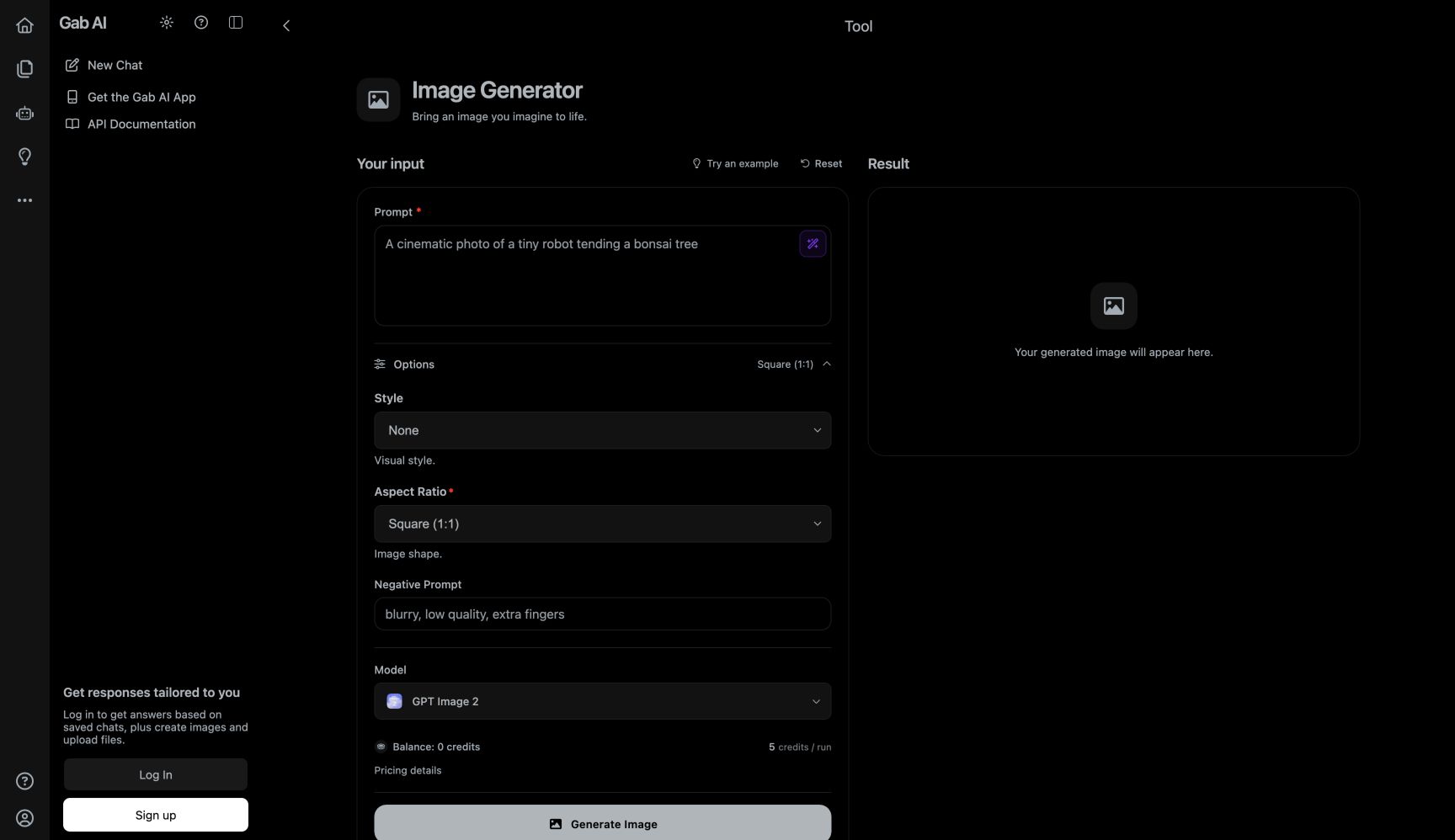
| Image Generator | Prompt; Style (None, Photorealistic, Digital Art, Illustration, 3D Render); Aspect Ratio (1:1, 16:9, 9:16); Negative Prompt. | Create a new image from your description. |
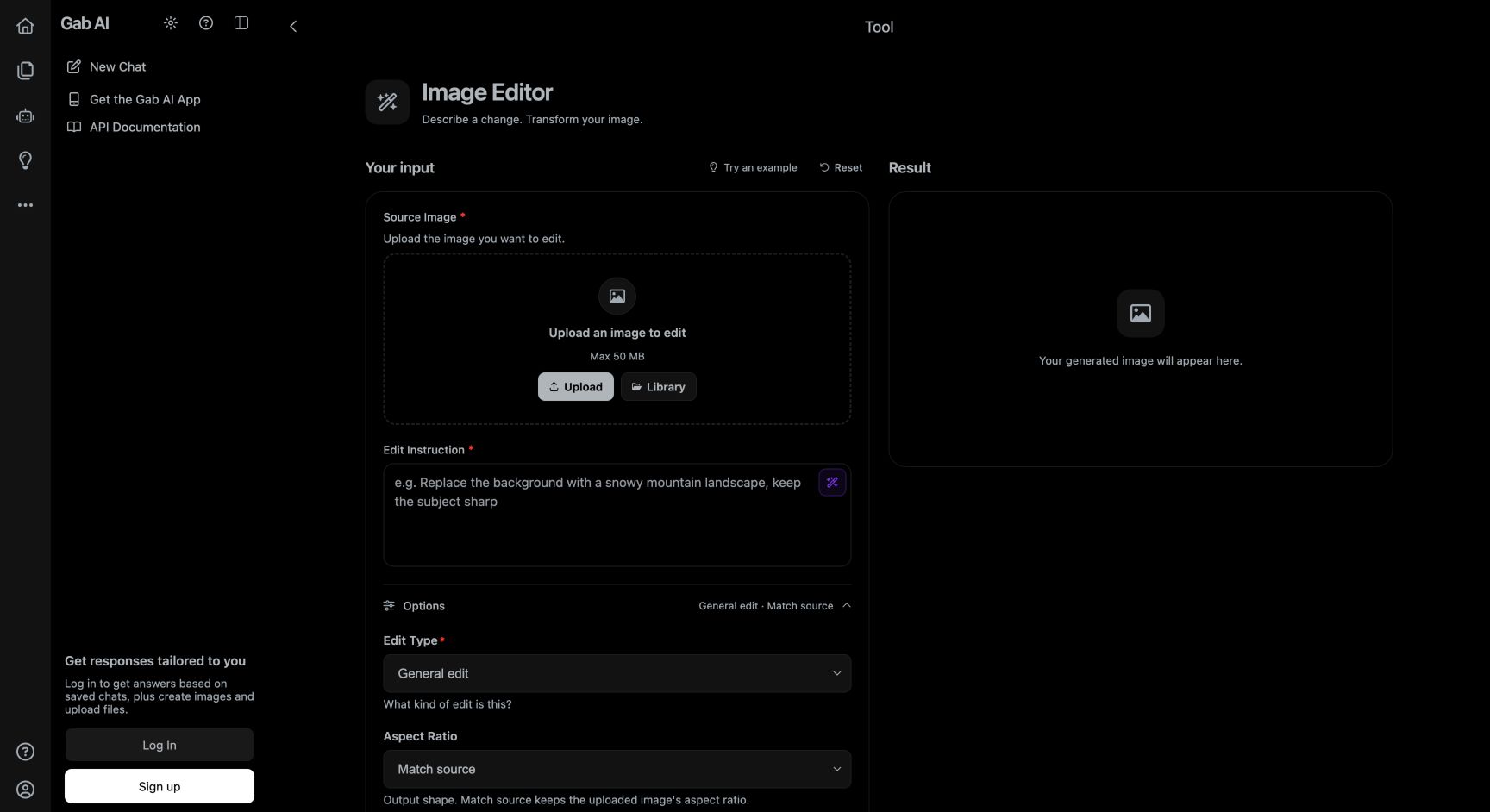
| Image Editor | Source Image; Edit Instruction; Edit Type; Aspect Ratio; Preserve Subject. | Use a source image and describe what to change. |
Available options vary by model. A negative prompt describes what to avoid; it does not guarantee that every unwanted detail will be excluded.
Enlarge image
The Image Generator with Options expanded
Image Generator with Options expanded.
Prepare a source image for editing
Upload one source image in Image Editor and keep the subject clearly visible. The web form shows a 50 MB source-image limit; follow the format and size limits displayed for your selection. Write the change in Edit Instruction.
Use edit type, shape and subject controls
Edit Type includes General edit, Replace background, Restyle / re-render, Add an element, Remove an element, Enhance / cleanup and Recolor. Aspect Ratio includes Match source, 1:1, 3:4, 4:3, 9:16 and 16:9. Match source requests the source shape. Preserve Subject asks the model to keep the main subject faithful; compare the result with the original. These controls describe the edit rather than selecting a precise masked area.
Enlarge image
The Image Editor with Options expanded
Image Editor source-image and edit controls.
Account access and image credits
Sign in, choose a model and add your inputs. The form shows an estimate before you select Generate Image or Edit Image. Free accounts include signup credits for supported image models; other model access can require purchased credits or a paid plan.
Generate, review and keep your image
Choose Generate Image or Edit Image when the form is ready. Compare the result with your brief or source photo, then use the result’s available save or download action to keep it. Keep your prompt and model settings with the image for later revisions.
Check your finished image
Compare with the brief
Look at the subject, framing, light, lettering and any unwanted changes.
Keep a usable copy
Use the result’s available save or download action. Check the file opens and its dimensions fit your project.
Make a focused revision
Change one instruction or use the first image as a reference in Image Editor. Compare the new version with the original.
Troubleshoot an image request
Common problems and the next check
| Problem | Next step |
|---|---|
| Upload is rejected | Check the selected model’s input fields and the displayed format, size and count limits. |
| Credits or model access block the run | Review account balance and eligibility. Select an eligible model or use the options shown in the account prompt. |
| Generation reports a failure | Keep the error and run details. Check recorded usage before retrying; contact support if a charge or result looks wrong. |
| An edit changes the product | Compare with the source, name the unwanted change and review another attempt. Do not assume preservation is guaranteed. |
| Text or a logo is distorted | Inspect it closely. Simplify the request or add exact lettering in an editor. |
| Download does not open | Check that the run completed and retry its available download action. Keep the run details for support. |
Using images in a project
Upload material you have permission to use. Before sharing or selling an output, review the selected model/provider terms and check recognizable people, logos, labels and product details.
Questions about image controls
Which image model should I choose?
Choose an image model that supports your inputs. Keep the same brief when trying another model, then compare composition, text and important details against what you need.
What happens if an image generation fails?
Read the error and check the completed request in Usage History before trying again. Contact support with the run details if the result or recorded charge looks wrong.
Guides and resources
Find more detail and choose your next step.