
Remote AI project Work from your phone: pairing and access
Set up Remote to continue computer projects from your iPhone or Android phone.
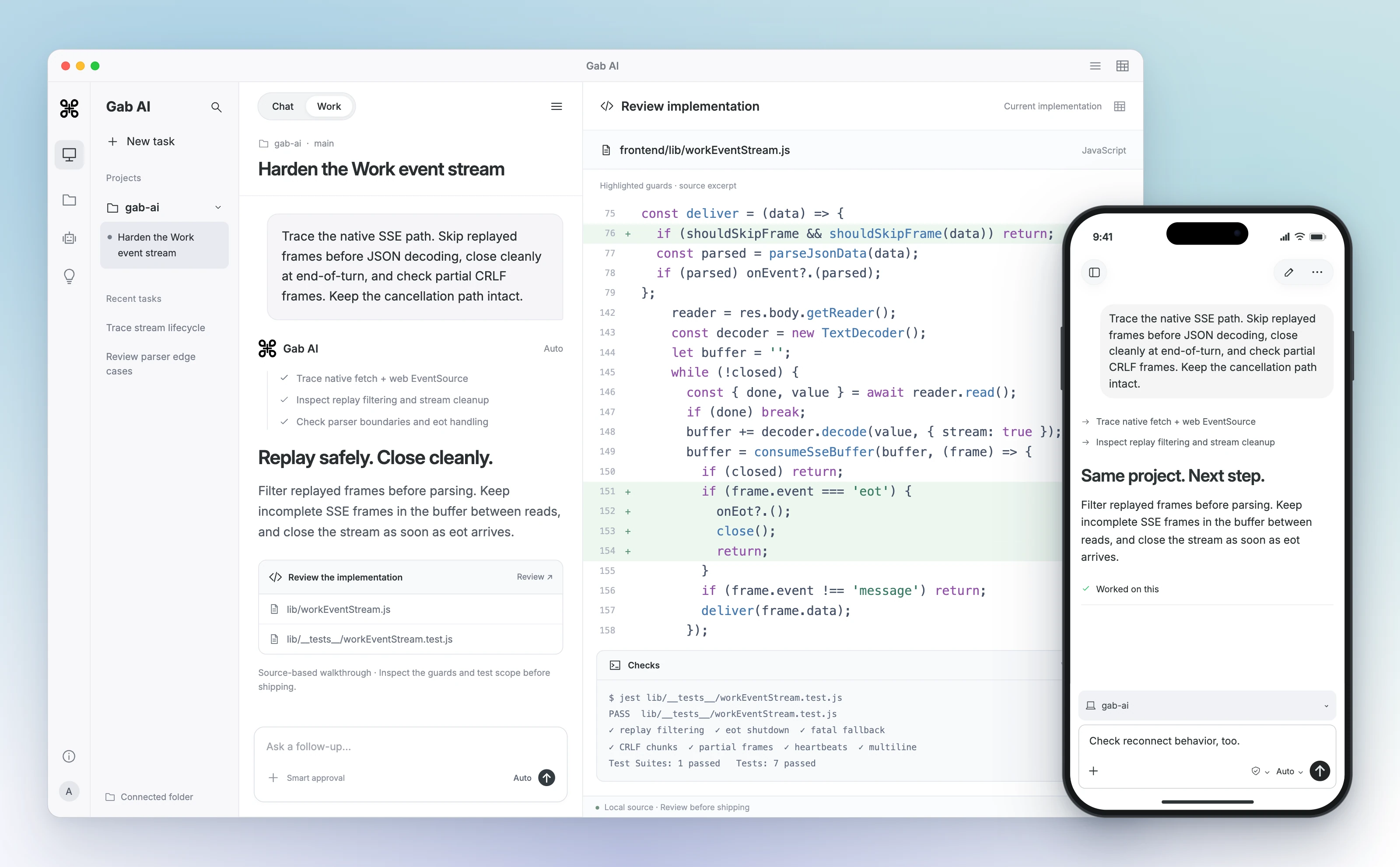
Enlarge preview
Your computer project and a phone follow-up
Continue a computer project from your phone
Pair your iPhone or Android phone with an online Windows or direct Mac host. Choose which project folders to share, set editing permissions and continue the conversation from your phone.
Account and task access
Work requires Plus and uses your selected model and tools. Folder, command, website and Remote permissions are separate controls on the host computer. Relevant task content is processed through Gab AI and its providers.
Your computer’s projects from your phone
Remote connects the Gab AI iOS or Android app to shared project folders on your Windows PC or a compatible direct-download Mac app. Start or continue project Work chats and review available changes from your phone. Remote uses the host computer’s files without copying entire folders to your phone.
Set up the connection in the native desktop and mobile apps with the same Gab AI account. The web app does not pair a phone or provide this Remote folder workflow. The Mac App Store edition does not host Remote.
Before you begin
- Install Gab AI on Windows or a compatible direct-download Mac build and on iOS or Android. Sign in to the same account on both devices. Update both apps if a setup control is unavailable.
- Local and Remote tasks require a plan with Work access, credits and an available account session. Pairing alone does not enable an unavailable task capability.
- Keep the host computer awake, connected to the internet and running Gab AI. Keep a laptop’s lid open while its files are in use. Devices can be on different networks; normal setup needs no port forwarding or VPN.
- Add a project folder on the computer and review its local and Remote access before pairing.
1. Enable Remote on Windows
Open Projects → Remote access. Choose Review folder access to expand Folders & PC settings. Name the PC and choose which projects are Not shared, Read only or Read & write. A locally read-only project cannot grant Remote writing. Automatic sharing can include current and future projects; review the exclusions and permissions.
Choose Enable Remote access. When enabled, save changes with Save sharing settings. Choose Pair a phone or Pair another phone to display a QR code. Replace pairing code generates a fresh code. Leave it visible while connecting the phone.
1. Enable Remote on Mac
Open Remote in the sidebar (Remote Access in some builds), or Settings → Remote access. Expand Folders & Mac settings to name This Mac and review Your projects. New setup automatically includes saved and future project folders unless you exclude them. Uncheck a folder or turn off Allow edits, new files and moving files to Trash for read-only sharing; Add a folder… opens the picker.
Choose Enable Remote access, then Show pairing code or Pair another phone. Older builds combine these as Enable Remote and pair a phone. Review local access in Settings → Mac app → Folder access. Changes to sharing save immediately when Remote is enabled.
2. Pair the iOS or Android app
Use your phone’s Camera app to scan the QR code, then open its link in Gab AI. On Connect to your computer, optionally change the phone name, then choose Connect to computer. Older mobile versions may say Connect to Mac.
The phone shows Confirm on your PC or Confirm on your Mac with a verification code. Compare it with the request on the computer. If they match, choose Codes match — pair device on the computer. If they differ, choose Reject pairing and start again. Codes expire after three minutes; replace the code on Windows or choose Create a new pairing code on Mac. Never share your QR code or pairing link in chat.
Open Remote or Settings → Remote projects on your phone and confirm the host is Online. Menu placement and wording depend on the installed mobile version.
3. Work from your phone
Open Remote to find shared projects and saved chats. Search chats and projects, continue an existing project chat, or use the new-chat control beside a project. In a new Work composer, Computer folder selects a shared folder on an online host; older versions may label it Mac folder. Check Edits allowed or Read only before sending. Clear the folder selection to start cloud Work instead.
Send instructions and follow-ups in the same chat. Review available changes from the project control or changes panel. Use the host computer’s platform-specific file history and recovery controls to restore supported edits. Saved chats remain readable while the host is offline, but further local file work needs the connection.
What Remote provides
Remote provides shared project Work and supported file operations. It is not screen sharing, a full folder sync or offline AI. Pairing does not grant a phone manual-terminal access, unrestricted command execution or browser/app control. Advanced project tools and direct phone file browsing depend on the installed platform and build.
Files read for the task are sent to Gab AI’s cloud agent. Recovery copies stay on the host computer. Keep Gab AI running while its resources are needed; sleeping or quitting the app makes them unavailable. Closing only the main Mac window keeps the Mac app running.
Control sharing and edit permissions
On Windows, open Projects → Remote access → Review folder access → Folders & PC settings. Change Not shared, Read only or Read & write and choose Save sharing settings. Review local editing in the project’s Files and settings.
On Mac, use Remote → Folders & Mac settings or Settings → Remote access. Review Your projects and local Folder access. Older manual-sharing setups can choose Use my Mac projects automatically, preserving their read-only restrictions.
Automatic sharing can include future saved projects on either host. Review the result after enabling it. The phone cannot grant itself more access than the host permits.
Disconnect a phone or turn off Remote
On the host, open its Remote access page, find Paired devices and choose Unpair for that phone. Turn off Remote access stops access for all paired devices without revoking local project permissions. If Remote is only off, enable it to reconnect an already paired phone without pairing again.
On the phone, open its computer connection settings, choose Disconnect beside the host, then confirm Unpair from that computer. A new connection after unpairing requires a fresh code and approval on the host.
If something goes wrong
QR link opens the wrong place: install the mobile app, sign in to the same account as the host and scan a fresh code.
Pending approval or expired code: return to the host, compare and approve the codes, or generate a fresh code after expiry.
Offline or Connection not verified: wake the host, open Gab AI, check internet and Remote access, then refresh both the host and phone connection.
No projects: add a project folder on the host, confirm it is shared and connected, then refresh the phone.
Read-only folder: check both the local project and Remote write permissions.
Task control unavailable: follow the app’s update or availability message. Pairing alone cannot enable a missing capability; cloud Work and saved chats remain available.
Interrupted task: restore the connection and reopen the same chat before starting a duplicate. Use Recover previous Work chat when offered for a pending launch.
Setup questions
Does Remote work while my computer is asleep or offline?
Local file work needs the host awake, online and Gab AI running. Saved history can remain readable. Restore the connection and continue the existing task instead of assuming an offline request completed.
Does pairing grant commands or browser control?
No. Pairing, shared-folder permission, edits, commands and desktop/browser access are separate. The phone cannot grant itself more access than the host permits.
Guides and resources
Find more detail and choose your next step.