8 min reading · Practice at your pace
Use the Work Image Studio
Open the right image, choose an editing tool and compare versions in the Work Image studio. Learn how selection, Add to chat and history fit into a focused edit.
1. Open the intended source
Open an image file from the task or its Sources & Outputs panel. Confirm the filename and version in history. Use Zoom to inspect important details before editing. Upload only a source you have permission to send.
2. Choose a tool and describe the change
Edit accepts a general instruction. For Edit, Comment or Remove, a dragged rectangle can identify an area. Clear selection removes it. Describe what changes and which visible details should remain; a rectangle communicates intent rather than enforcing exact preservation.
Image studio tools and result checks
| Item | Details |
|---|---|
| Edit / Comment | Describe a change or selected region. Compare the entire output with the source. |
| Remove | Identify an unwanted object and inspect the filled area, edges and remaining subjects. |
| Remove BG | Requests an isolated subject/transparent output. Inspect actual transparency and edge quality; the tool name alone does not establish a transparent PNG. |
| Resize | Requests reframing to a selected shape. AI can redraw details; inspect dimensions, cropping and subject changes. |
| Variation | Requests another take; inspect differences rather than assuming identical composition. |
| New image | Starts from text instead of an attached source. Check the resulting subject and shape. |
3. Add the edit to the conversation
Choose Add to chat, check the selected image and instruction in the conversation, then press Send. Keep the original available so you can compare it with the returned version.
Using the original garden-journal image, change only the background to pale blue. Preserve the watering can, three seedlings, composition and empty title space as closely as possible. Return a separate revision so I can inspect any changes to those details.4. Compare versions and keep the intended source
Select original and revised images in history. Inspect the requested change and named preserved details. If the edit changed too much, return to the original and request a narrower correction. Do not silently treat a new version as better.
Compare more than the area you changed
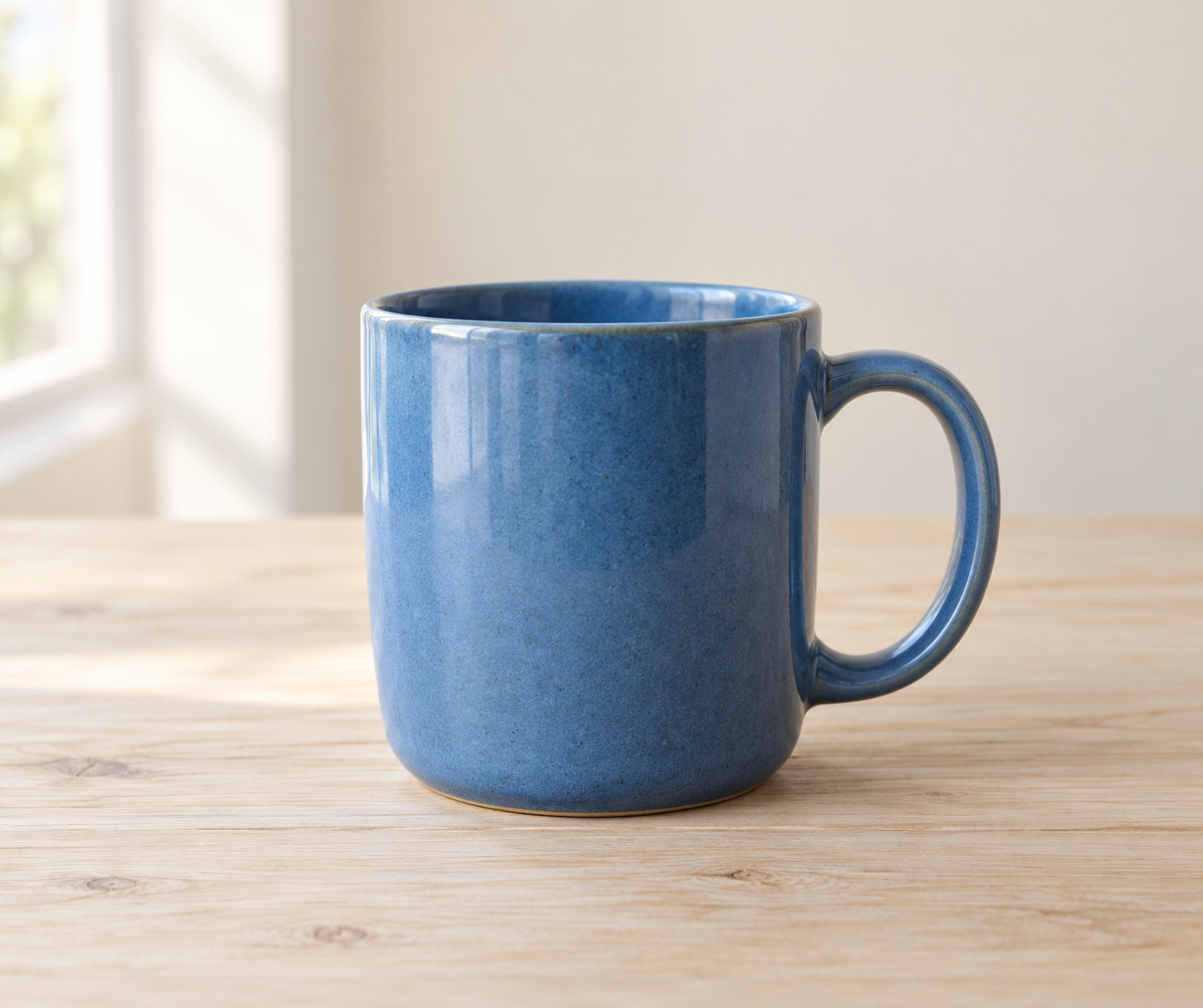
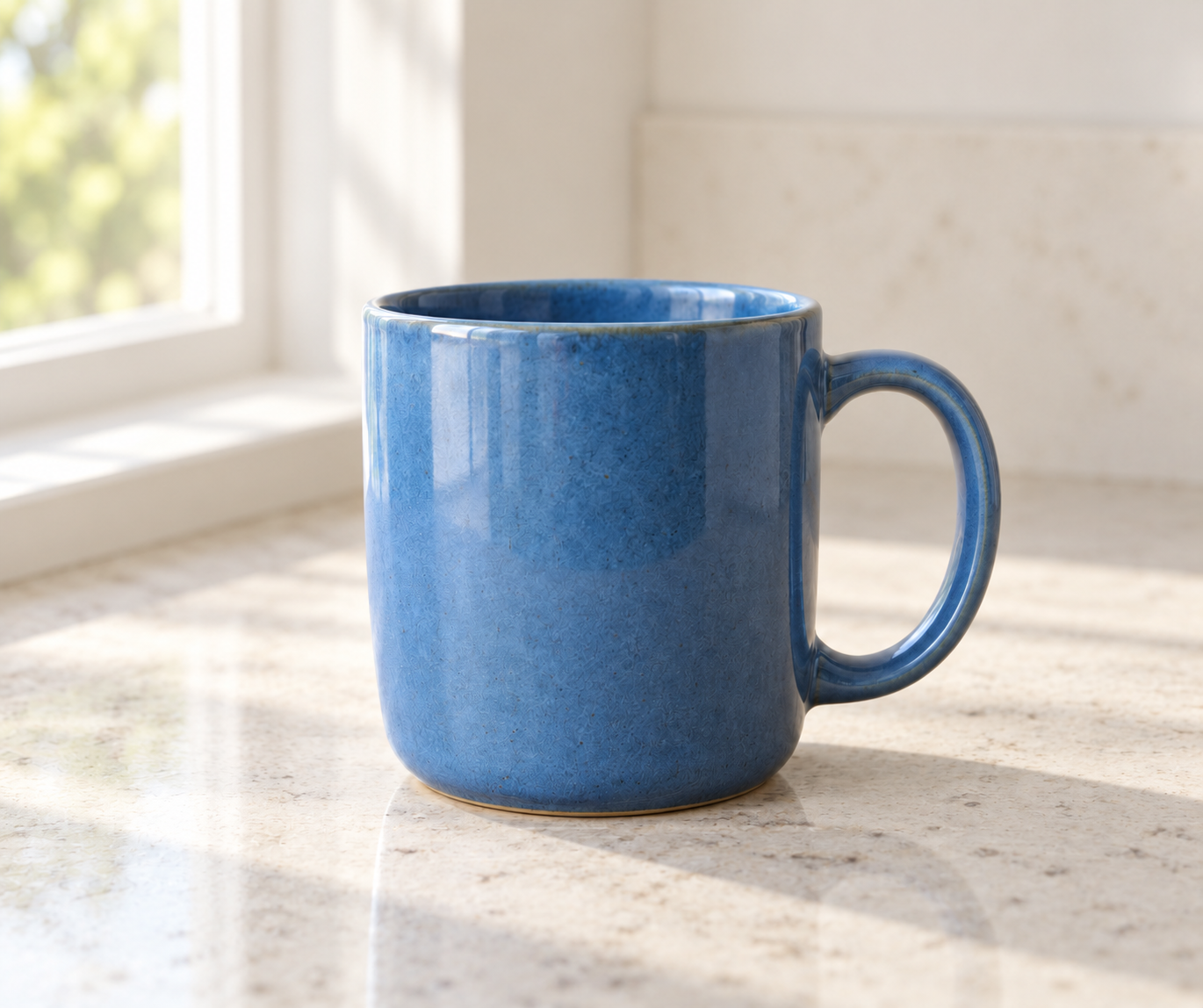
The ChatGPT mug pair changed the setting and also changed the glaze and reflections. Look for the same kind of unintended change when reviewing a studio edit.
Enlarge image
1. Generate a product concept
Enlarge image
2. Give it a different setting
Mug concept and background edit · Created with ChatGPT.
If the source or request is unavailable
Use the displayed retry for a load failure or choose another history item. A source must load and be attached successfully before an image-input edit can use it. Check the selected model and account context rather than assuming every image model supports the same inputs.
Access and usage
Work requires Plus and uses applicable model and tool credits. The Work reference explains request usage, active sessions and new-task limits.
Image studio questions
Tools prepare instructions; results still need review.
Is a selected rectangle a guaranteed mask?
Treat the selected region as guidance for the AI request. Inspect both the target and the rest of the image afterward.
Does Resize only crop or stretch my image?
It requests a new framing and can redraw details. Compare the subject and inspect actual dimensions.
How do I keep the original image for comparison?
Identify the original in history before preparing the edit, then compare it with the returned version. Keep source files available where your workflow requires them.
Guides and resources
Find more detail and choose your next step.
Your turn
Prepare a source image and one edit.
Create the garden-journal cover below or use your own permitted image. Open that exact source in the Image studio, inspect it, then prepare the background revision.
Write a draft and review the checklist.
Your draft saves in this browser. You can leave and come back.
Take your brief into Work
Copy the brief, open Gab AI and choose Work. Paste the request and send it yourself, then inspect the delivered result.
Open Gab AI for WorkMake one focused revision
After creating the cover, open its image file from the task or Sources & Outputs. Select the original in history. Choose Edit, enter the follow-up below and use Add to chat; inspect the image attachment and draft before pressing Send.
Using the original garden-journal image, change only the background to pale blue. Preserve the watering can, three seedlings, composition and empty title space as closely as possible. Return a separate revision so I can inspect any changes to those details.Use the checklist to review the change and the details that should stay.