
8 min reading · Practice at your pace
Create and Review an Image in Work
Create an image as part of a Work project, give it a clear visual brief and compare a focused revision. Practice with a garden-journal cover, then inspect the details that matter.
Start with a visual result you can inspect
Use Work when an image is part of a larger task, or use the dedicated Image Generator for a direct single-image workflow. State subject, composition, shape, light and what the image is for.
Compare the setting and the subject
The blue mug keeps its recognizable shape after the setting changes, but its glaze and reflections change too. This pair was generated with ChatGPT; use it to learn what to inspect in your own Work result.
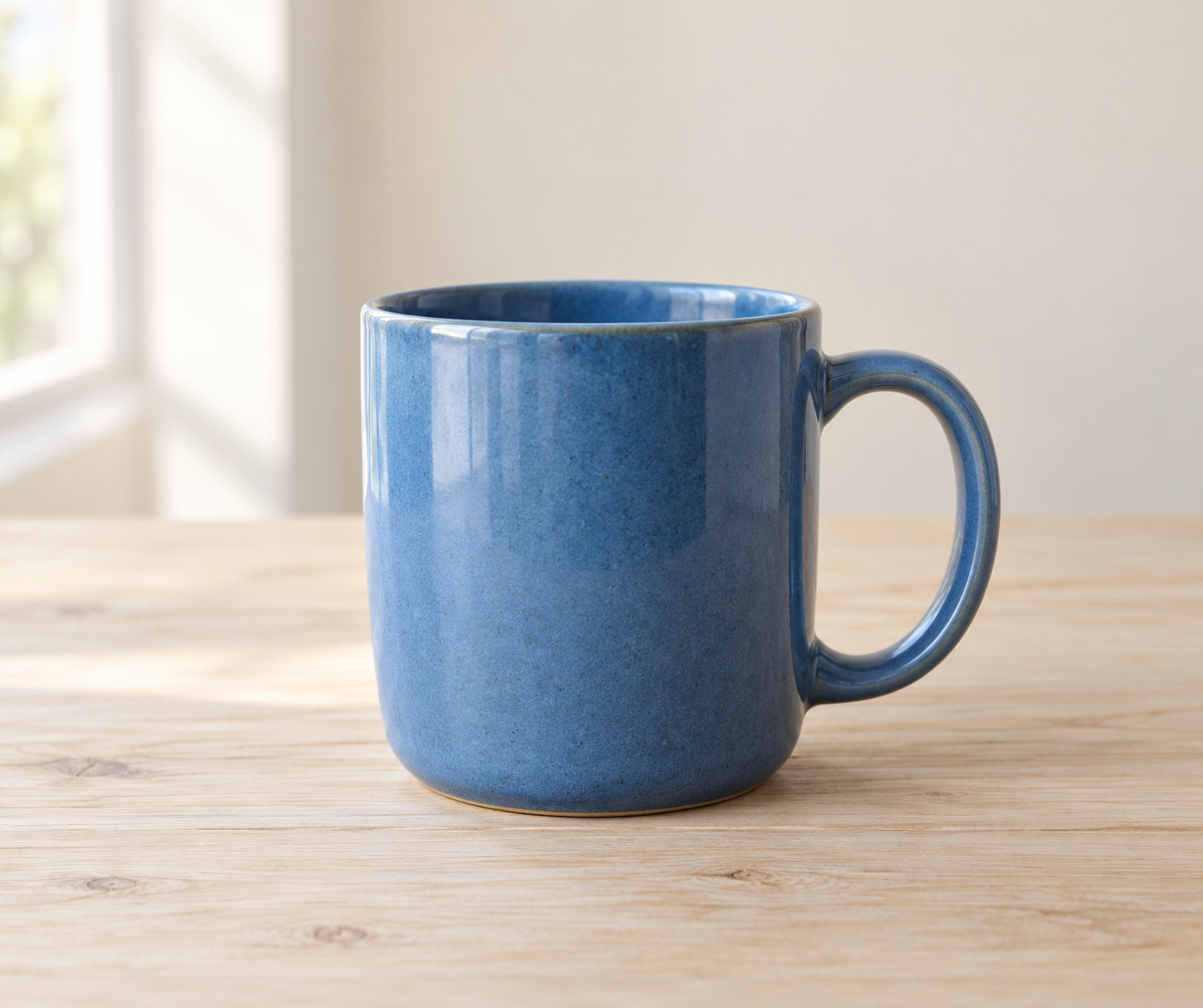
Enlarge image
1. Generate a product concept
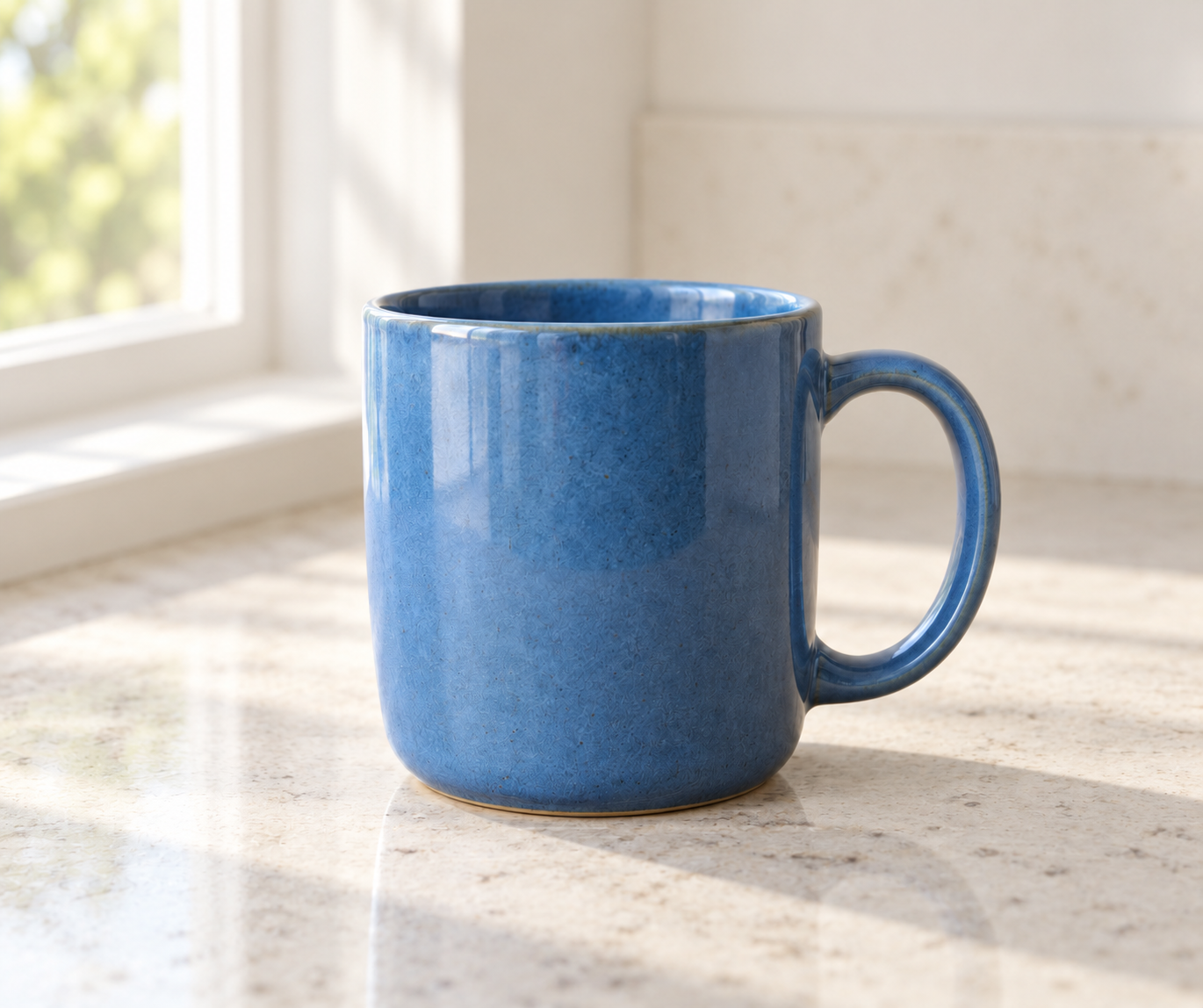
Enlarge image
2. Give it a different setting
Mug concept and background edit · Created with ChatGPT.
1. Describe the image you want
The garden-journal practice brief names the subject, layout, light and space for a title. Adapt those details to the image your project needs.
Create a square illustrated cover for a garden journal: a blue watering can beside three seedlings, warm morning light, simple cream background. No lettering. Leave space above for a title to add later. Return the actual image. I will check the can, three seedlings and clear space before requesting any revision.2. Inspect the delivered image
Open the actual image, inspect subject count, small shapes, edges, unwanted lettering and composition. If source fidelity matters, compare against the permitted source rather than relying on a preservation instruction.
3. Request one focused revision
Name the original image, what changes and what stays. Keep both versions identifiable; compare the whole image afterward.
Using the original garden-journal image, change only the background to pale blue. Preserve the watering can, three seedlings, composition and empty title space as closely as possible. Return a separate revision so I can inspect any changes to those details.4. Use the Image studio for an area or version
The studio offers history, zoom, selection and image-edit requests on supported clients. Add to chat prepares the image context and instruction; review and Send to run it. Selection guides an AI request, not a guarantee that pixels outside it stay unchanged.
Access and usage
Work requires Plus and uses applicable model and tool credits. The Work reference explains request usage, active sessions and new-task limits.
Work image questions
Inspect the result and its source.
Should I use Work or the Image Generator?
Use the dedicated generator for a direct image request. Work can place image creation in a broader task. The selected model, controls, permissions and usage still need checking.
Will a request to preserve my product keep every detail?
No exact-preservation guarantee follows from the instruction. Compare geometry, labels, color, texture and reflections with the source.
Does Add to chat run the image edit?
It prepares the image context and instructions in the conversation. Review the draft and press Send to run it.
Guides and resources
Find more detail and choose your next step.
Your turn
Create a cover, then change its background.
Use the complete garden-journal brief. Check the watering can, three seedlings, square framing and empty title space before requesting the background change.
Write a draft and review the checklist.
Your draft saves in this browser. You can leave and come back.
Take your brief into Work
Copy the brief, open Gab AI and choose Work. Paste the request and send it yourself, then inspect the delivered result.
Open Gab AI for WorkMake one focused revision
After reviewing the first result, send this follow-up in the same conversation. Keep both versions available for comparison.
Using the original garden-journal image, change only the background to pale blue. Preserve the watering can, three seedlings, composition and empty title space as closely as possible. Return a separate revision so I can inspect any changes to those details.Use the checklist to review the change and the details that should stay.