
AI project folders: access, editing and file recovery
Give Work access to a project folder and control how it reads and changes your files.
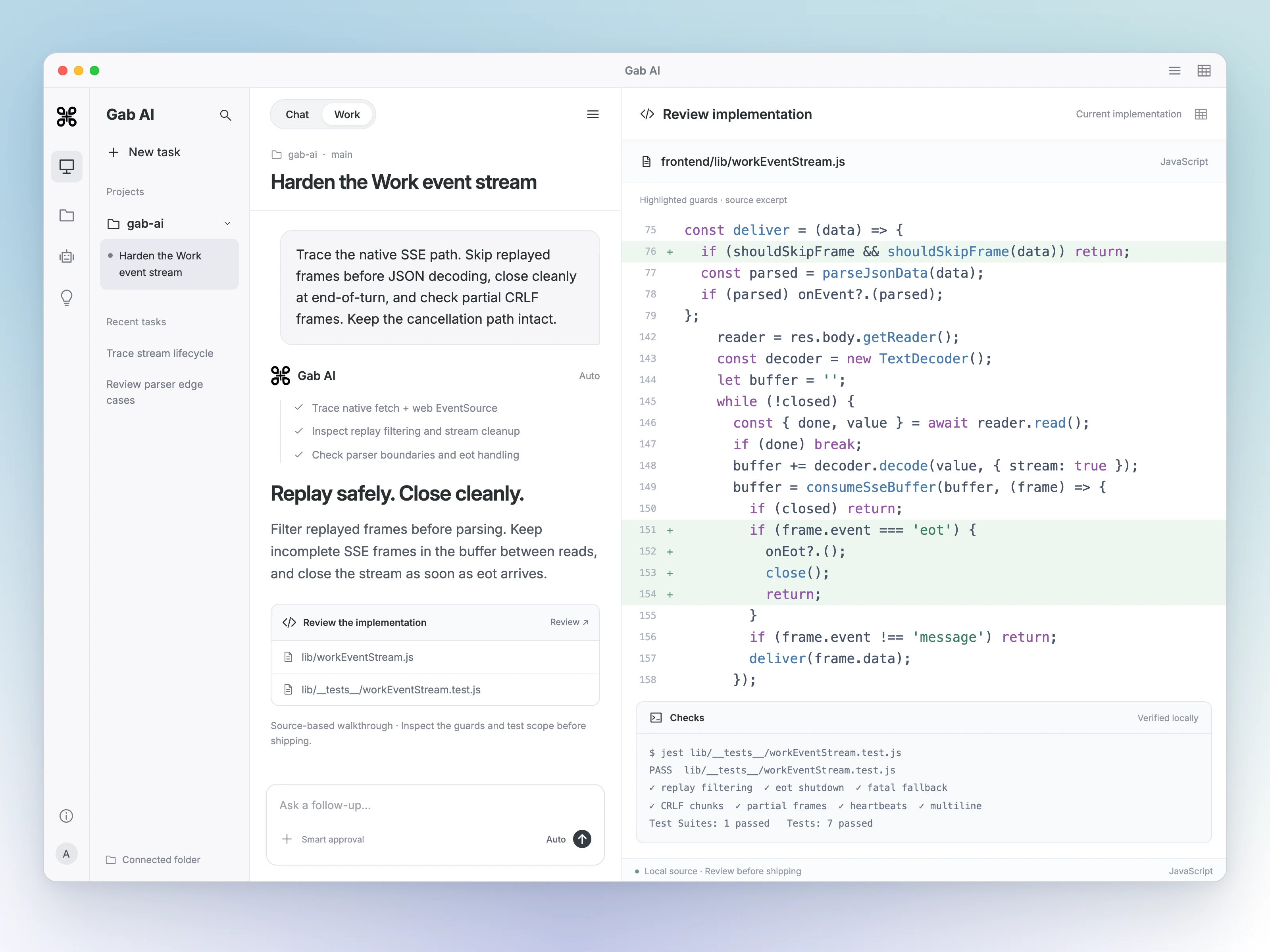
Enlarge preview
A connected project, its files and its checks
Connect a folder and choose its access
Bring a project folder into Work, start with an overview and choose when edits are allowed. The Windows and direct Mac instructions below cover connecting folders, reviewing changes and file recovery.
Account and task access
Work requires Plus and uses your selected model and tools. Folder, command, website and Remote permissions are separate controls on the host computer. Relevant task content is processed through Gab AI and its providers.
Work with a folder on your computer
A project folder connects a Work chat to files on your Windows PC or Mac. Work can read and search the folder and, with permitted write access, create and edit files there. Use an ordinary folder of documents or a Git repository. Git is optional.
Local folder tasks require Work access and compatible installed app and service support. Keep Gab AI open and your computer awake and online while Work needs the folder. Selecting a folder does not upload it wholesale; files the agent reads are sent to Gab AI’s cloud agent.
Windows and the direct-download Mac app have different setup and recovery controls, described below. The Mac App Store edition uses cloud Work and sandboxed file import/export rather than local project execution. The platform-specific instructions below distinguish Windows and Mac controls.
Create a named project
On Windows, open Projects → New project, enter a Project name, choose Choose source folder, select an existing folder in the Windows picker, then choose Create project. Open the project to start its Work chat or use Files to review its local files and settings.
In the Mac sidebar, use the add control beside Projects to open Create project. Enter a Project name, choose Add under Source folder, select an existing folder with the desired access, then choose Create project. You can also connect a folder directly from the Mac Work composer as described below.
Creating a project saves a folder connection; it does not generate files or send a task until you give Work instructions. If Remote automatically shares your projects, the new saved folder is included with its permitted access. Review sharing settings when adding a project.
Choose a project folder on Mac
Start a new Work chat
In the Mac app, select Work. Before sending the first message, open Project folder in the composer.
Select a saved folder or add one
Search saved folders by name or path, or choose Choose another folder…. In the macOS folder picker, select the folder you want Work to use.
Review access
For a new folder, check Read-only access (inspect files without changing them) if you only want research or review. Leaving it unchecked allows reading and writing. Select Use Project Folder. Saved folders retain their access settings; check Manage folder access… when you need to change them.
Send a specific task
Confirm the folder name in the composer, then describe the files to use and where to save the result. The chat keeps its own folder connection for follow-ups. Choosing another folder for a new chat does not switch an existing chat’s folder.
Review the documents in this project folder. Summarize what each file covers, identify missing information, and suggest a clearer folder structure. Do not change any files.Read-only and read & write
Read-only lets Work inspect and search permitted files. Read & write also allows supported file changes. File access and command execution are separate permissions.
On Windows, open the project’s Files and settings. Check Read only or Read & write. Use Set project read/write to allow editing, or Make read only to remove it. The setting applies to the editor, Git and new Work tasks; existing tasks retain their own granted access. Follow the installed app’s access and availability messages.
On Mac, open the project folder menu → Manage folder access…, or Gab AI app Settings → Mac app → Folder access → Manage folder access. Select Make read-only, or Allow edits… followed by Allow read & write. Changes apply to tasks connected to that saved folder grant. An operation already running may finish; other saved grants are managed separately.
Saved folders, projects, and individual uploads
Project folder connections are saved on the computer where you choose them. Use Projects in the sidebar to return to a project and its chats. Reconnect a moved or unavailable folder using that app’s project controls.
An uploaded file is a reference stored with your account. A project folder connects to a directory on your computer. Uploading one document does not grant access to neighboring files. Choose the specific project directory needed for the task.
Collections and local projects
Collections organize chats and uploaded files across your account. On compatible Mac builds, collection settings → Folder on this Mac supplies a local folder for new Work chats in that collection. The selection saves on that Mac; existing chats keep their own connections when the default changes.
On Windows, use Projects to connect a PC folder and start its local Work chats. The Mac collection control is not a Windows setup step. Use Remote to continue shared Windows or Mac project chats from your phone.
Review and restore changes on Mac
Open change review
In a connected Work chat, open the folder menu → Review changes. You can also open Changes or Task history from the project panel.
Check project changes and task history
Choose Repository to review staged and unstaged Git changes and available text diffs. Choose This task to see saved edits grouped by request and file, including recorded checks when available. For a folder without Git, use This task. Task recovery history is separate from Git history.
Stop or finish the task before restoring
Select a recorded change. When supported, choose Restore… to restore the version saved before that edit, or Undo… for a supported creation or move. Review the confirmation. Restoration needs a connected folder with edit access; newer changes to the file can block it. Only changes with a supported restore or undo action can be reversed this way.
Manage saved originals
Open Gab AI app Settings → Mac app → Recovery history → Manage recovery history, or Recovery history… in a task’s folder menu. Use Review to inspect a saved history and Export… to save a copy. Originals stay on this Mac, and history is not removed automatically. If a recovery storage limit stops new edits, review and export histories before deciding which to remove.
Review and recover files on Windows
Open the project’s Files to browse supported local files, search and open the editor. Use the project menu → File history in to review retained manual and agent saves. In a file’s history, choose Preview previous version, then Load previous version into editor when available. Review the contents and save against the current file revision to restore it. Enable editing and finish the current draft before loading an earlier version.
Save recovery in handles interrupted manual saves; Agent save recovery in handles interrupted Work saves, including phone-started tasks. Follow the offered recovery action for the original account, task permission and folder connection. A separate task cannot take over another task’s recovery grant. These controls depend on the installed build.
Retiring a history entry removes that retained version and prevents restoring it later; the current project file stays in place. Recovery is separate from Git and a full backup. External edits and command side effects may have no retained original.
Mac recovery limits
Recovery history contains originals saved before supported Work file operations. It is separate from Git commits and from a full computer backup. Files changed by external apps or command side effects may not have a saved original in this history.
When a completed reply shows a changes card, use Review or a file row to open the edits recorded for that request. Undo… opens the saved-edit review and confirmation; it is not an unconditional reset of the entire project. Stop the task first, check the file and version in the confirmation, and resolve any newer-file conflict before retrying.
Use Export… in Manage recovery history to keep a separate copy before removing stored history. Move to Trash… removes the selected task’s originals and disconnects its folder if still connected. The task’s recovery review and Restore then become unavailable. Revoking folder access alone leaves the originals intact.
Tests, builds, and terminals
Read and write access permits file edits; it does not automatically allow Work to run programs. On compatible Mac builds, Manage folder access has separate Local tests & builds, Development servers and Trusted terminal controls. On compatible Windows builds, the project menu’s Command access has its own permissions and environment settings. Availability depends on the installed app and service.
The Windows project Terminal is a manual PowerShell session, separate from agent-run commands. See Local coding & commands for platform-specific steps and limits.
Clear, disconnect or revoke access on Mac
No project folder clears the selection for new Work chats, or the default for a collection. It leaves existing chats connected.
Disconnect from this task, in a connected chat’s folder menu, removes that chat’s folder access.
Revoke access… in Manage folder access removes access for all connected tasks and collections using that saved folder on this Mac. Confirm with Revoke folder access. Project files and recovery history stay intact.
Move to Trash… in recovery history removes the selected task’s saved originals. If the task is still connected, this also disconnects its folder. Its Changes history and Restore become unavailable. Export first if you want to keep a separate copy.
If something goes wrong
On Windows, use Reconnect project folder in project settings when offered if a disk or folder is unavailable. Remove project… removes the saved folder connection and keeps project files. Manage paired-phone access separately in Projects → Remote access.
On Mac:
Folder unavailable: check that its disk is connected and choose the folder again when asked. If a chat offers Reconnect this chat’s folder, stop the task first, choose the original folder, verify its path and access, and select Reconnect folder. This keeps the chat and messages.
Access was revoked: start a new Work chat and choose a folder. A revoked task cannot reconnect through the reconnect control.
Edits or Restore unavailable: check the folder’s read-only setting, its connection, and whether the task is still running. Restore can also be blocked by newer changes or an unsupported operation.
No Git changes: an ordinary folder does not need Git. Open Task history in the project panel, or This task in change review, to review Work’s recorded changes.
Folder missing on your phone: open Remote access settings on the host computer and check that the folder is shared, then refresh Remote on the phone.
Setup questions
Does uploading a PDF connect its whole folder?
An individual file upload gives the conversation that reference. A connected project folder grants access to permitted files on the host computer. These are different operations; uploading one PDF does not connect its neighboring files.
Do folder grants and recovery history sync to every device?
No. They belong to the host computer and installed app. Account uploads and chat history are separate. Remote can expose permitted shared project Work after host approval; it does not copy unlimited local access to another device.
Guides and resources
Find more detail and choose your next step.